Joining and leaving a voice room
- Click a voice room (marked with a speaker icon) in the channel list. You connect right away—no extra "join" button.
- People in the room are listed under the channel along with how long they've been there.
- To switch to another room, just click it.
- To leave, click the red phone icon (Disconnect).
On your first join, your browser will ask for microphone permission—choose Allow.
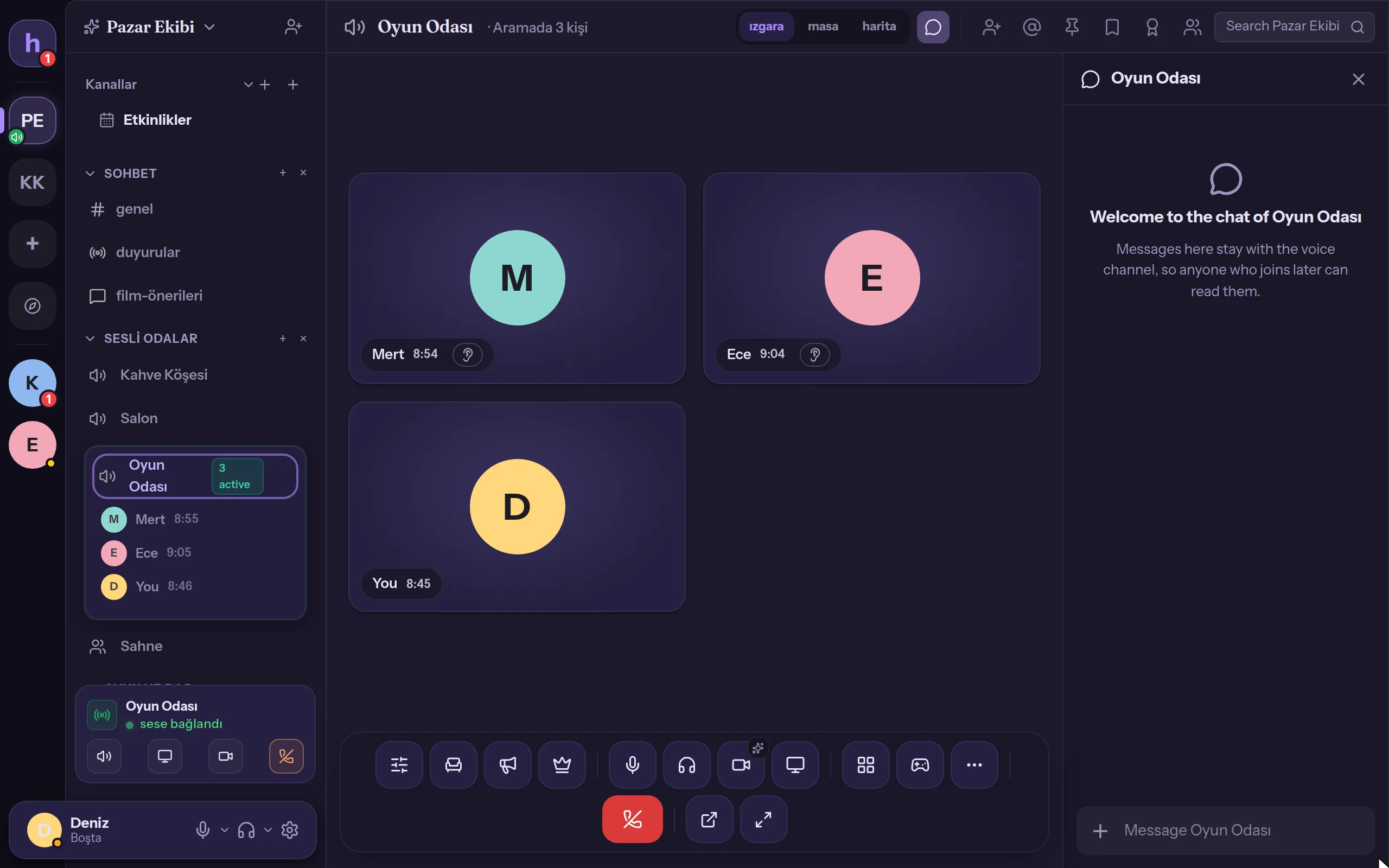
While in a room, a compact voice connection bar sits in the bottom left above your name: the room name, Voice connected, and buttons for soundboard, screen share, camera, and disconnect. You stay connected even while browsing other channels.
Microphone, headphones, and camera
The same buttons appear next to your name in the bottom left and in the room's bottom bar:
- Microphone: Mutes or unmutes you (Ctrl + Shift + M).
- Headphones (Deafen): Stops hearing everyone in the room and mutes your mic too (Ctrl + Shift + D).
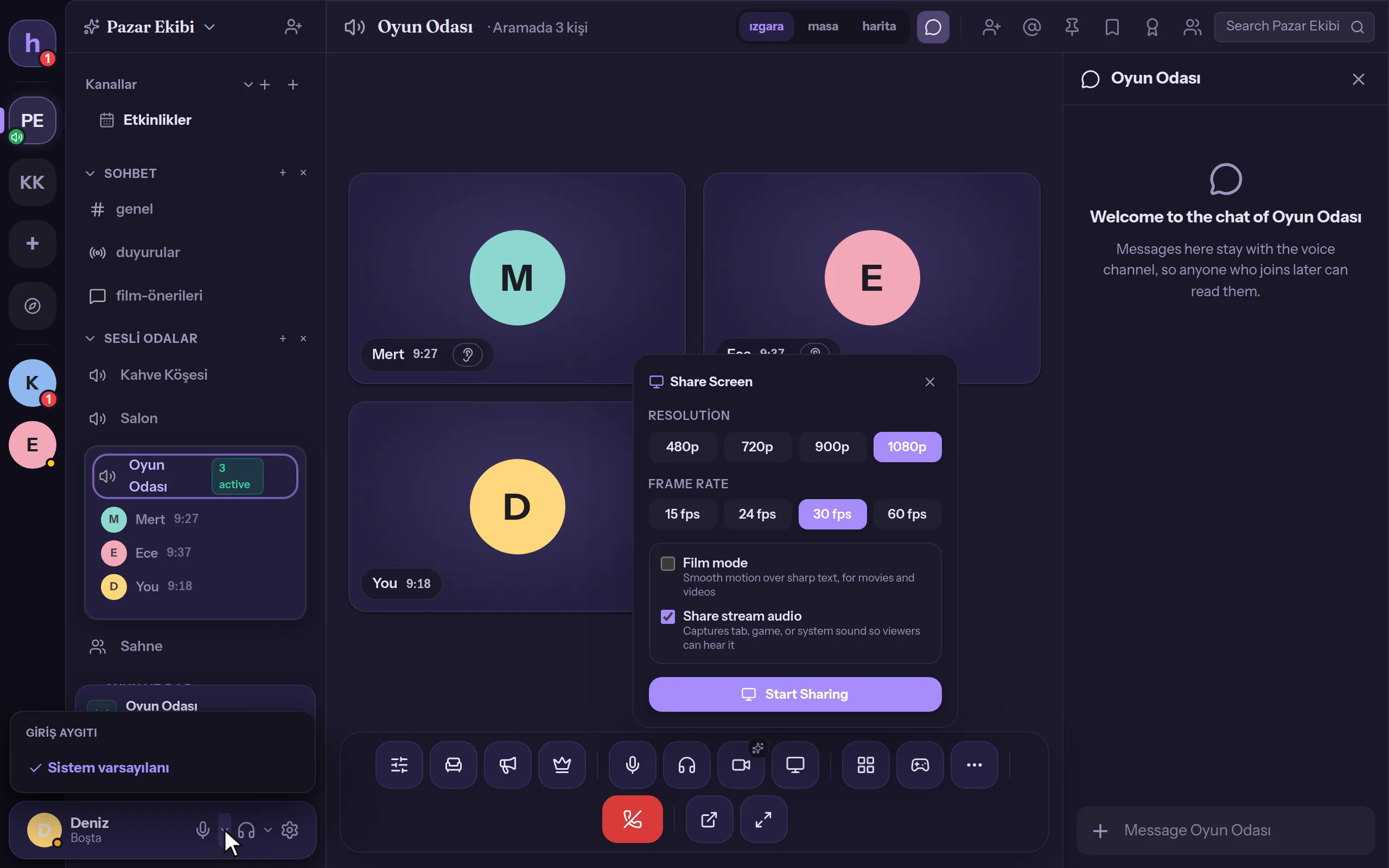
- The small arrows next to these two buttons let you pick your input and output devices (which mic and which speakers/headphones).
- Turn On Camera: Turns on your camera for the room. The sparkle icon on the corner of the camera button opens virtual backgrounds and camera effects.
To turn someone's volume down or mute them just for yourself, right-click their name: Mute for me and the User volume slider below it.
Screen sharing
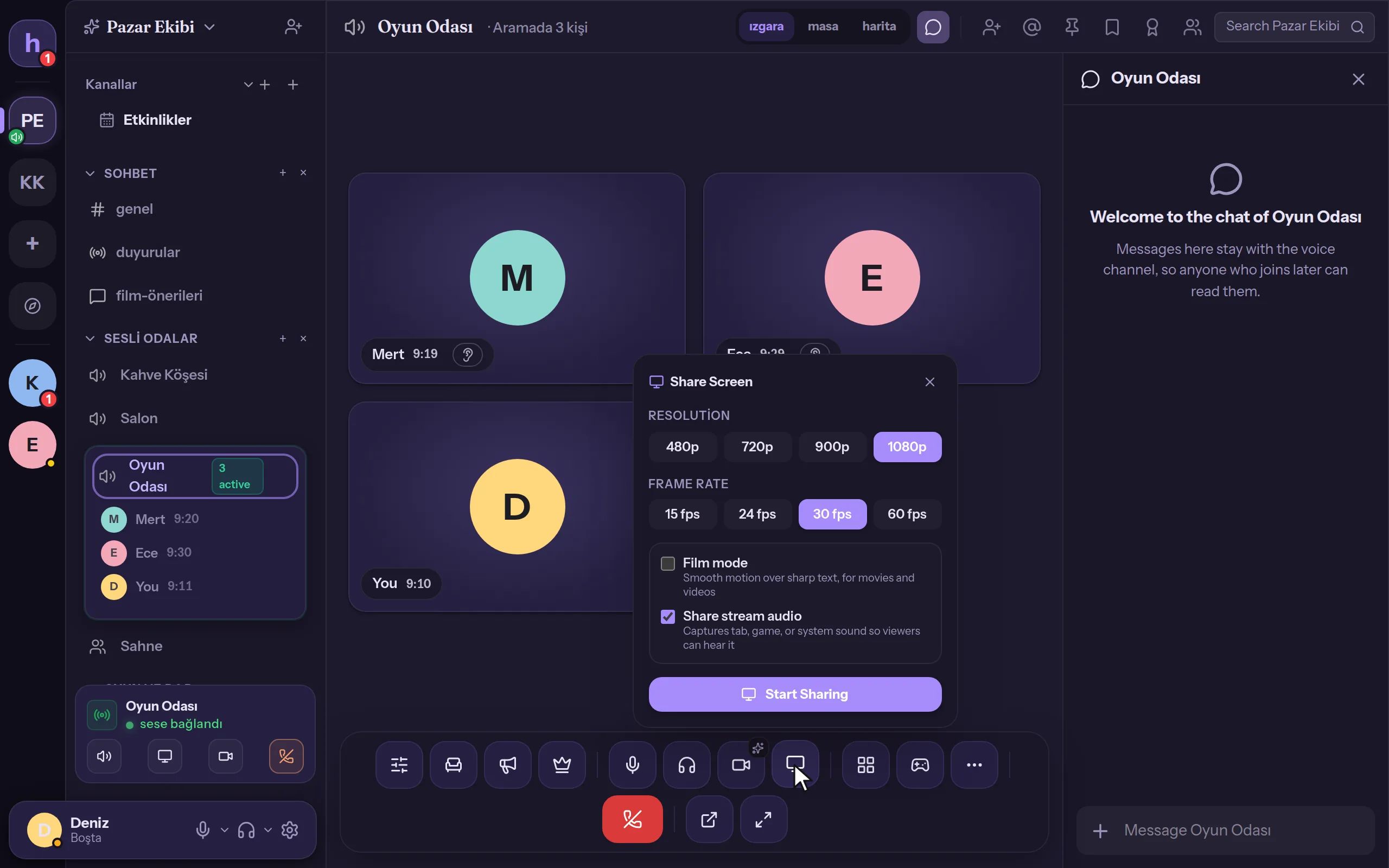
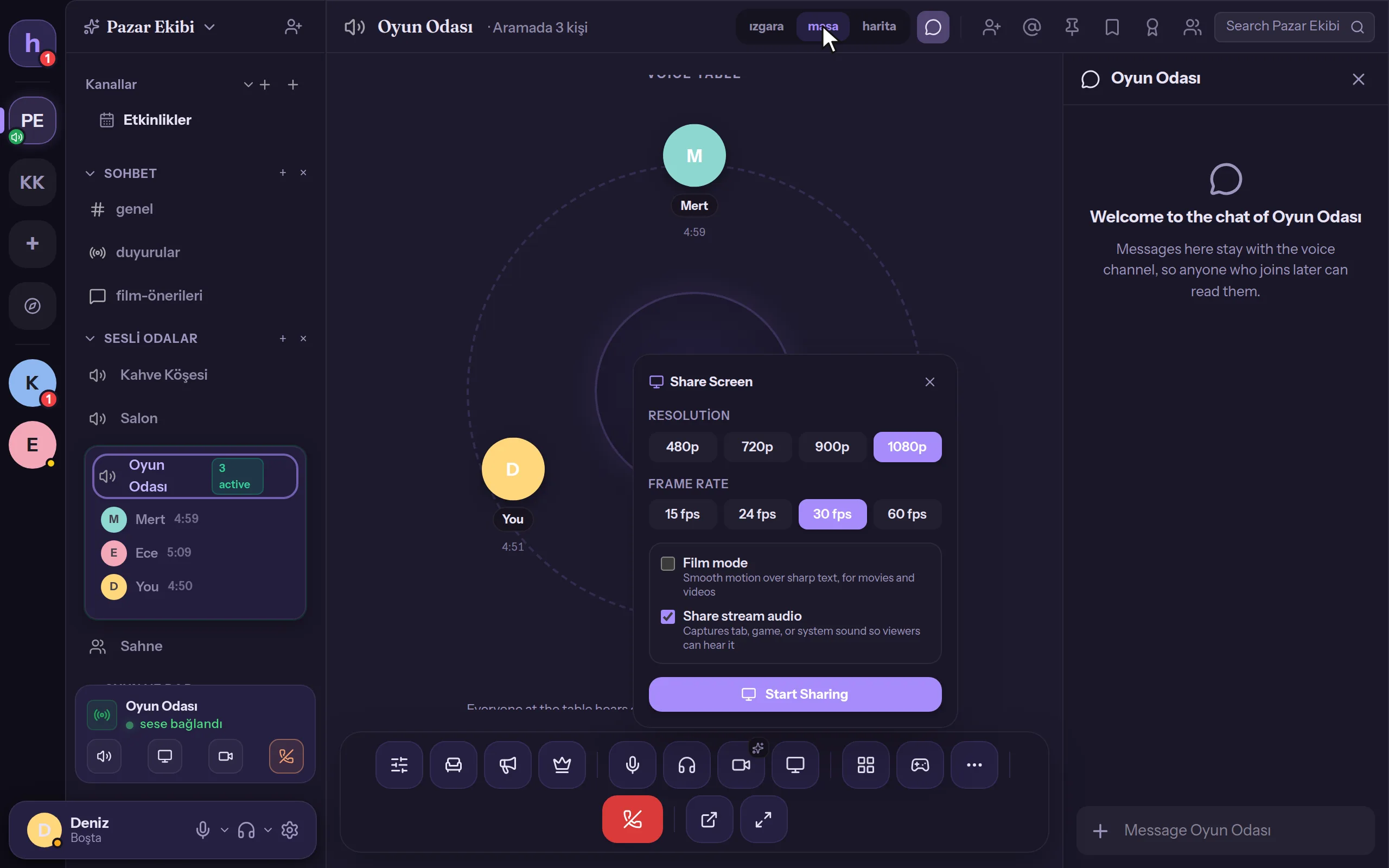
- While in a room, click Share Screen.
- Choose Resolution (480p to 1080p) and Frame rate (15 to 60 fps).
- If you're sharing a movie or video, check Film mode: it prioritizes smooth motion over crisp text.
- Keep Share stream audio checked to share game or video sound.
- Click Start Sharing and pick the screen, window, or browser tab you want to share.
While others watch your share, they can click Focus active stream in the bottom bar to enlarge it, Pop out floating preview to watch in a small window while doing other things, or Fullscreen to fill the screen.
Tip: Browsers can't always capture system audio (especially on Mac). To reliably share the audio of a specific game or app, use the Hoffle desktop app.
Soundboard
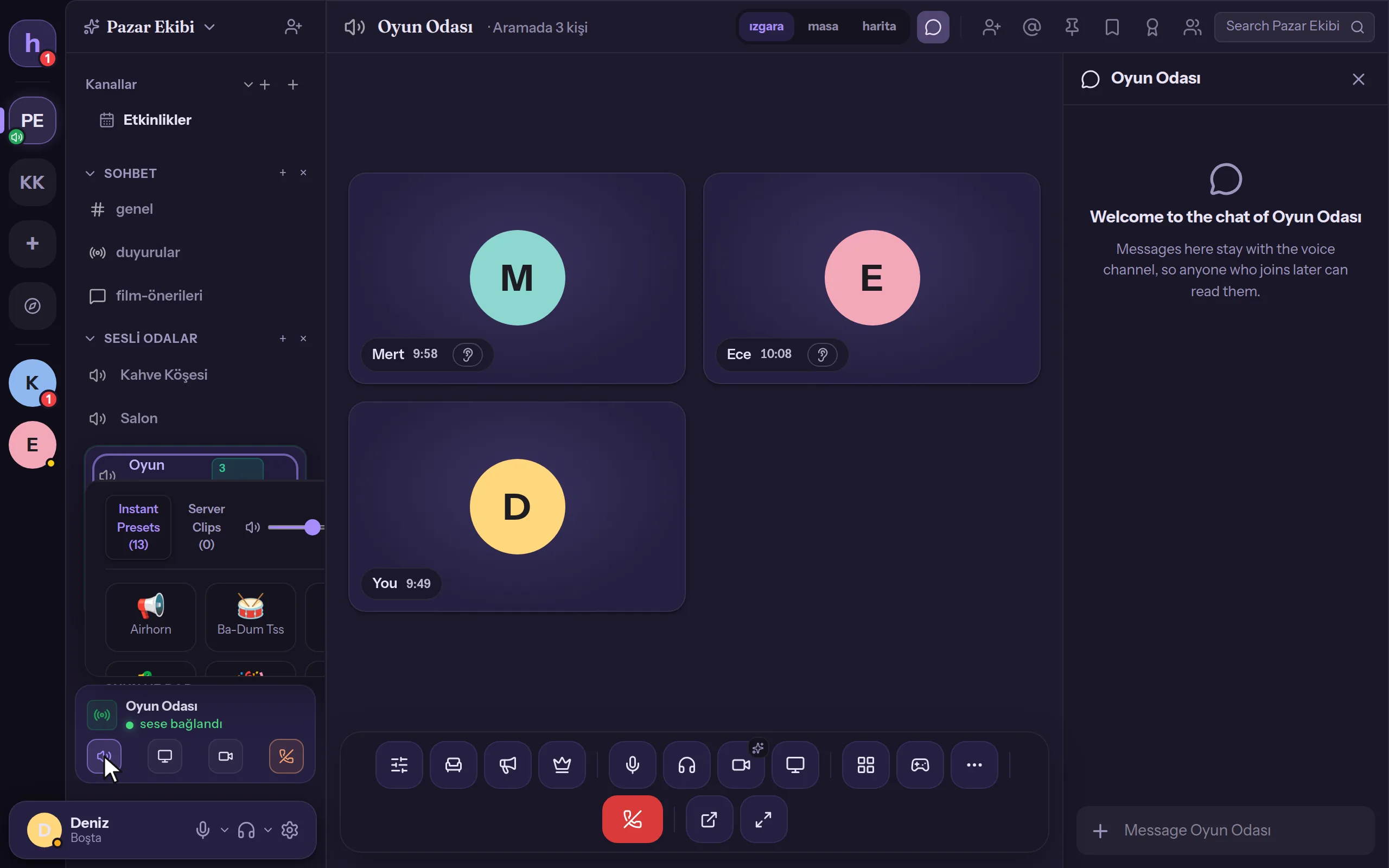
Click the speaker icon in the voice connection bar in the bottom left. Instant Presets has built-in short sounds (airhorn, ba-dum-tss, etc.), and Server Clips has sounds uploaded to the server. Clicking one plays it for everyone in the room. The slider controls how loud the soundboard is for you.
To add your own clips to a server, use Server Settings → Soundboard. Soundboards can also be disabled per voice room.
Room views: grid, table, and map
There are three views in the room's top bar:
- grid: Everyone in tiles; people with cameras on show their video here.
- table: Everyone sits around a round table. With Spatial audio on, voices come from where people are seated—left, right, or across from you.
- map: Opens a battle map in the room. Built for tabletop games like D&D; see D&D & Tabletop.
Spatial audio and table seating
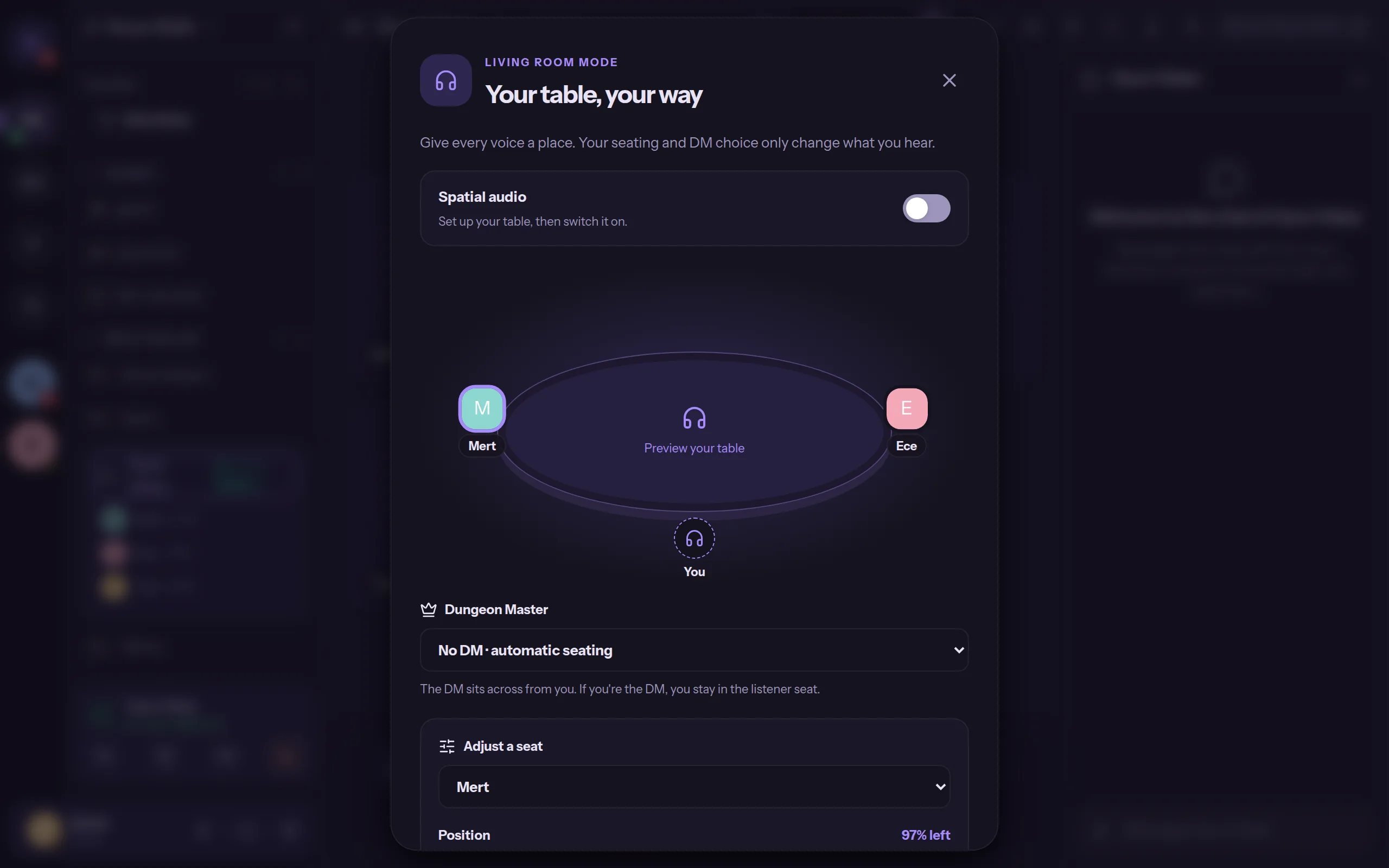
The leftmost button in the bottom bar (Table) opens the seating controls:
- Toggle Spatial audio on.
- Pick who is running the game in the Dungeon Master dropdown; they sit directly across from you.
- Use Adjust a seat to move someone around the table, or Swap with… to trade places between two people.
- Listening on: Choose Headphones · 3D sound if wearing headphones, or Speakers · stereo if using speakers.
These settings only affect what you hear, not anyone else.
Key Speaker and Priority Speaker
- Key Speaker (megaphone): Click when making an announcement; others see you marked as speaking importantly. Click Finish when done.
- Priority Speaker (crown): Automatically lowers everyone else's volume while you speak. Requires the Priority Speaker permission.
Other buttons in the bottom bar
- Activities (gamepad): Things to do together in the room: Watch Together, Reels Together, Whiteboard, Tier List, Draw & Guess, shared timer, initiative tracker, Beatbox, and more. See Games & Activities.
- More (⋯): Soundboard, Q&A, Show captions (live captions of speech), Transcribe my voice, Audio Desk, and Battle Map.
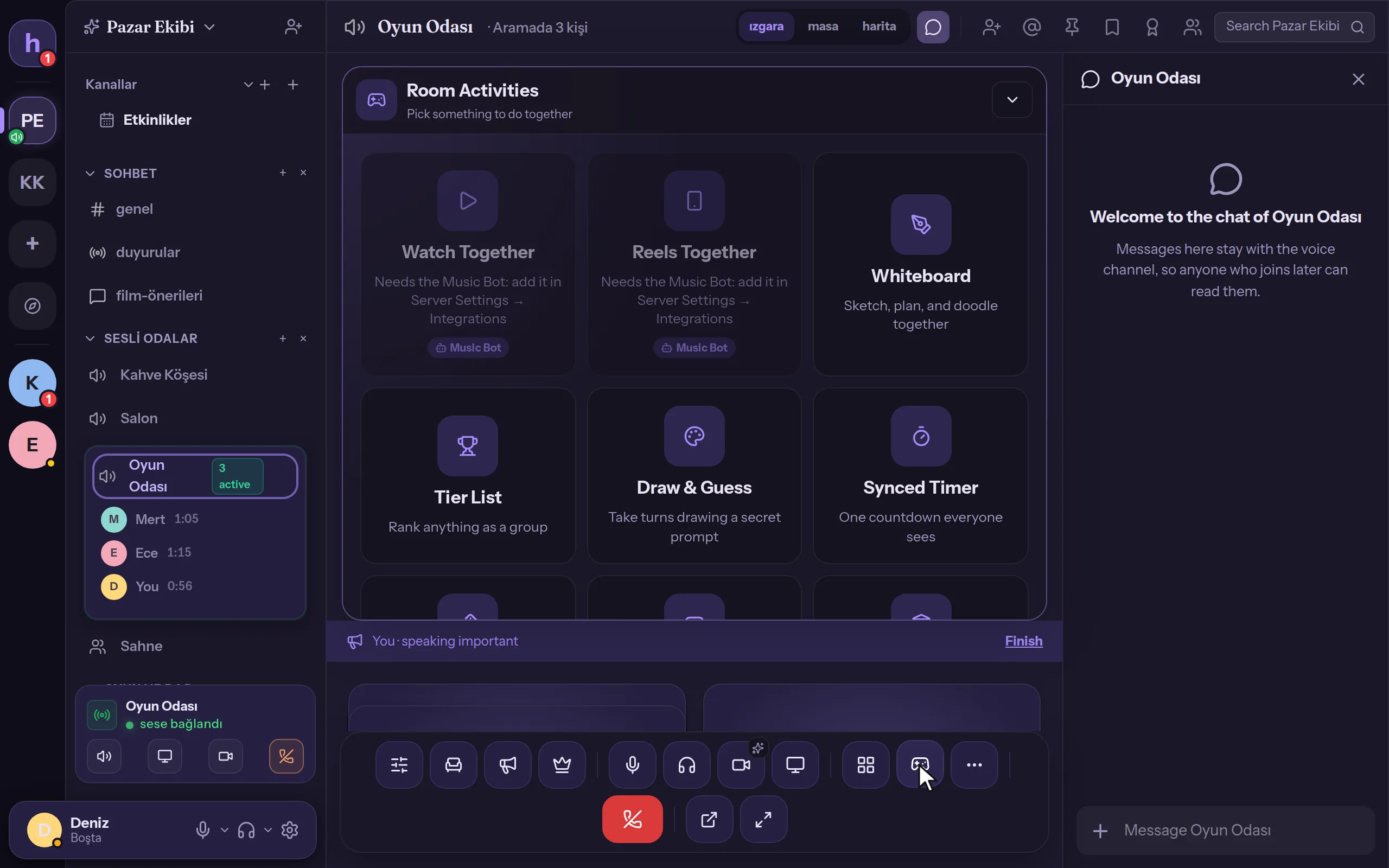
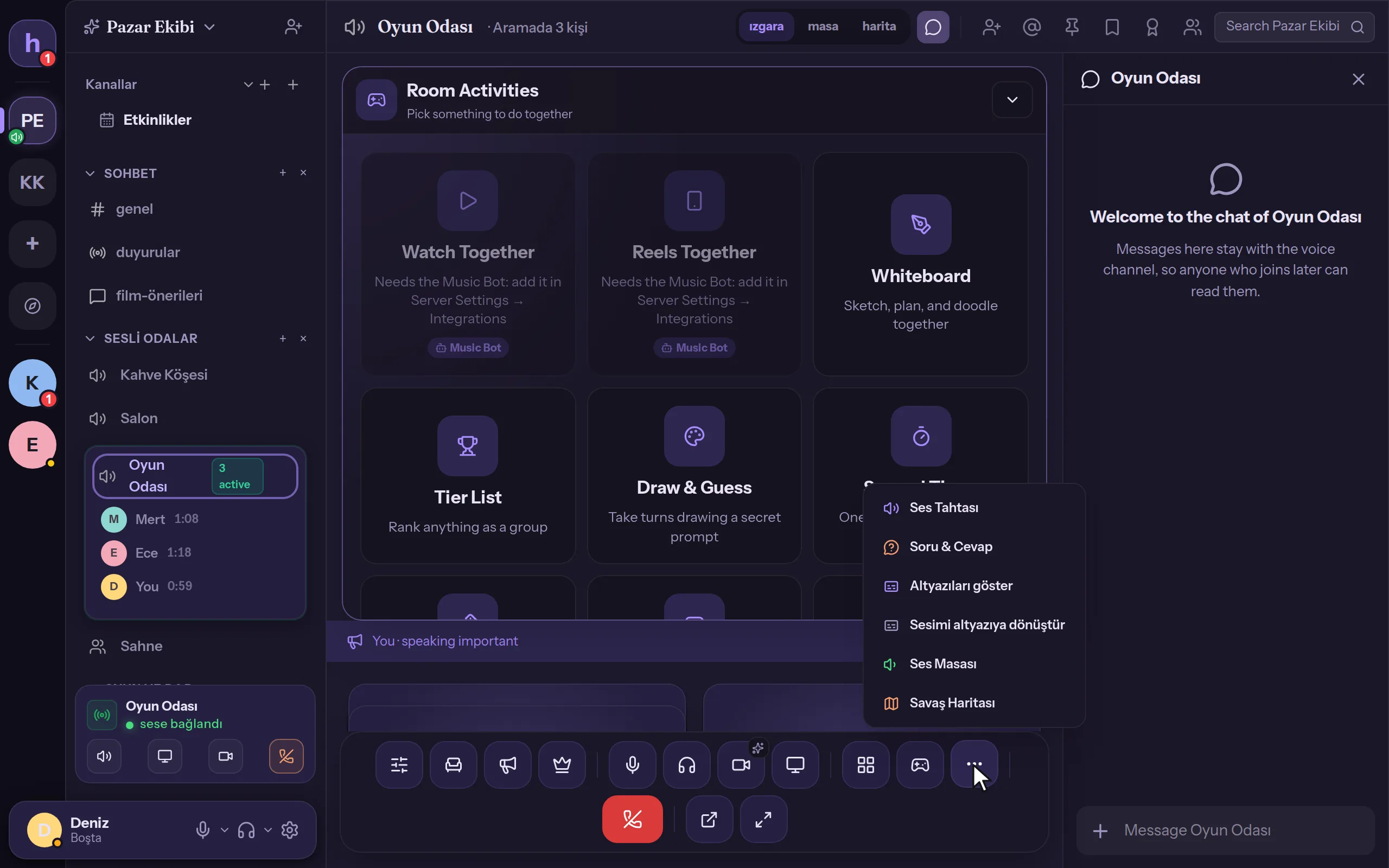
On the right side of a voice room is its own text chat. Messages sent there stay in the room so latecomers can read them too.
Voice & Video settings
Under Settings → Voice & Video:
- Devices: Pick microphone and speakers.
- Mic test: Let's check briefly deafens you and plays your mic back so you can hear how you sound.
- Input mode: Voice activity (opens when you speak), Push to talk (opens while holding a key), or Always on. Automatic sensitivity separates your voice from room noise.
- Noise suppression: Standard, Enhanced (removes fans, keyboards, and hum), or Strong (removes background voices too).
- Video: Camera selection and sharing audio with screen share.
- Sounds: Preview and customize mute, deafen, and join/leave sounds.
- Keybinds, Spatial audio, Connection: Shortcuts, spatial audio, and connection details.
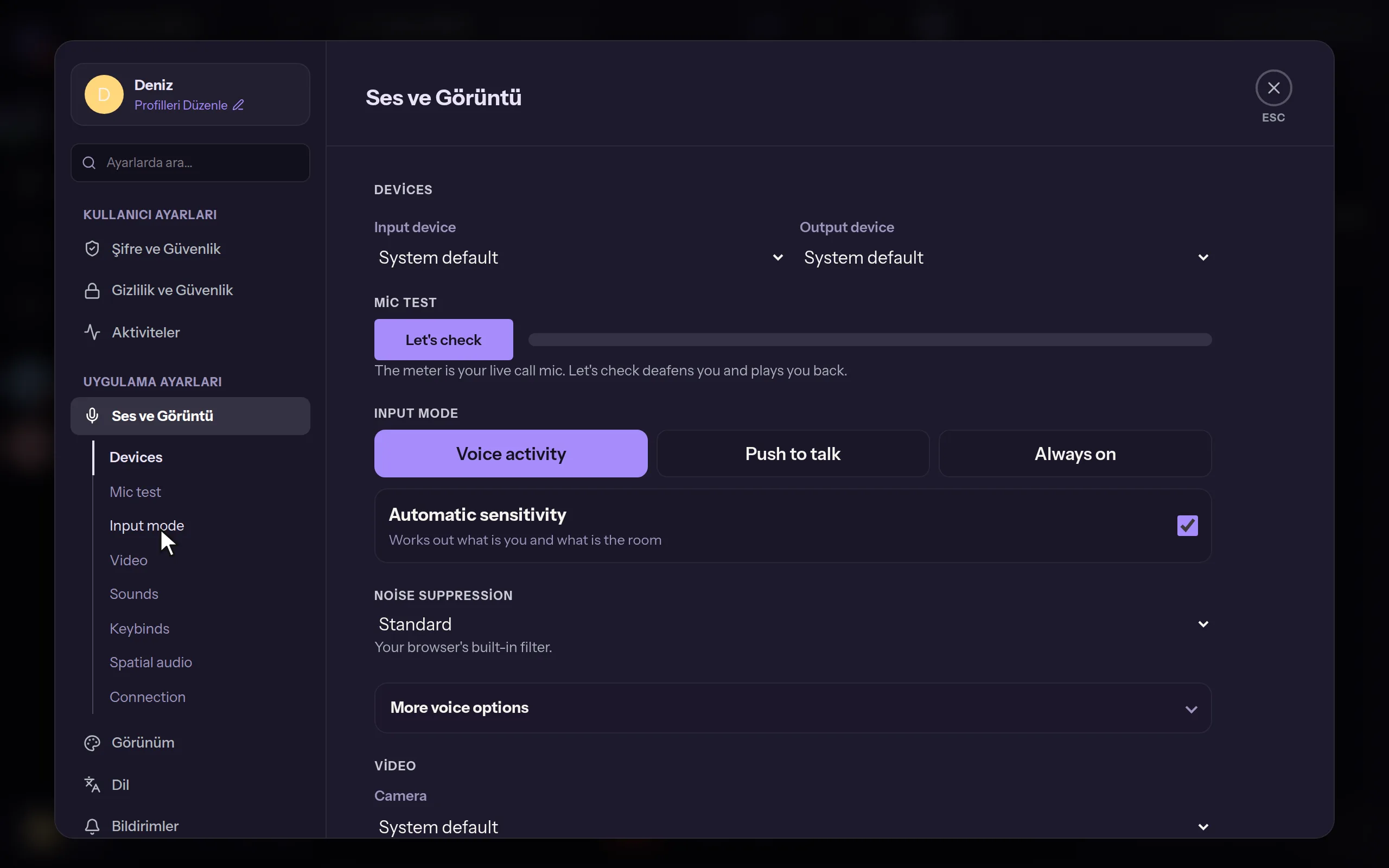
These settings are saved on your device. Switching microphones mid-call won't drop the call.
Stage channels
A Stage is a voice room for talks and events. The only difference from a regular voice room is that not everyone is a speaker:
- Anyone joining a Stage enters muted in the audience.
- People with active mics appear On stage; everyone else is listening.
- Stage moderators can invite a listener up to speak. Anyone given a Server mute steps down from the stage.
When hosting a talk, interview, or event where you don't want everyone talking at once, create a Stage channel instead of a regular voice room.