Acting on a member
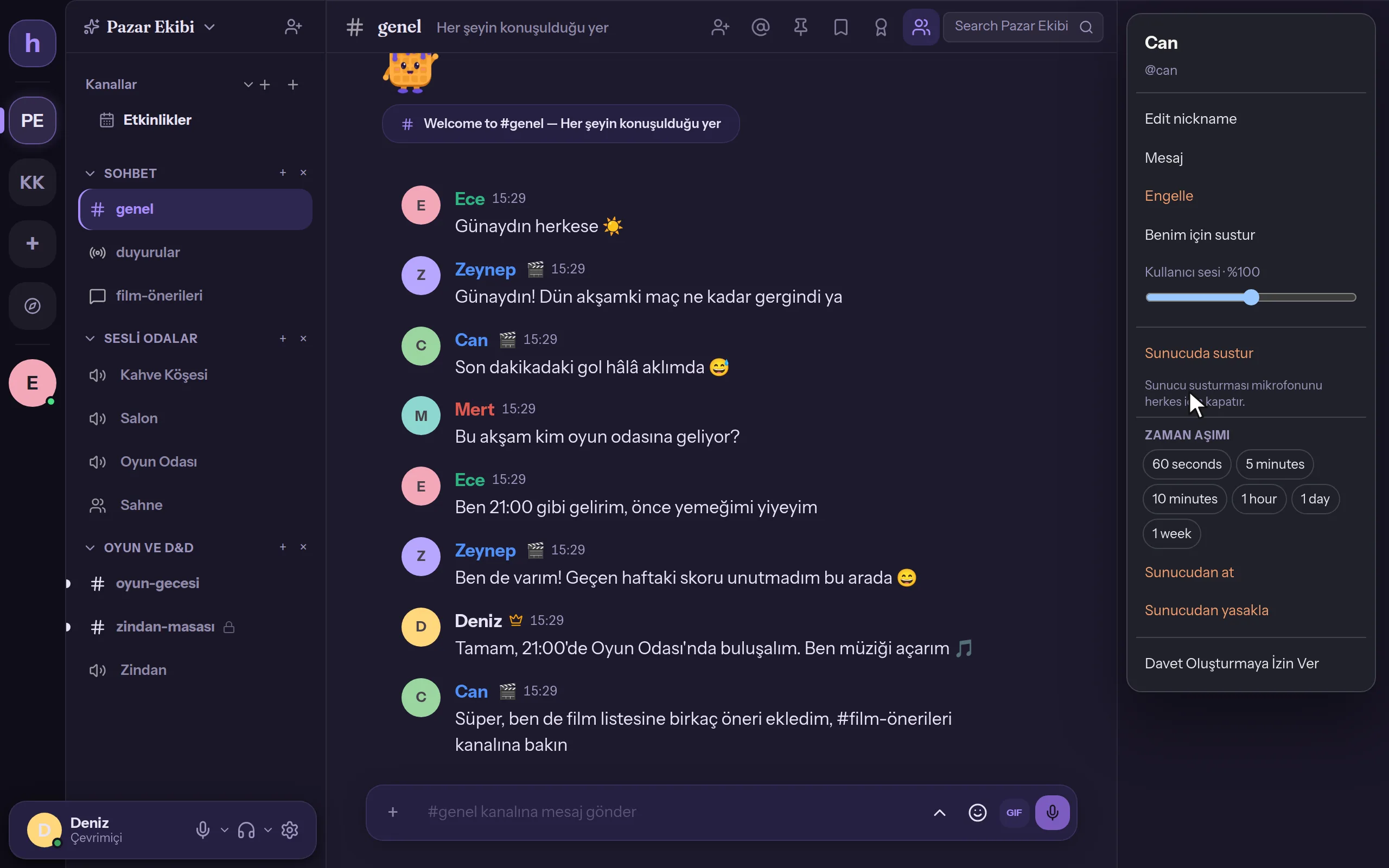
Right-click someone's name in the member list or in chat (long-press on mobile). If you have permission, the menu includes:
- Edit nickname: Changes the name shown for that person only in this server.
- Message: Opens a direct message with them.
- Block: Prevents them from messaging you and hides their messages from you. This only affects you.
- Mute for me: Mutes that person in voice chat just for you. Use the User volume slider below it to turn them up or down.
- Server mute: Mutes their microphone for everyone in the room.
- Timeout: Prevents them from typing or speaking for the duration you pick (60 seconds, 5 minutes, 10 minutes, 1 hour, 1 day, or 1 week).
- Kick: Removes them from the server. They can rejoin with a new invite.
- Ban: Removes them from the server and blocks them from rejoining.
To view banned users and unban them, open Server Settings → Bans.
Deleting messages and bulk purge
Hovering over a message reveals a trash icon in the top-right corner to delete it. You can always delete your own messages; deleting others' messages requires Manage Messages. Hold Shift while clicking delete to skip the confirmation dialog.
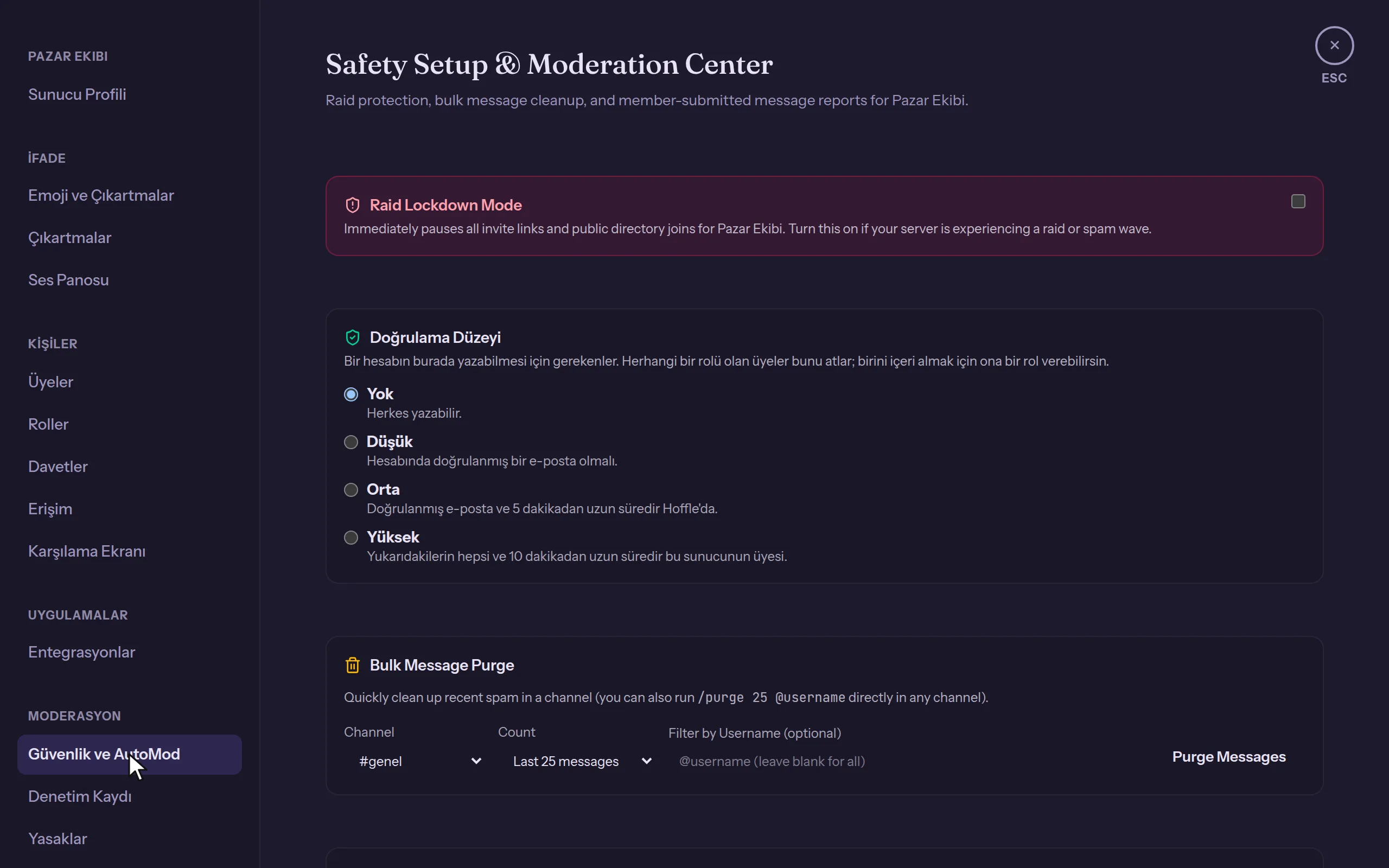
If a channel gets hit with spam, use Bulk Message Purge under Server Settings → Safety & AutoMod to delete the last 10, 25, 50, or 100 messages at once, optionally filtered to a single person. You can also run /purge 25 @username directly in the channel.
Raid lockdown and verification level
Under Server Settings → Safety & AutoMod, there are two key settings:
- Raid Lockdown Mode: Turning this on pauses all invite links and joining from the public server directory. Use it if unwanted accounts suddenly flood your server; turn it off once things settle.
- Verification Level: What an account needs before it can send messages in this server:
- None: Anyone can write.
- Low: Must have a verified email on their account.
- Medium: Verified email and a Hoffle account at least 5 minutes old.
- High: On top of that, must have been a member of this server for at least 10 minutes.
Members with any role bypass the verification level—if you want to let someone in right away, just give them a role.
AutoMod
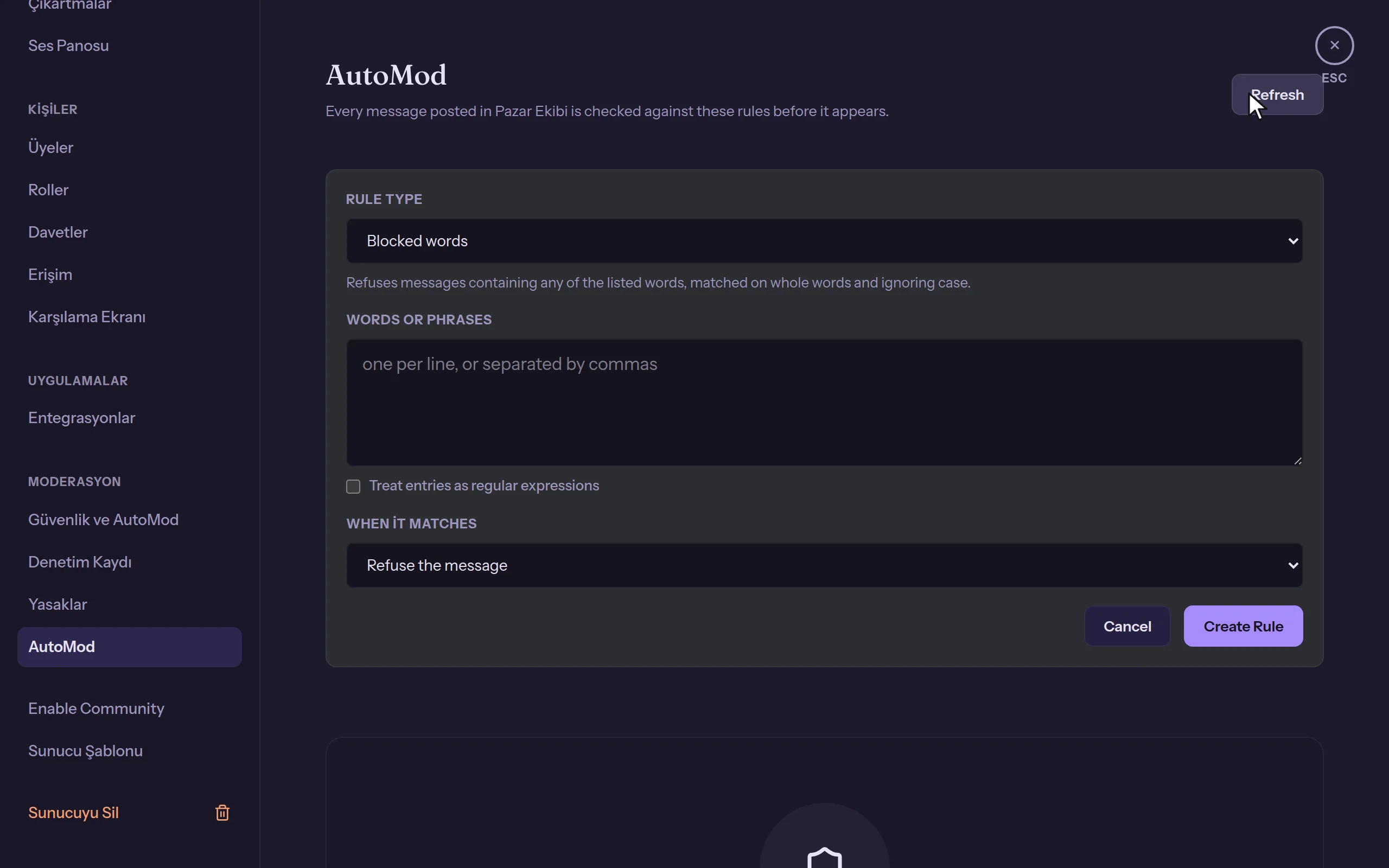
AutoMod checks every message sent to the server against your rules and stops violations before they appear. Moderators bypass these rules, and AutoMod never touches direct messages between two people.
To add a rule:
- Open Server Settings → AutoMod and click Create Rule.
- Pick a rule type from Rule type:
- Blocked words: Blocks messages containing any word you list (case-insensitive).
- Mention limit: Maximum number of people a single message can mention.
- Links: Blocks links not on your allowlist.
- Caps: Blocks messages written mostly in capital letters.
- Repeat: Blocks sending the same message repeatedly in the same channel.
- Choose what happens under When matched: either block the message, or block it and time out the sender.
- Click Create Rule.
Audit log
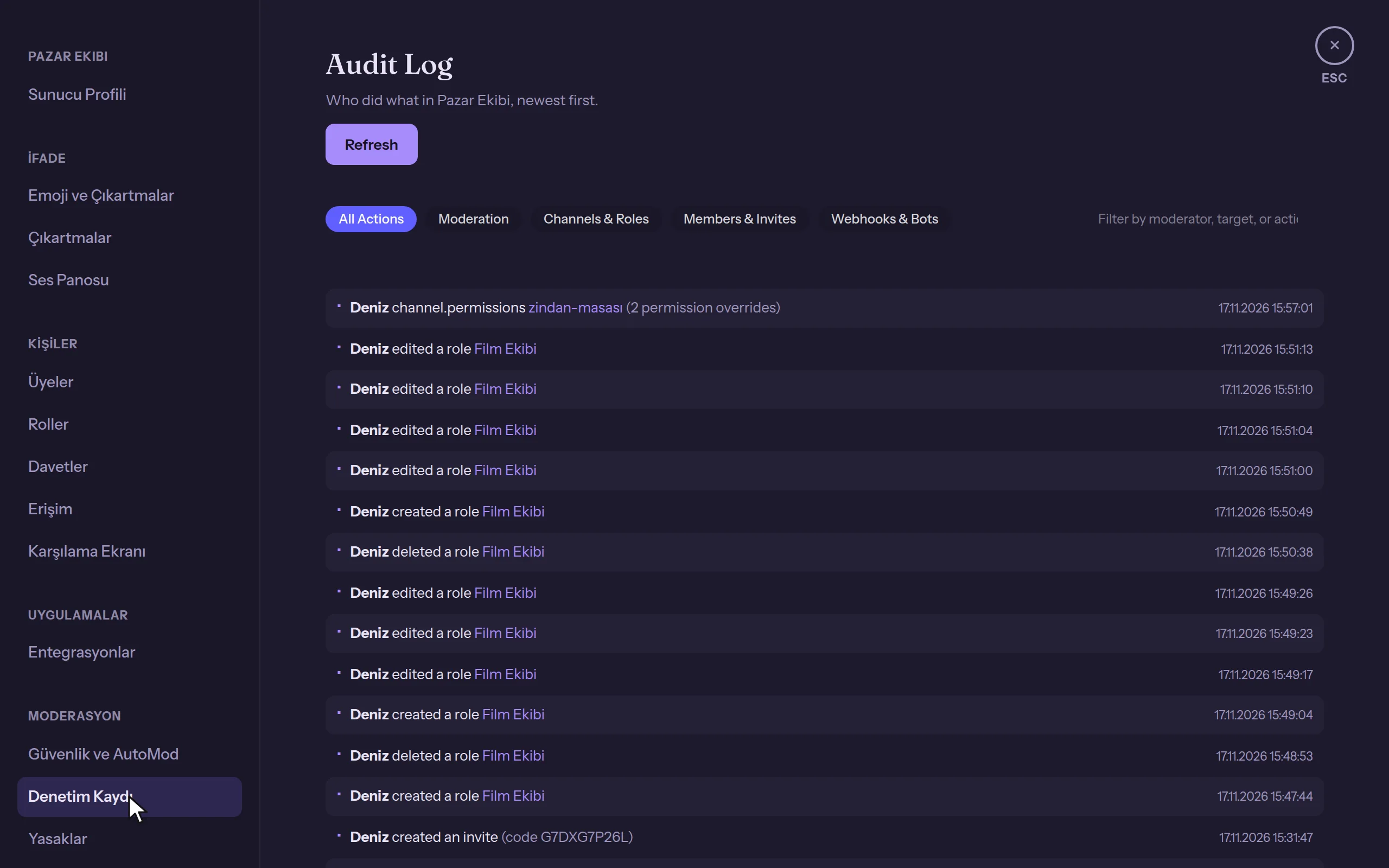
Server Settings → Audit Log lists administrative actions taken in the server: who created or deleted a channel, who changed roles, who kicked or banned someone, invite creation and revocation, and more. Viewing it requires the View Audit Log permission.
Reporting messages and blocking
If you see a message that breaks the rules, right-click it and select Report Message. Reports inside a server go to that server's moderators; reports in direct messages go to Hoffle administrators. Hoffle has zero tolerance for harassment and abusive content.
If you want to stop hearing from someone altogether, right-click their name and choose Block. Blocked users cannot send you direct messages, and their messages are hidden on your screen.