Sending, replying, and editing
To send a message, type in the box at the bottom of the screen and press Enter. Use Shift + Enter for a new line.
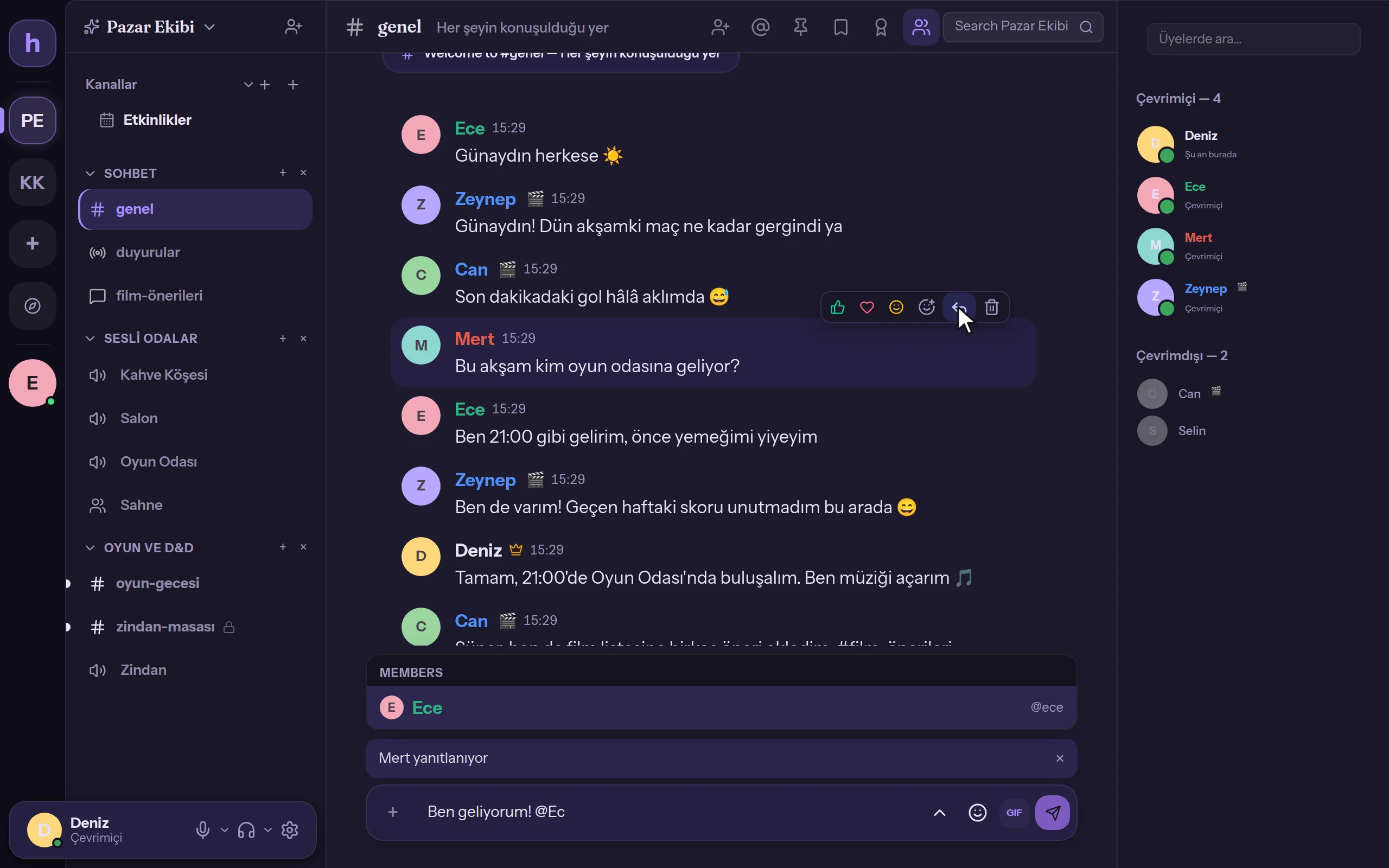
Hovering over a message (or long-pressing on mobile) brings up a small toolbar in the top right:
- 👍 ❤️ 😂 and Add reaction: Reacts to the message with an emoji. Click the same reaction again to remove it.
- Reply: Replies to the message, showing a small quote of the original above yours.
- Edit (pencil, on your own messages): Edits the message. Edited messages show (edited) next to them.
- Delete (trash can): Deletes the message.
Mentioning someone (@)
Type @ followed by the first letters of someone's name to open a suggestion list; press Enter to pick. They receive a notification and their name is highlighted in the message.
@everyonenotifies everyone in the channel;@herenotifies only people currently online (requires permission).- Typing a role name (like
@Player) pings everyone with that role.
Message right-click menu
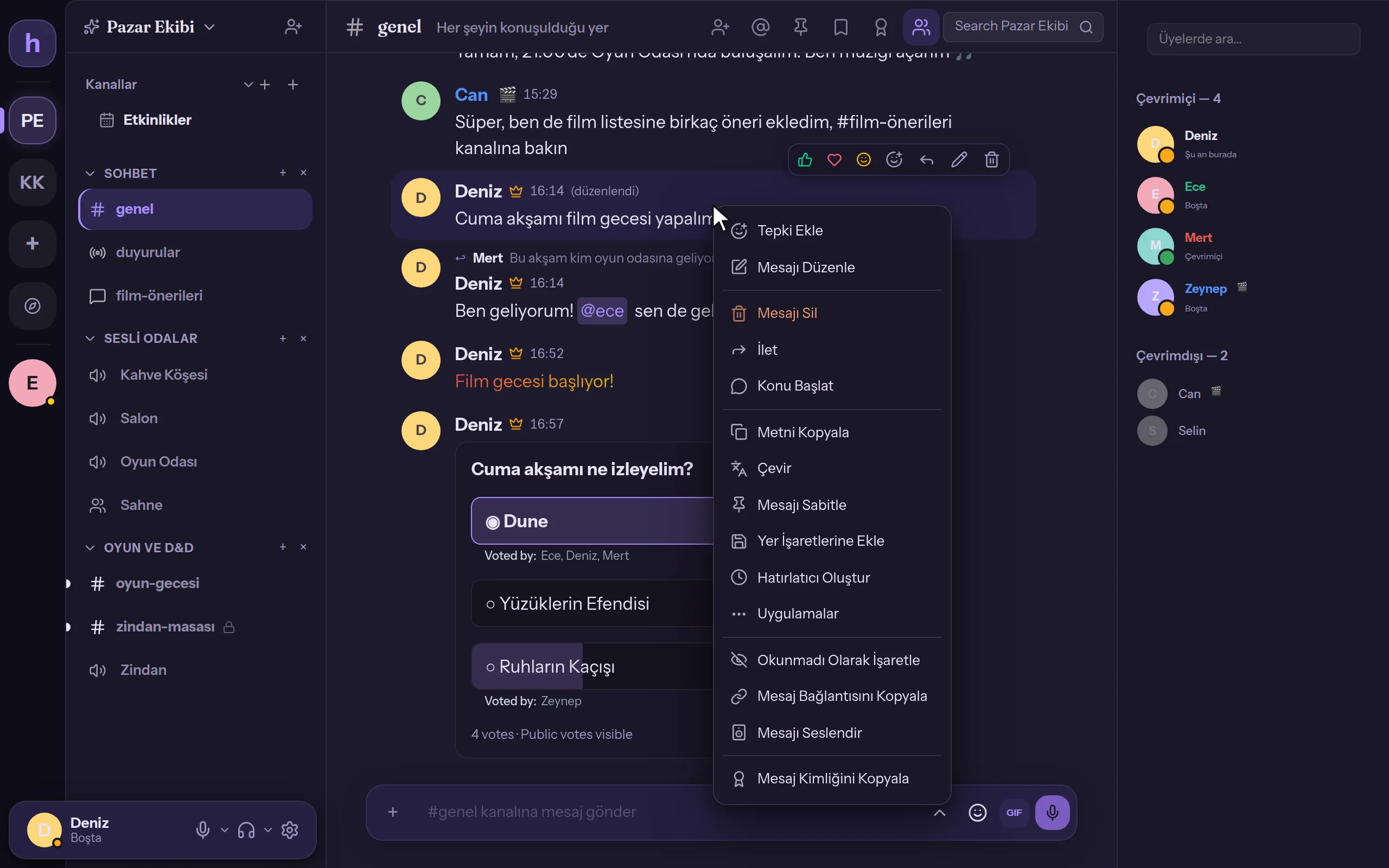
Right-clicking a message (long-pressing on mobile) reveals more options:
- Forward: Sends the message to another channel or person.
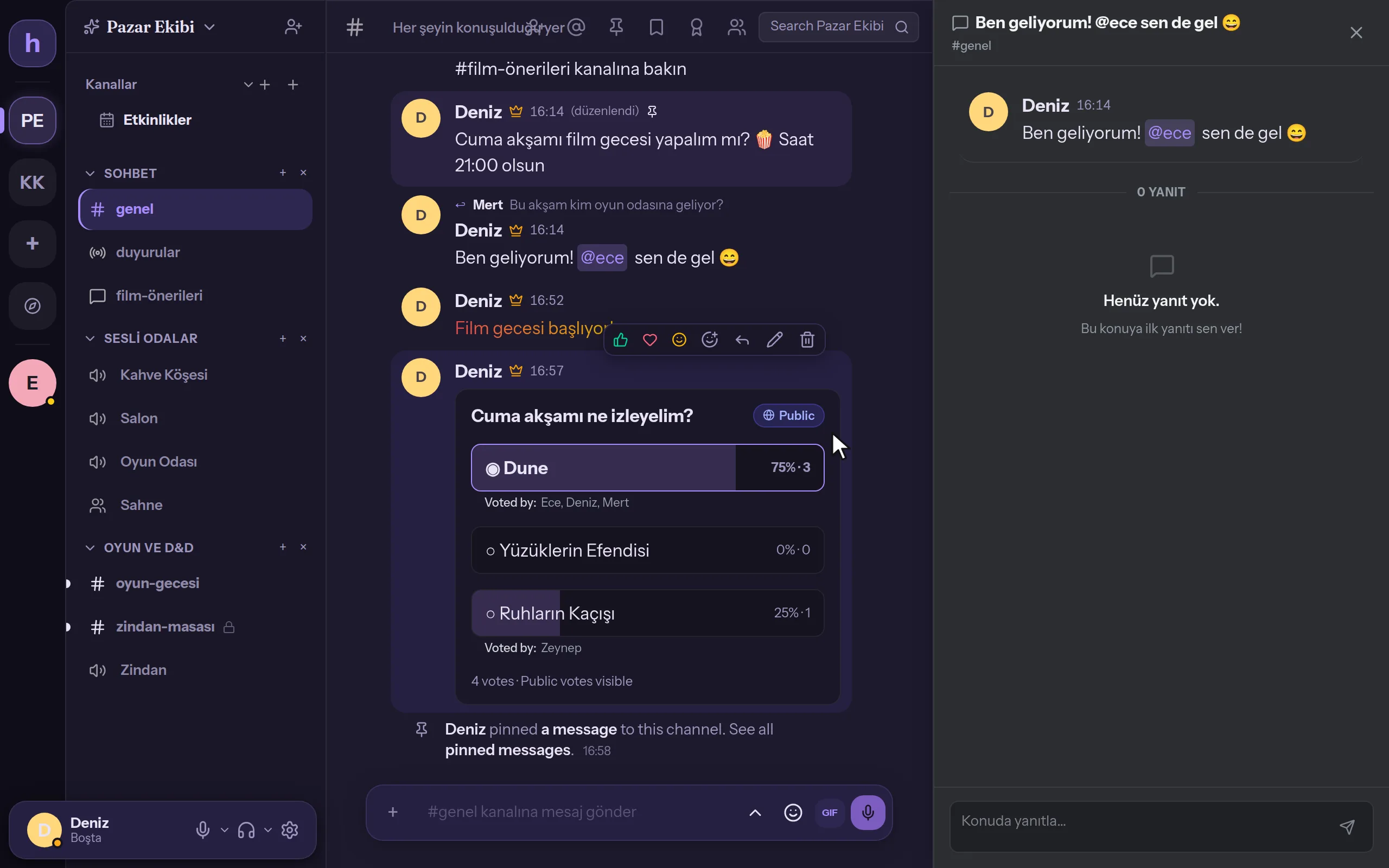
- Start Thread: Opens a side conversation (thread) under the message—great for discussing something at length without crowding the channel. Threads open in a separate panel on the right.
- Copy Text, Copy Message Link
- Translate: Translates the message into your language.
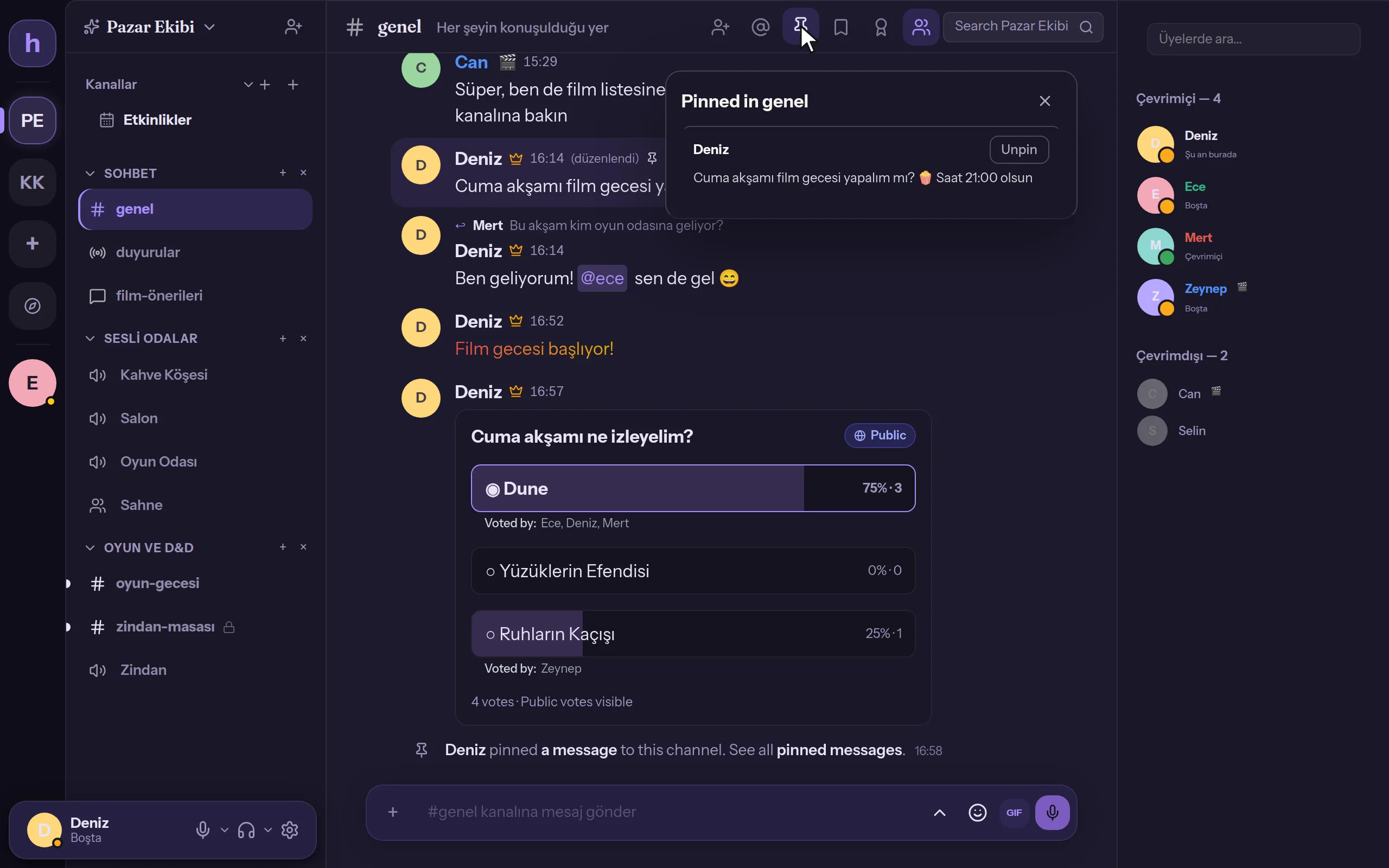
- Pin Message: Adds important messages to the Pinned Messages list in the channel's top bar.
- Bookmark: Saves the message to your private Saved Messages list.
- Set Reminder: Reminds you about this message at a time you choose.
- Mark Unread: Marks the channel unread starting from this message.
- Speak Message: Reads the message aloud.
- Report Message: Reports a rule-breaking message to moderators.
To view pinned messages, click the pin icon in the top bar; click the bookmark icon for saved messages, or @ for messages mentioning you.
Text effects, colors, and fonts
You can color your messages, switch fonts, and add animated effects.
- Type your message and select the part you want to style (Ctrl + A for all of it).
- Click ^ (More options) on the right of the message box and choose Text Formatting.
- Pick a color, gradient (Sunset, Ocean, Candy, Lime, Fire, Grape), highlight, font, size, or effect.
- Press Enter to send.
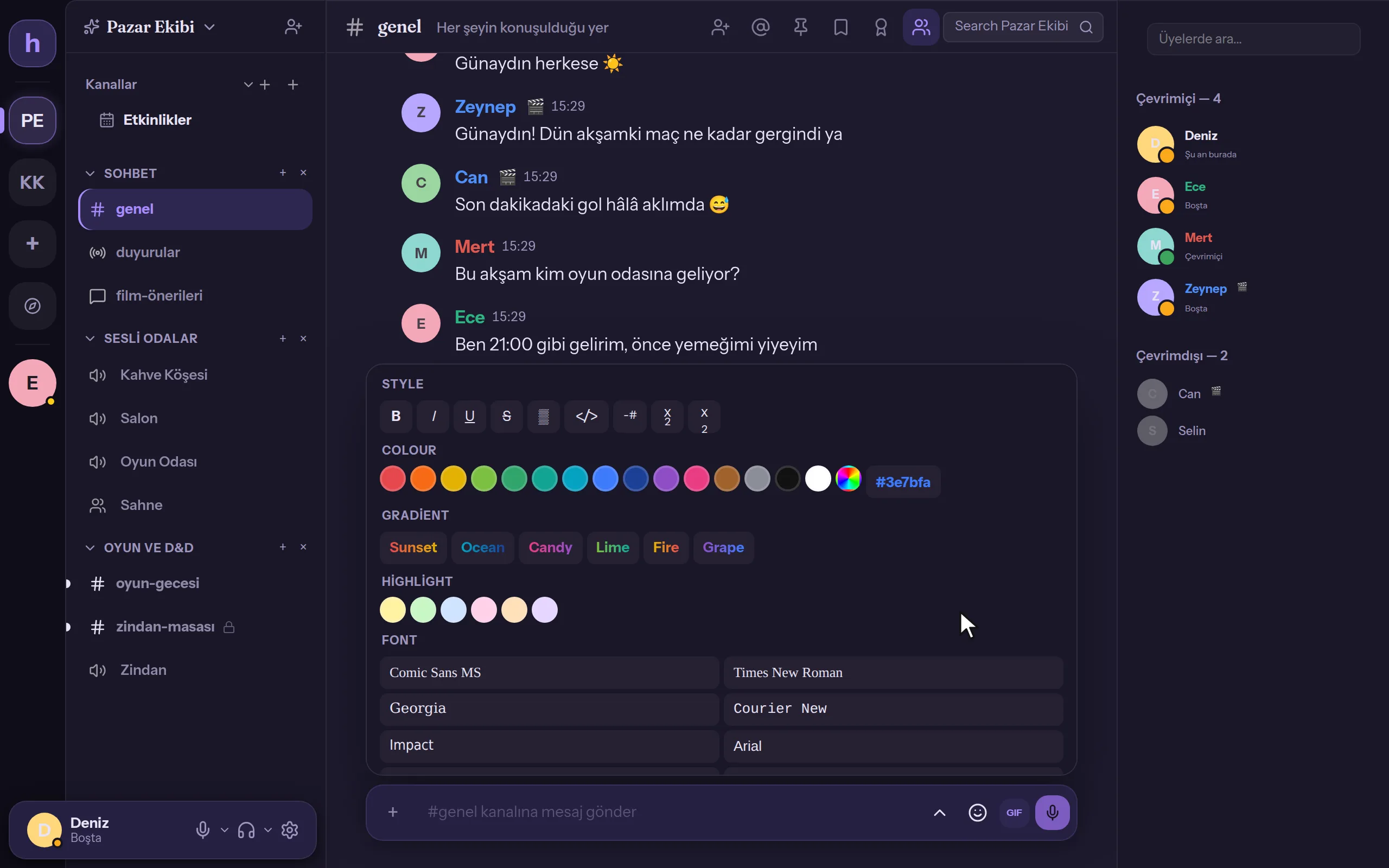
Inside the menu:
- Style: bold, italic, underline, strikethrough, spoiler, code, small text, superscript, and subscript.
- Effects: rainbow, glow, shadow, outline, wave, shake, bounce, blink, sparkle, flip, mirror, wide, and small caps.
You can also type these by hand: [c=red]hello[/c] for red, [c=pink]hello[/c=blue] for a pink-to-blue gradient, [f=comic]hello[/f] for Comic Sans, [wave]hello[/wave] for wavy text. Standard formatting like **bold**, *italic*, __underline__, ~~strikethrough~~, and ||spoiler|| works too.
Emoji, GIFs, and stickers
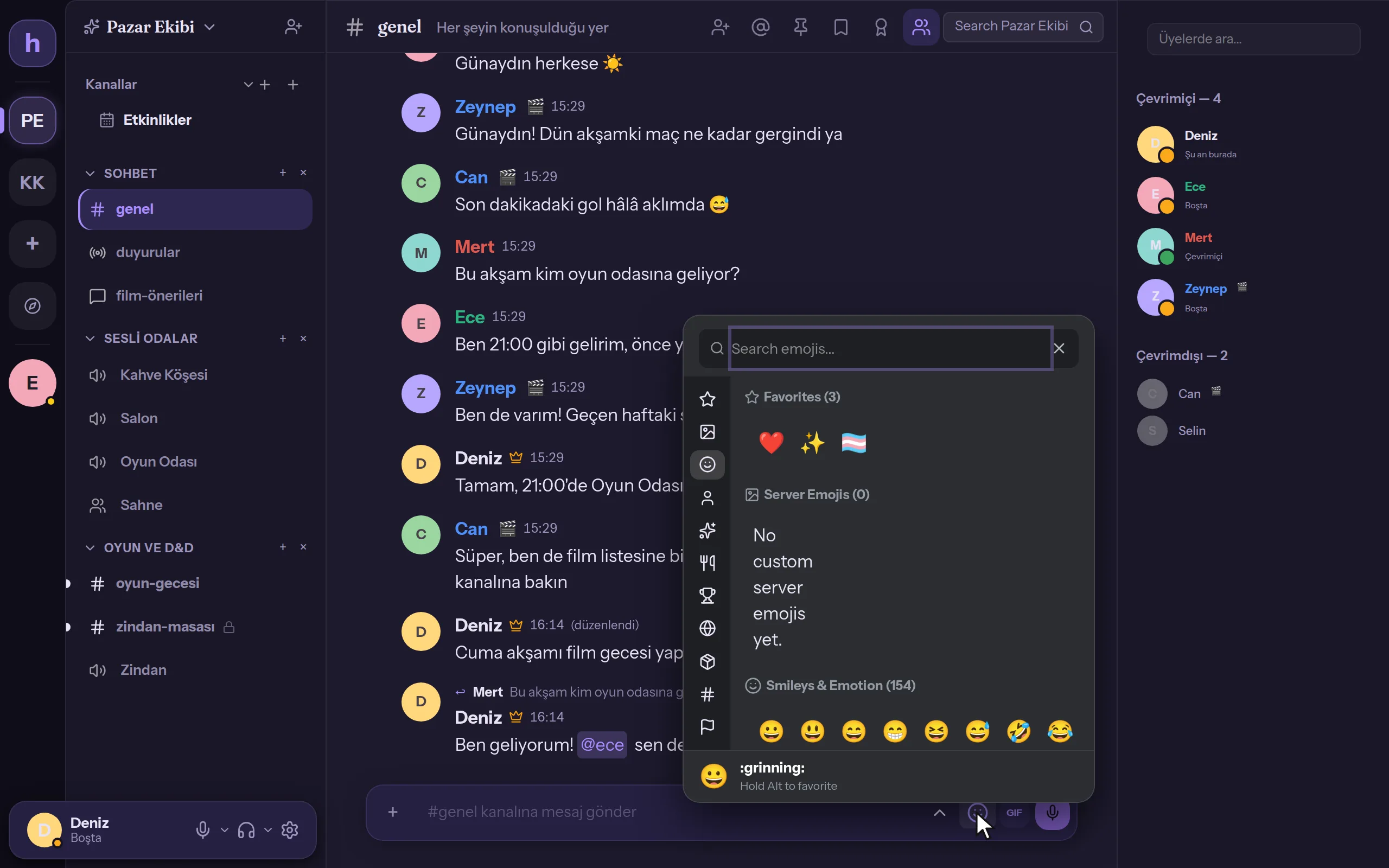
- Emoji: The smiley icon in the message box opens the emoji picker. Your most used emoji sit at the top, with custom server emoji below. You can also type
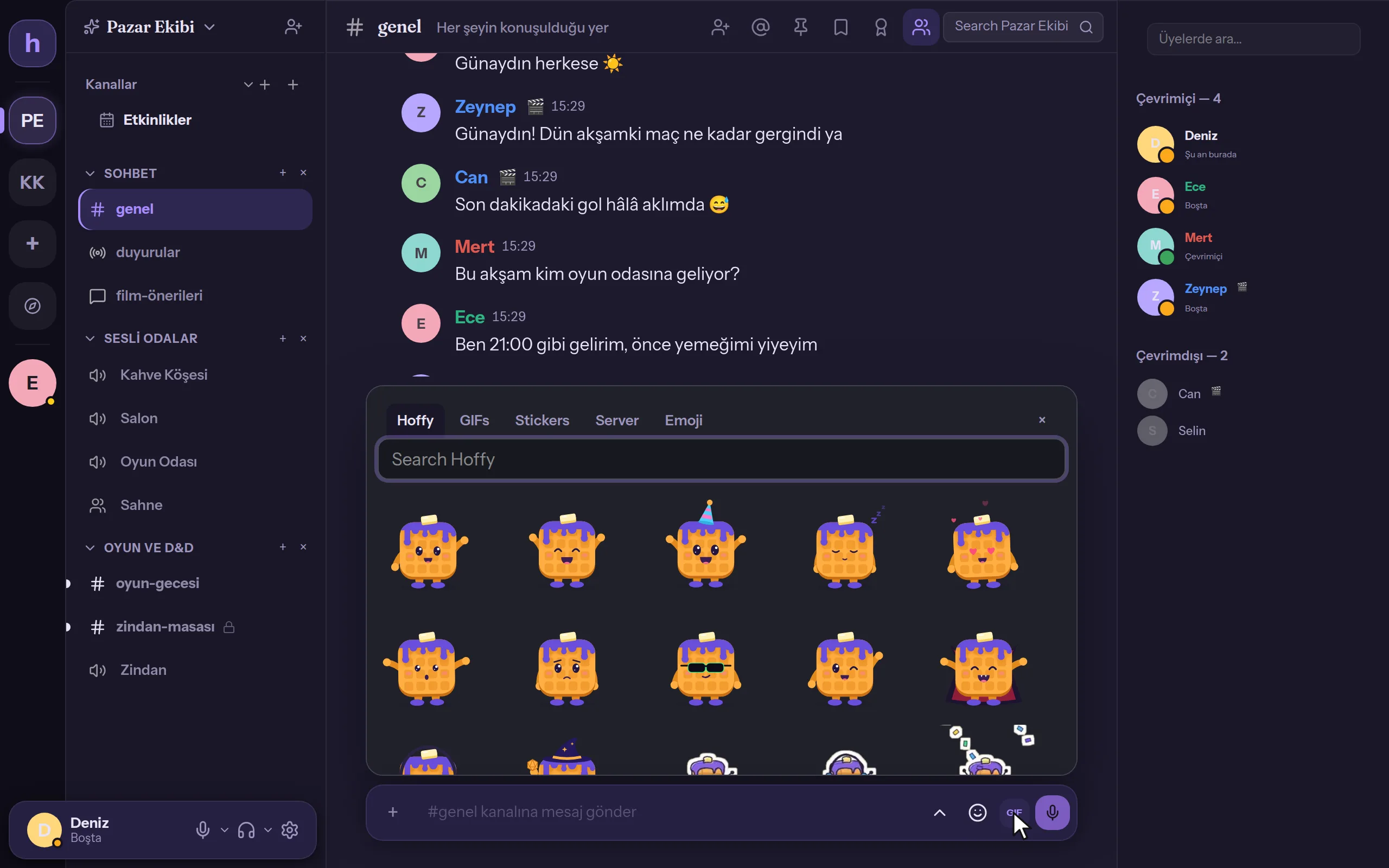
:emojiname:directly in chat. - GIFs and stickers: The GIF button opens a picker with Hoffy (stickers of Hoffle's waffle mascot), GIFs (GIF search), Stickers, and Server (stickers uploaded to the server). Clicking one sends it immediately.
Files, images, and voice messages
- To send a file or image, click + on the left of the message box and pick a file. You can also drag and drop files into chat or paste from your clipboard with Ctrl + V.
- For a voice message, click the microphone button on the right of the message box, speak, and send.
Polls
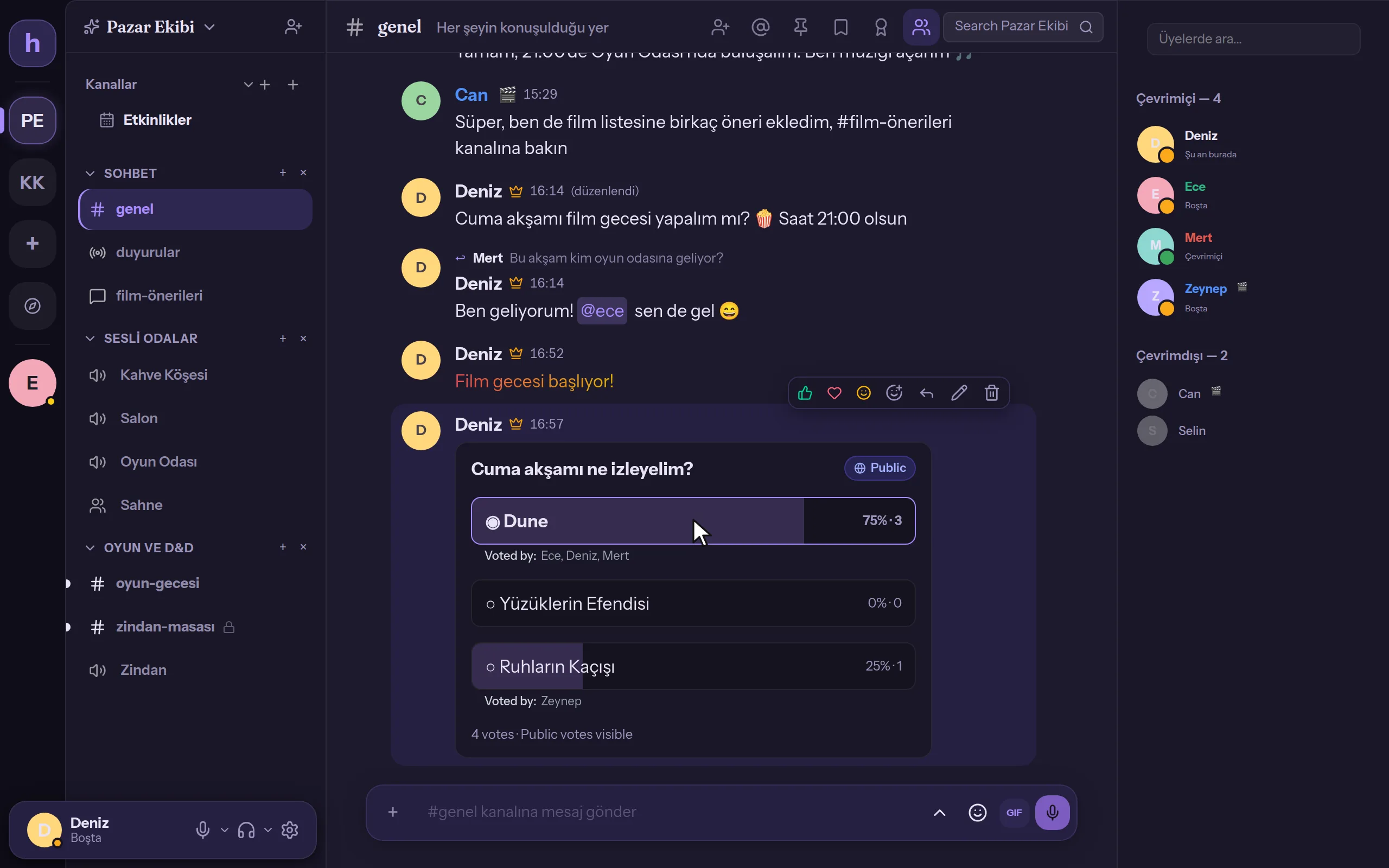
- Click ^ (More options) and select Create Poll.
- Type your question in Poll Question.
- Fill in the options; click Add Option for more (at least 2).
- Check Anonymous if you don't want voters' names shown.
- Click Send Poll.
Everyone votes by clicking an option; click another option to change your vote. Results update live for everyone.
Shortcut: the /poll command.
Slash (/) commands
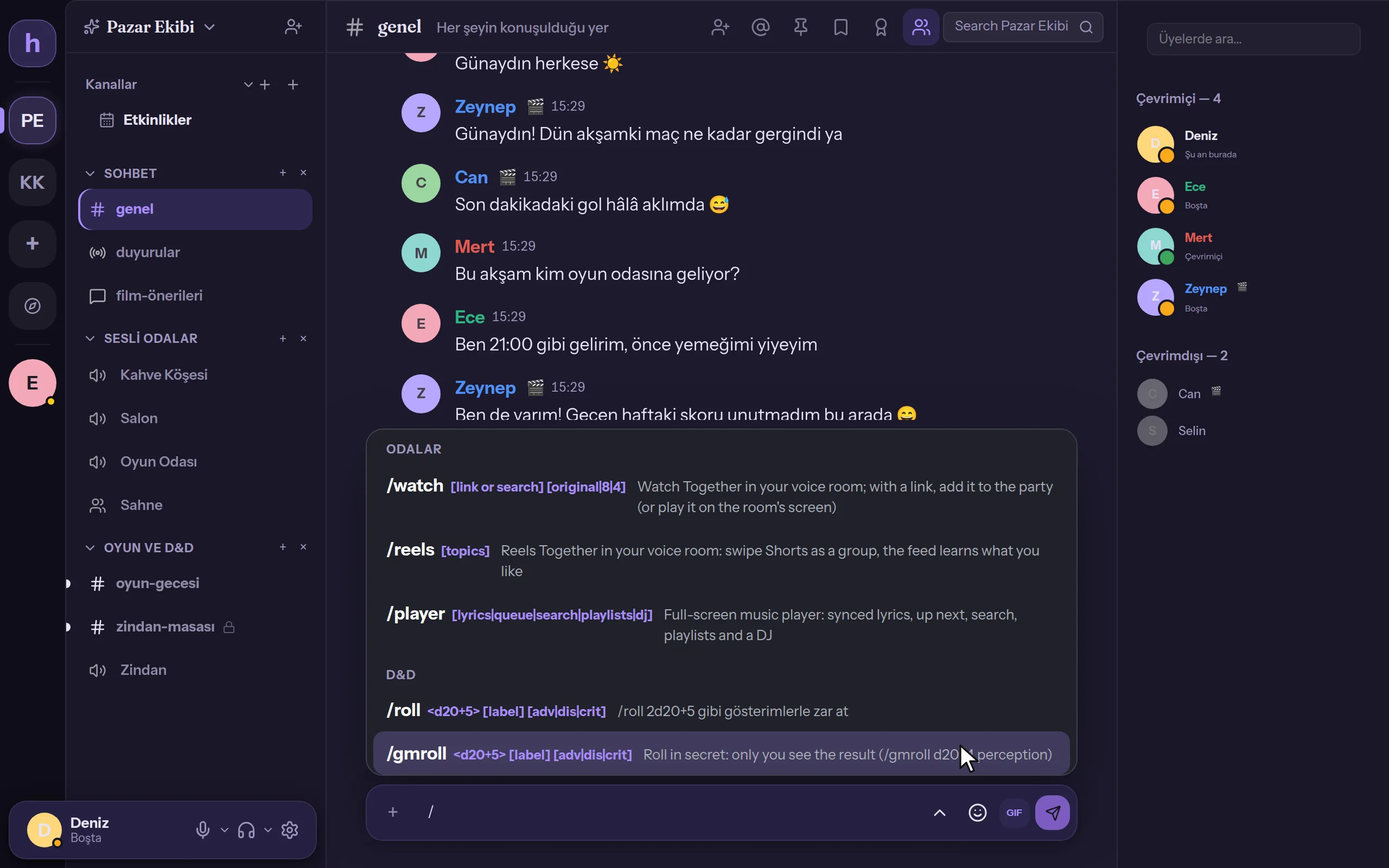
Typing / in the message box opens the list of available commands, narrowing down as you type. You can also open the same list via ^ → Slash Commands.
| Command | What it does |
|---|---|
/roll 2d20+5 | Rolls 3D dice everyone can see. See D&D & Tabletop. |
/gmroll d20+4 | Rolls privately; only you see the result. |
/w alex hey | Whisper: only that person sees the message, and it isn't saved anywhere. |
/tts hello | Reads your message aloud in the channel. |
/me opens the door | Styled action text for roleplay. |
/poll | Opens a poll. |
/nick new name | Changes your nickname in this server. |
/topic | Shows or changes the channel topic. |
/shrug, /tableflip, /unflip | Appends ¯\_(ツ)_/¯, (╯°□°)╯︵ ┻━┻, or ┬─┬ノ( º _ ºノ). |
/play, /skip, /queue … | Music bot commands. You need to be in a voice room. |
/watch, /reels | Watch Together and Reels Together. |
/spell, /monster, /item | D&D spell, monster, and item compendium. |
/clear | Clears messages on your screen only. |
/help | Lists all commands with descriptions. |
Search
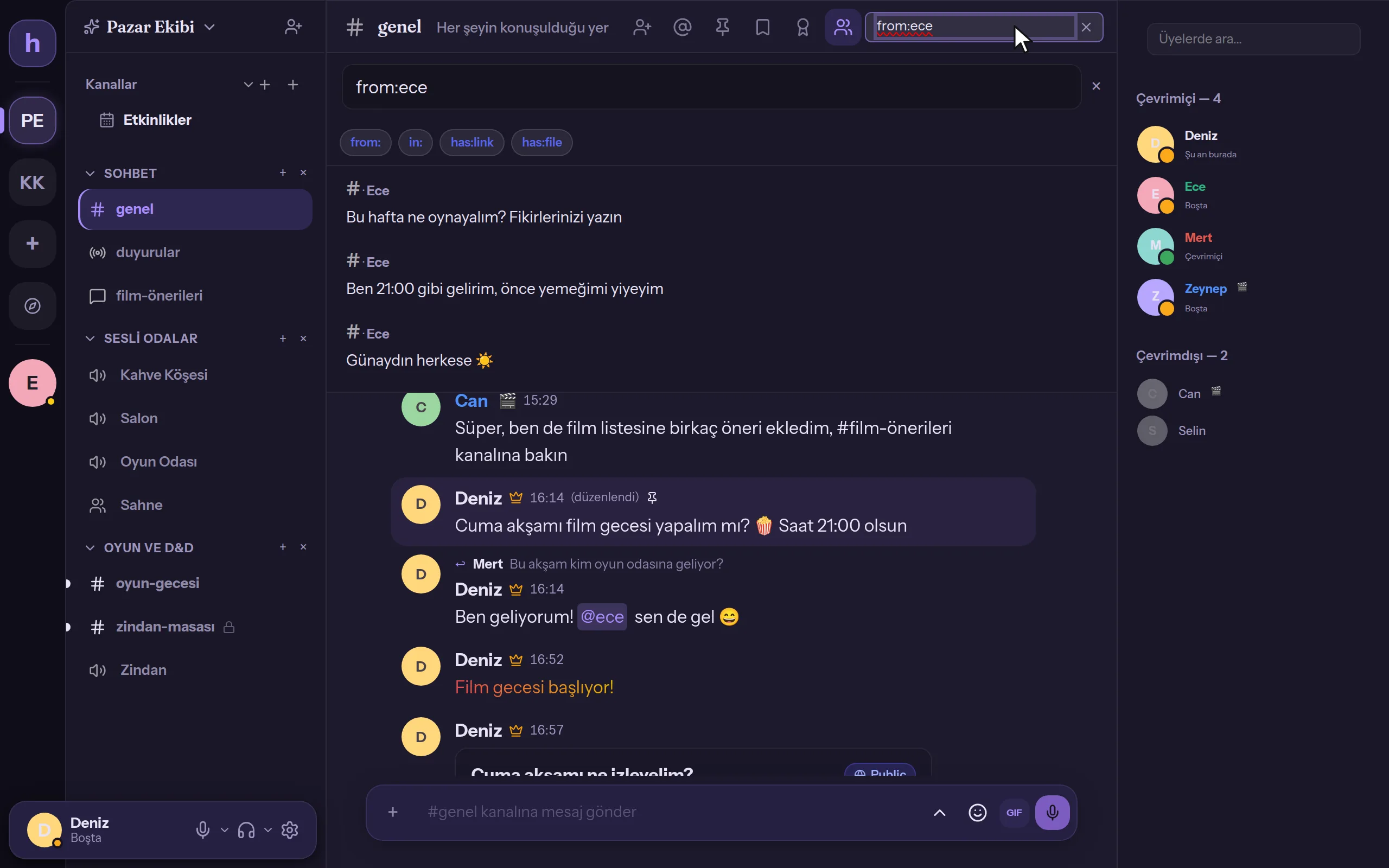
Type in the search box in the top bar and press Enter. Alongside normal words, you can use these filters:
| Filter | Example | What it finds |
|---|---|---|
from: | from:ece | Messages from that person. Multiple people: from:ece,mert. |
in: | in:general | Messages in that channel. |
has:link | has:link | Messages containing a link. |
has:image | has:image | Messages with an image attached. |
has:file | has:file | Messages with a file attached. |
has:audio | has:audio | Voice messages. |
before: / after: | after:2026-01-01 | Messages before or after that date. |
pinned: | pinned:true | Pinned messages only. |
"…" | "movie night" | Exact phrase match. |
Announcement and forum channels
- Announcement channels only allow admins to post. Click Follow this channel in the top bar to forward announcements to a channel in your own server; each new post arrives with an ANNOUNCEMENT badge.
- Forum channels organize every topic as its own thread. You open a new thread with an initial post, and others reply inside it—great for suggestions, questions, or lists.