What is Second Screen?
Second Screen lets you put something from Hoffle onto another display. For example:
- watching a friend's screen share full-size on a second monitor,
- keeping a channel's chat open on a side screen,
- putting the battle map on a living room TV or an iPad.
You can do all of this without leaving your main Hoffle window or dropping your call. Second Screen can show one pane or split into two panes side by side or stacked. When you switch channels in the main window, Second Screen can follow along.
Opening Second Screen
- Click the monitor icon (2nd Screen) in the top bar.
- In the Hoffle 2nd Screen dialog, pick what you want to display.
- Click Open 2nd Screen Window. A new window opens; drag it to your second monitor and maximize it.
While watching someone's screen share in a voice room, the monitor button above the stage sends the stream to your second screen in one click.
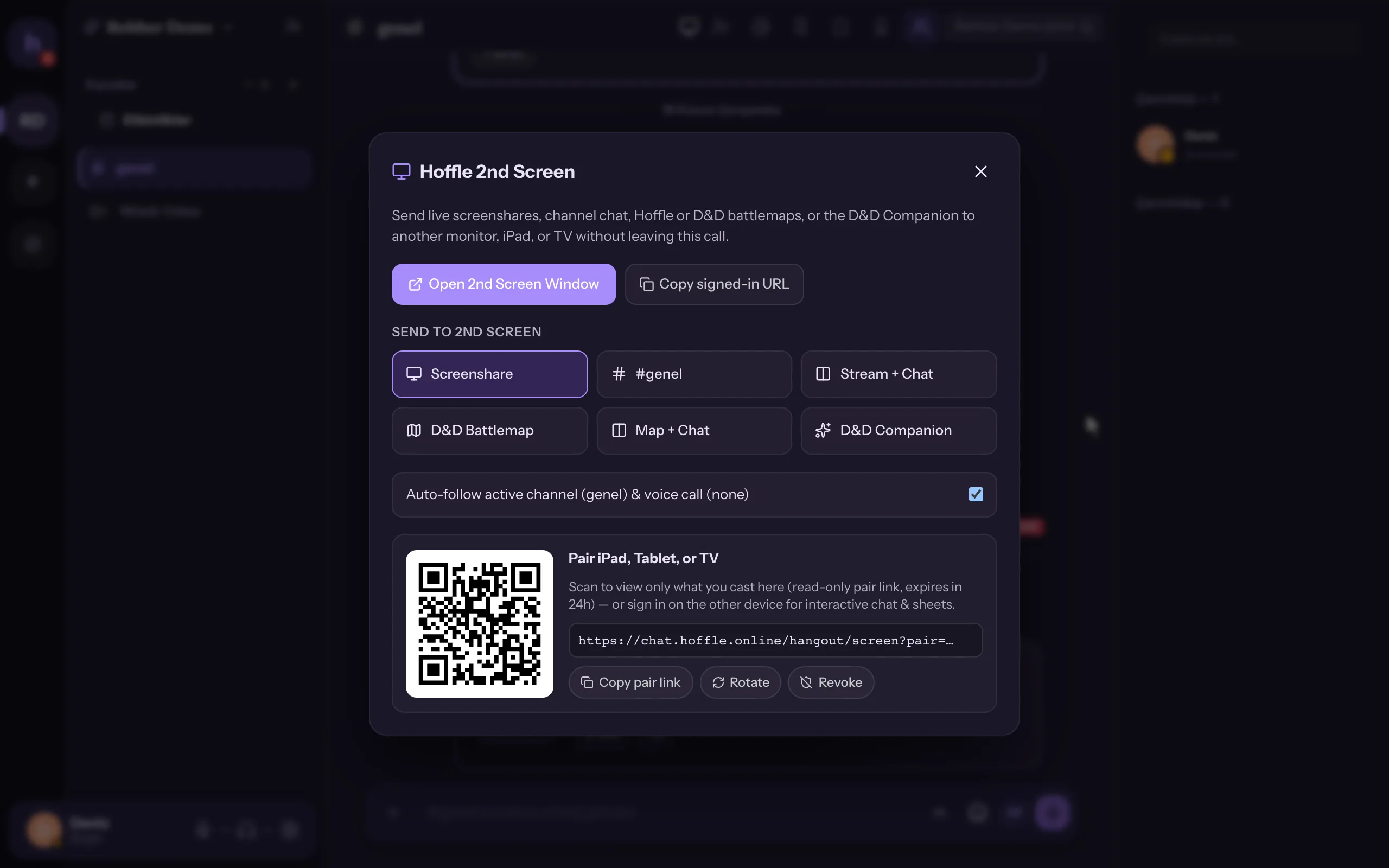
Preset layouts under Send to 2nd Screen:
| Layout | What it shows |
|---|---|
| Screenshare | The screen share in your current voice room. Shows (Live) when someone is sharing. |
| #channel | The open channel's chat. You can also send messages from Second Screen. |
| Stream + Chat | Screen share and chat side by side. |
| D&D Battlemap | The voice room's battle map (D&D). |
| Map + Chat | Battle map and chat side by side. |
| D&D Companion | Tavern with your character sheet, maps, Compendium, and Bard. |
With Auto-follow active channel & voice call enabled, Second Screen automatically follows whichever channel you open and whichever voice room you join in the main window. Turn it off to lock it to one channel.
Copy signed-in URL copies the Second Screen address so you can open it in another browser or on another device where you're signed into Hoffle.
The Second Screen window
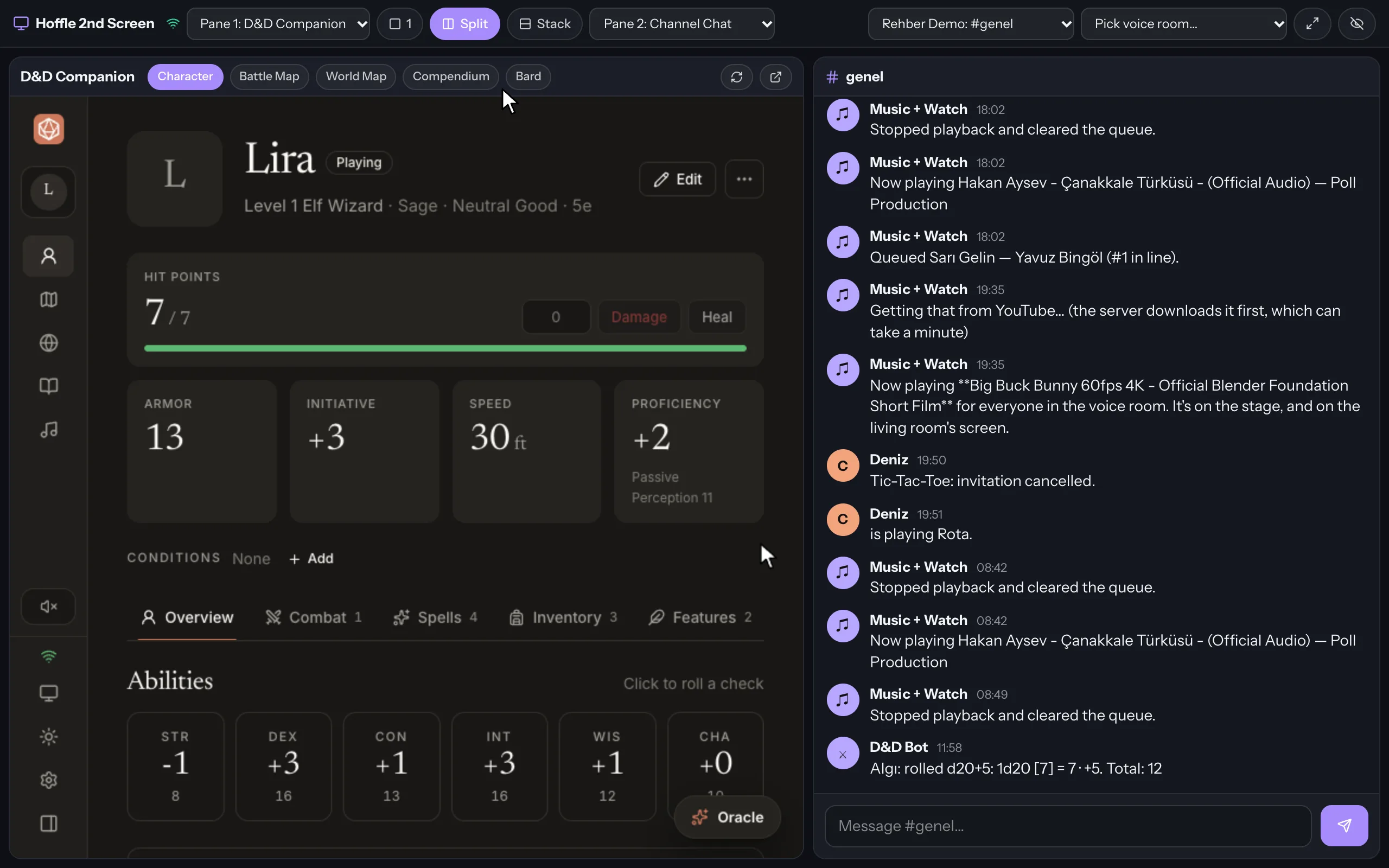
The top bar of the window:
- Pane 1: What to show in the first pane: Screenshare, Channel Chat, D&D Battlemap, D&D Display (player-facing map), or D&D Companion.
- 1, Split, and Stack: One pane, two panes side by side, or two panes stacked top-to-bottom.
- Pane 2: What to show in the second pane (in two-pane layouts).
- The two dropdowns on the right choose which channel the chat pane shows and which voice room the screenshare pane shows.
- Fullscreen maximizes the window. Hide top bar hides the bar so only the content remains.
Above the D&D Companion pane, buttons (Character, Battle Map, World Map, Compendium, Bard) switch between Tavern pages. The refresh button reloads the pane, and ↗ opens Tavern in its own tab.
Pairing an iPad, tablet, or TV
To show Second Screen on a device that isn't signed into Hoffle (like a TV or tablet), use Pair iPad, Tablet, or TV:
- Scan the QR code with the device's camera, or click Copy pair link and open it on that device.
- That device displays whatever you send to Second Screen.
The pair link is view-only—you can't send messages or edit character sheets from it. Links expire after 24 hours.
- Rotate: Invalidates the old link and generates a new one.
- Revoke: Disables the link completely.
Use one of those two if you shared the link by mistake.
If you want to send messages or use your character sheet from that device, sign into your Hoffle account on it and open the address from Copy signed-in URL.
Tips
- If you're the one sharing your screen, don't open your own stream on Second Screen if it's on the shared monitor—it will create an infinity-mirror loop.
- For D&D sessions, Map + Chat is handy for keeping the battle map and dice rolls large at the same time.
- For a tabletop TV, D&D also has its own shared display that keeps fog of war completely opaque and lets you push clue cards to players: iPad & shared display.