What is Tavern?
Tavern is the D&D bot's web app. Alongside Hoffle's dice and spell cards, it gives you a complete tabletop:
- character sheets,
- battle map (virtual tabletop),
- world map,
- rules encyclopedia (Compendium),
- music and sound effects (Bard),
- AI assistant for the Dungeon Master (Oracle).
It runs on desktop, mobile, and iPad—and on iPad you can draw right on the map with Apple Pencil.
Everything you do in Tavern is the exact same game as the table in Hoffle. Dice rolled in Tavern appear in Hoffle too. Tokens on the battle map become miniatures on the 3D Living Room table. Initiative order stays synced everywhere (details below under Connecting with the Hoffle table).
Opening Tavern
Your server needs the D&D bot enabled (Enabling D&D tools). Then:
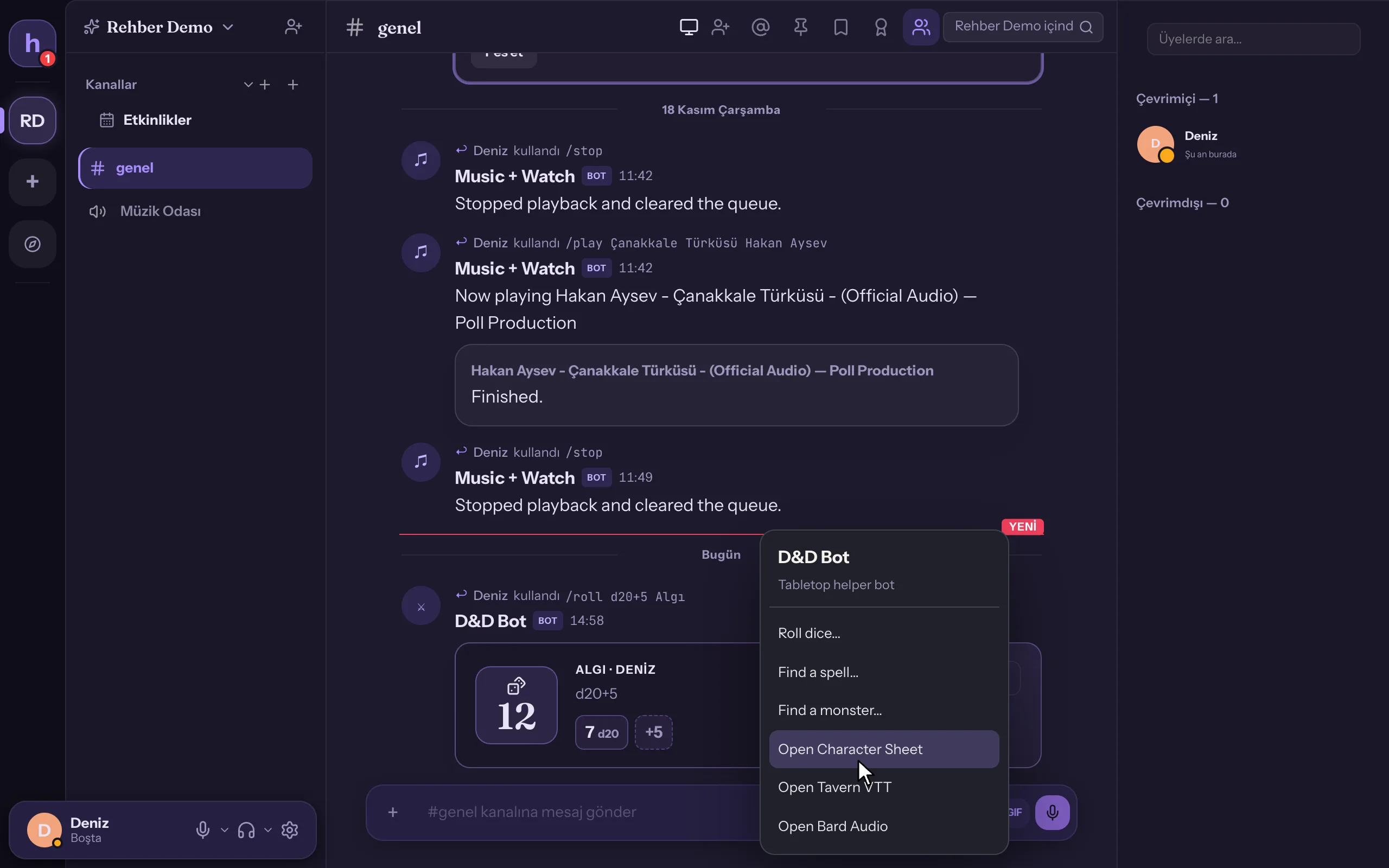
- Right-click any D&D Bot message in chat (like a dice roll). On mobile, long-press the message.
- Pick one from the menu:
- Open Character Sheet: opens your character sheet.
- Open Tavern VTT: opens the battle map.
- Open Bard Audio: opens the audio panel.
Tavern opens in a new tab and signs you in automatically with your Hoffle account—no separate password needed. Your session stays signed in for 30 days.
The Open Tavern (↗) button in Hoffle's battle map and in the 3D Living Room's tabletop view also takes you straight there.
Everyone enters Tavern as a player. Who acts as Dungeon Master (DM) is chosen by Hoffle admins (below, Choosing DMs). Being server owner or having channel management permissions doesn't make you a DM on its own. DMs see an extra Game Master → Party section in the left sidebar plus extra map and world tools.
Creating a character
If you don't have a character yet, click Create a character on the Character page. Characters are built in six steps, and you can jump back to any step with the tabs at the top. Hit Points (HP), Armor Class (AC), Initiative (INIT), and SPEED recalculate live at the bottom as you choose.
Basics: Character name, rules edition, and starting level. Three editions are supported:
- D&D 5e (2014): classic rules.
- D&D 5.5e (2024): updated rules; ability increases come from Background.
- D&D 3.5e: legacy edition.
Class: Fighter, Wizard, Rogue… Each card shows a short summary and hit die. Optionally pick a subclass too.
Origin: Species (Human, Elf, Dwarf…; use Another species for anything else), Background, Alignment, optional Feats, and Backstory.
Abilities: Ability scores, three ways:
- Standard array: preset scores assigned to fit your class.
- Roll 4d6: roll your scores with dice.
- Enter manually: type them yourself.
Clicking a score under one ability swaps it with whichever ability currently holds that score.
Skills & gear: Pick class skills, armor, and weapons. Starting spells for casters are listed here too.
Review: Double-check everything and click Create character.
Fill with AI: In the first step, describe your hero in a few sentences in the Describe your hero and let AI fill the sheet box (any language works) and click Fill it in. AI fills in the name, class, species, scores, skills, and backstory. Every AI-filled field is marked with an AI badge and can be edited freely.
Import from PDF: If you already have a filled character sheet PDF, switch to Import PDF in the top right and upload it.
Character sheet
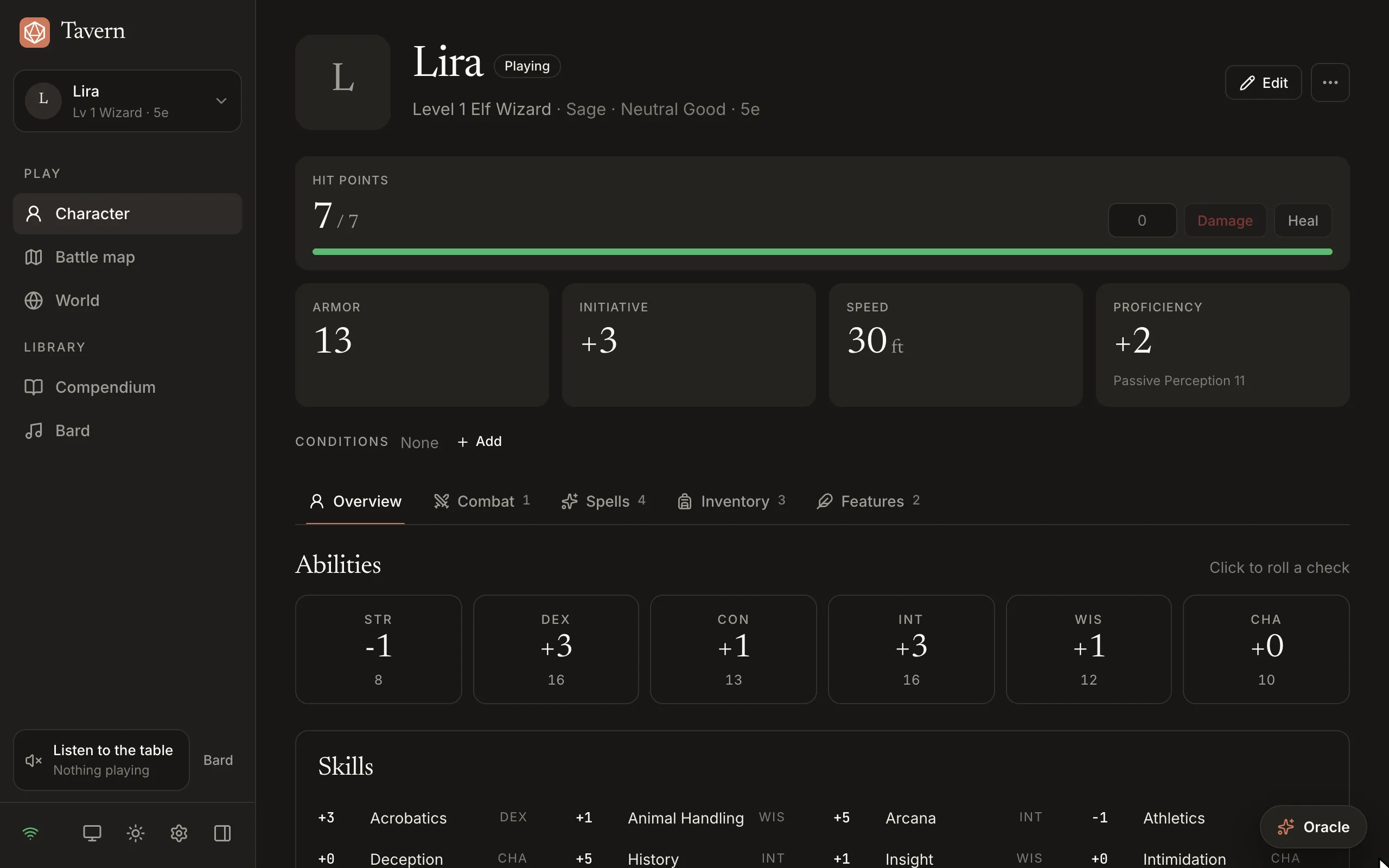
- Hit Points: Enter a number and click Damage or Heal; the HP bar updates accordingly.
- Armor, Initiative, Speed, Proficiency, and Passive Perception calculate automatically.
- Conditions: Click Add to apply conditions like poisoned or stunned.
- Abilities: Clicking an ability box rolls a check for that ability. The roll appears in the shared Table log and at the table in Hoffle.
- Skills and Saving throws: Your proficiencies and bonuses at a glance.
- Bottom tabs:
- Combat: attacks.
- Spells: spells and spell slots.
- Inventory: equipment and items.
- Features: class and species traits, backstory.
- Click Edit to modify the sheet. Use the character switcher in the top left to swap characters or create a new one.
To level up, type /levelup in Hoffle or Discord. A DM can also use the Level button on the Party page.
Table log and dice buttons
The Table log panel on the right shows everyone's rolls and messages, highlighting natural 20s and natural 1s. The d4…d100 buttons below it roll with one click. You can also type expressions like 2d6+3 to roll, or plain text to speak in character. Close the panel with × and reopen it from the button in the bottom left.
Battle map
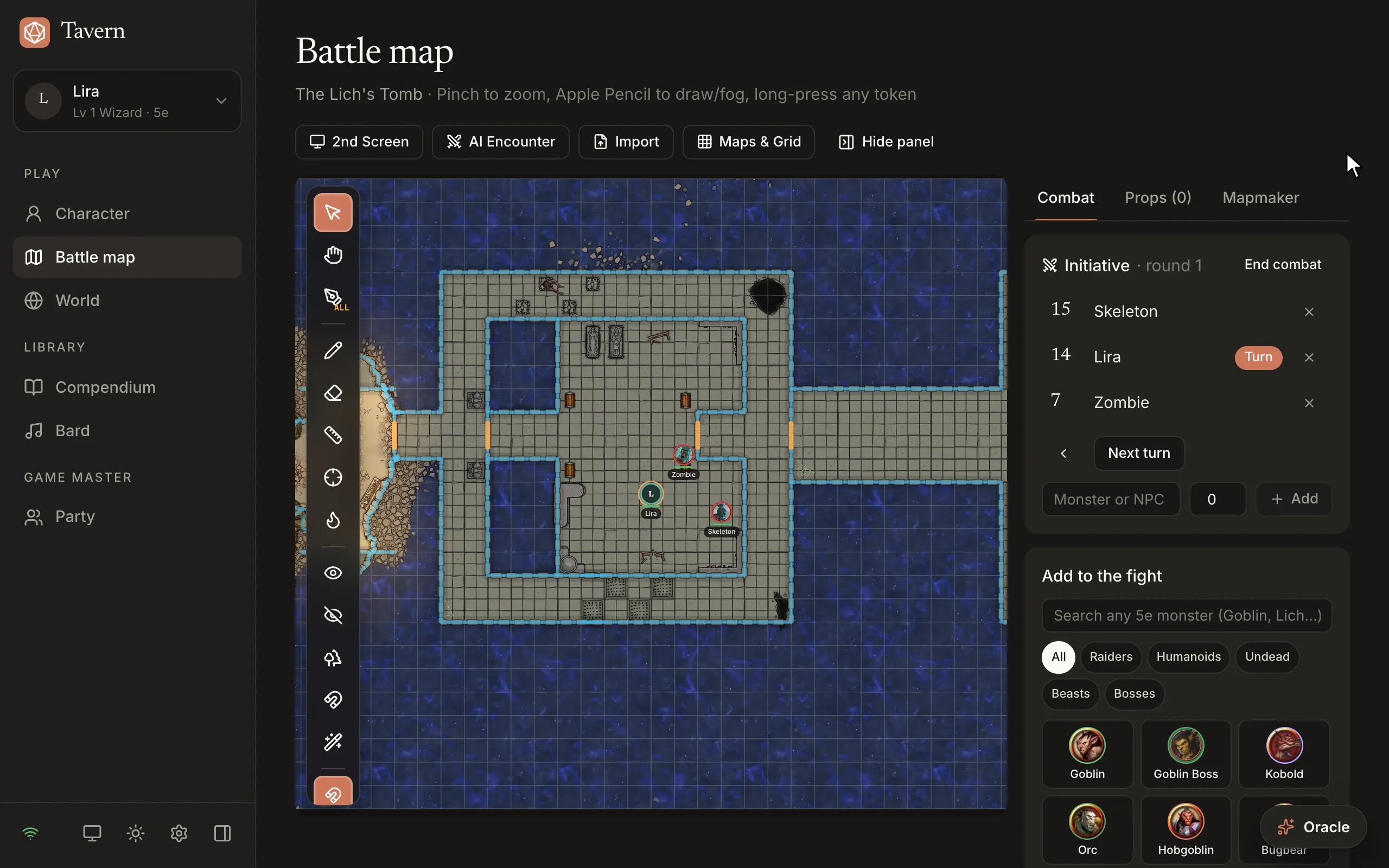
The Battle map page is the game's virtual tabletop. Everyone sees the same map; players see whatever the DM reveals.
Getting on the map
- Put Lira on map (labeled with your character's name) places your token on the map.
- To move a token, click it and then click an empty square—or just drag it.
- Players can only move their own character. The DM can move any token.
Map toolbar
The vertical bar on the left of the map. Hover over any tool to see its name.
| Tool | What it does |
|---|---|
| Select & move tokens (arrow) | Selects and moves tokens. |
| Pan view (hand) | Pans the map. Mouse wheel or pinch to zoom. |
| Draw (pen) and Erase (eraser) | Draws on the map and erases drawings. |
| Ruler | Measures distance between two points in feet. |
| Laser pointer | Points to a spot for everyone; shows on Second Screen too. |
| Spell AoE template (flame) | Places sphere, cone, cube, or line spell templates. |
| Reveal / Paint Fog of War (eye) | Reveals and paints fog of war (DM). |
| Props & Trees | Places props like trees, rocks, and barrels (DM). |
| Terrain, Walls & Doors | Draws terrain, walls, and doors (DM). |
| Magic Map Edit (wand) | Circle an area with Apple Pencil and let AI redraw that spot (DM). |
| Undo, Redo, zoom, Fit map | Undo, redo, zoom in/out, and fit the map to screen. |
iPad and Apple Pencil:
- Pinch with two fingers to zoom.
- Draw or paint fog with the Pencil; pan the map with a finger.
- Two-finger tap undoes; three-finger tap redoes.
- Long-press a token for quick actions.
Adding monsters and initiative (DM)
In the Combat tab on the right:
Add to the fight: Preset monsters like Goblin, Skeleton, and Lich are grouped into categories (Raiders, Humanoids, Undead, Beasts, Bosses). Type in the search box to find any 5e monster. Monsters drop onto an empty square near the center of the map.
Initiative:
- Roll for Lira rolls initiative for your character.
- Roll for the 2 monsters on the map rolls for all monsters on the map.
- Monster or NPC box and Add adds someone manually to the list.
- The active creature is marked Turn. Next turn advances, ‹ steps back, and End combat ends the fight.
This turn order is shared with Hoffle, Discord, and the 3D table.
Token panel
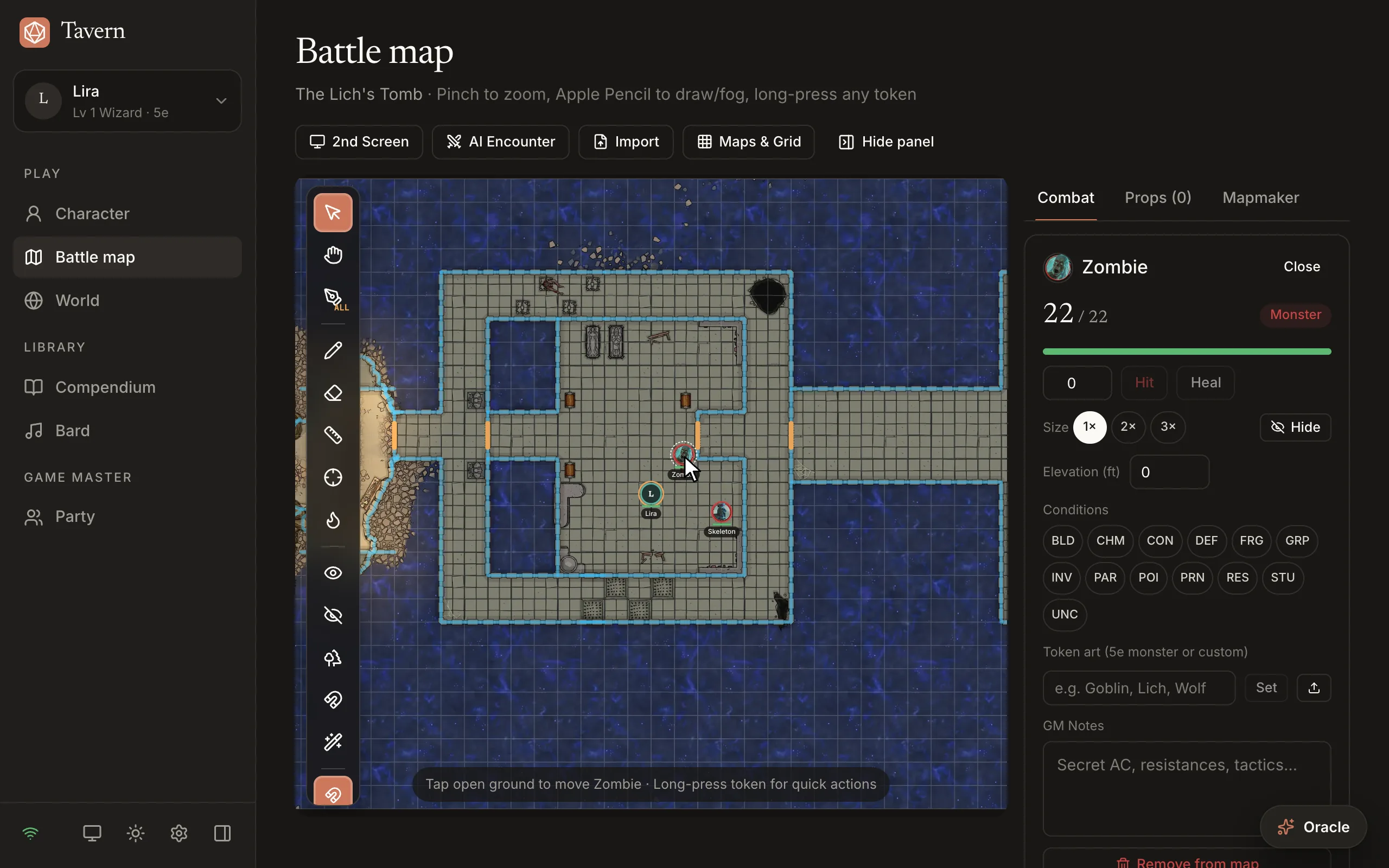
Clicking a token opens its panel on the right:
- Hit and Heal: deals damage or heals by the number entered.
- Size: scales the token to 1×, 2×, or 3×.
- Hide: hides the token from players (DM).
- Elevation: token height (for flying creatures).
- Conditions: condition badges like blinded, poisoned, stunned.
- Token art: the token's image. Type any 5e monster name or upload your own art.
- GM Notes: notes only the DM sees (hidden AC, resistances, tactics).
- Remove from map: removes the token from the map.
Close the panel with Close.
Fog of war looks semi-transparent on the DM's screen, while on players' screens and the shared display it is pitch black—players cannot see underneath it.
Maps and grid (DM)
In the Maps & Grid panel:
- Active Map Settings: Grid type (Square Grid, Hex Grid, No Grid), column count, feet per square, and grid offset. Enter a mood or scene name in Bard Audio Cue on Show (like
combat) to switch music automatically when this map is shown. Save with Save Grid & Scene. - All Maps: Saved maps. Show pushes a map to everyone; the trash icon deletes it. Eight maps come built in: tavern, camp, dwarven forge, river gatehouse, pirate cove, bear cave, mountain town, and lich's tomb.
- New map: Give it a name, then choose one of two options:
- Upload an image to upload your own map.
- Blank battlefield to pick a preset ground (Dungeon, Forest, Tavern, Cave, Snow) and click Create and show.
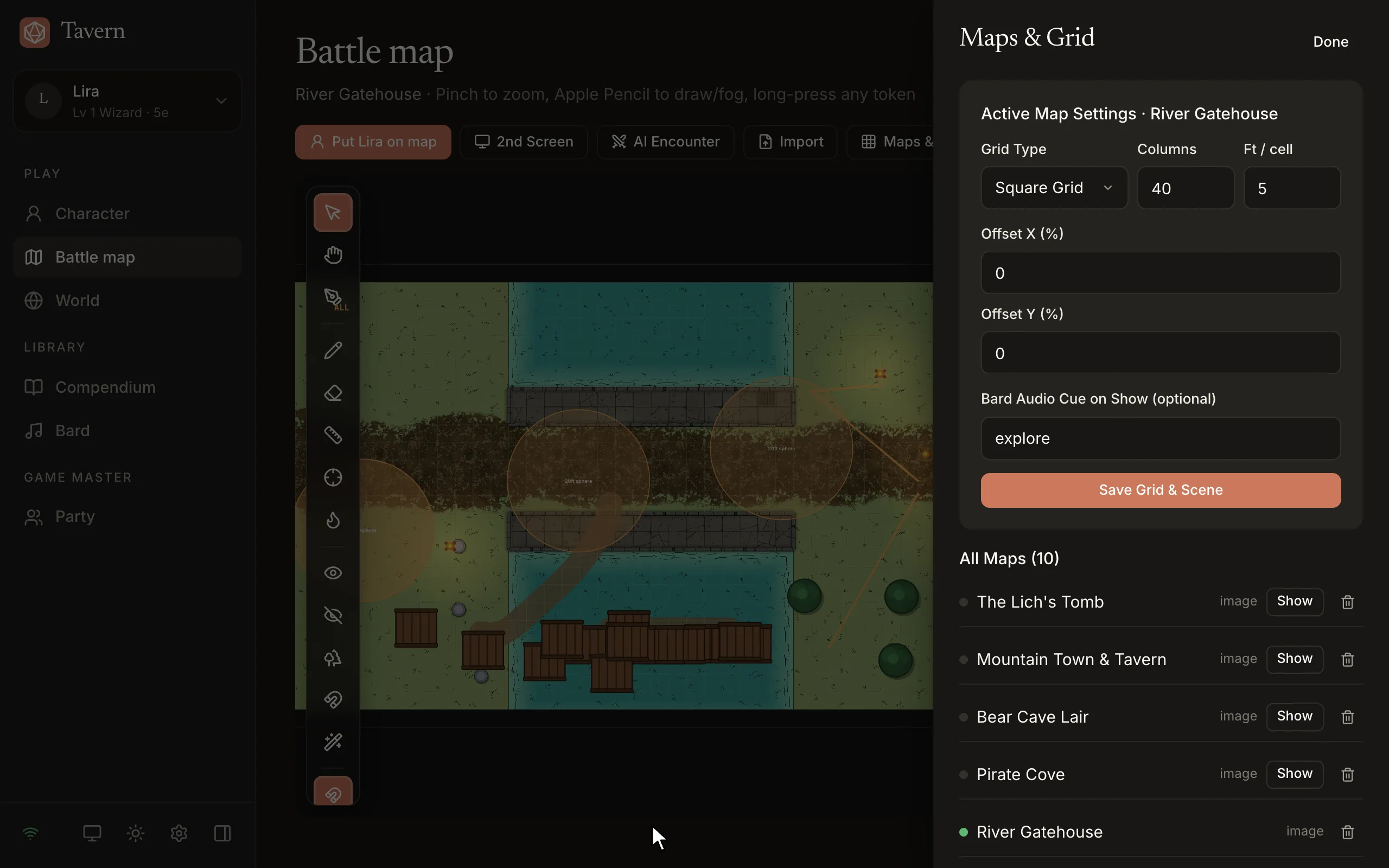
Import loads maps made in other tools: Universal VTT (.dd2vtt, including walls, doors, and lights), Tiled (.tmj), Azgaar, and Watabou maps. AI Encounter builds an encounter from a short prompt (like "goblin ambush among trees at night"), preparing monsters, tactics, and loot.
The Props tab on the right manages map props, and Mapmaker holds terrain and wall settings.
World map
The World page is the continent map where characters travel from city to city.
Put Lira on the map places your character on the map. Click anywhere to walk there—everyone watches the journey live.
Clicking a city opens its info:
- Enter: enters the city.
- Travel here: walks your character there.
Double-clicking a city enters it right away.
Inside a city, locations like taverns, shops, and temples are listed. Click Back to world to return.
The Where's the party panel shows where everyone is. The ruler tool measures distance in miles.
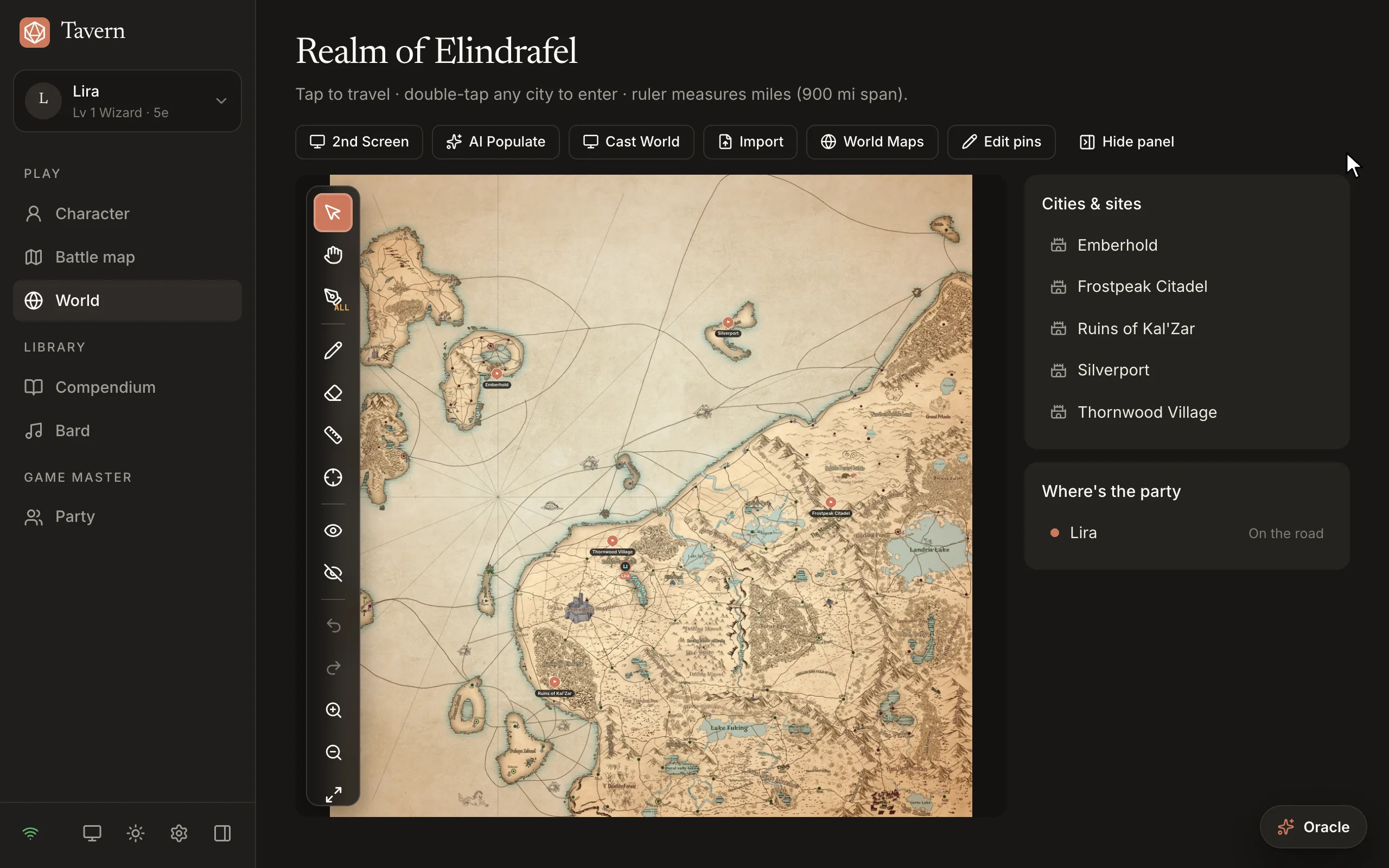
Extra buttons for DMs:
- Edit pins: adds cities, taverns, shops, dungeons, NPCs, monster lairs, and quest markers. Drag pins to move them; click to edit their name and description.
- World Maps: selects or uploads another world map.
- AI Populate: uses AI to populate the map with locations.
- Cast World: sends the world map to the shared display.
Compendium: rules encyclopedia
The Compendium page has two sections:
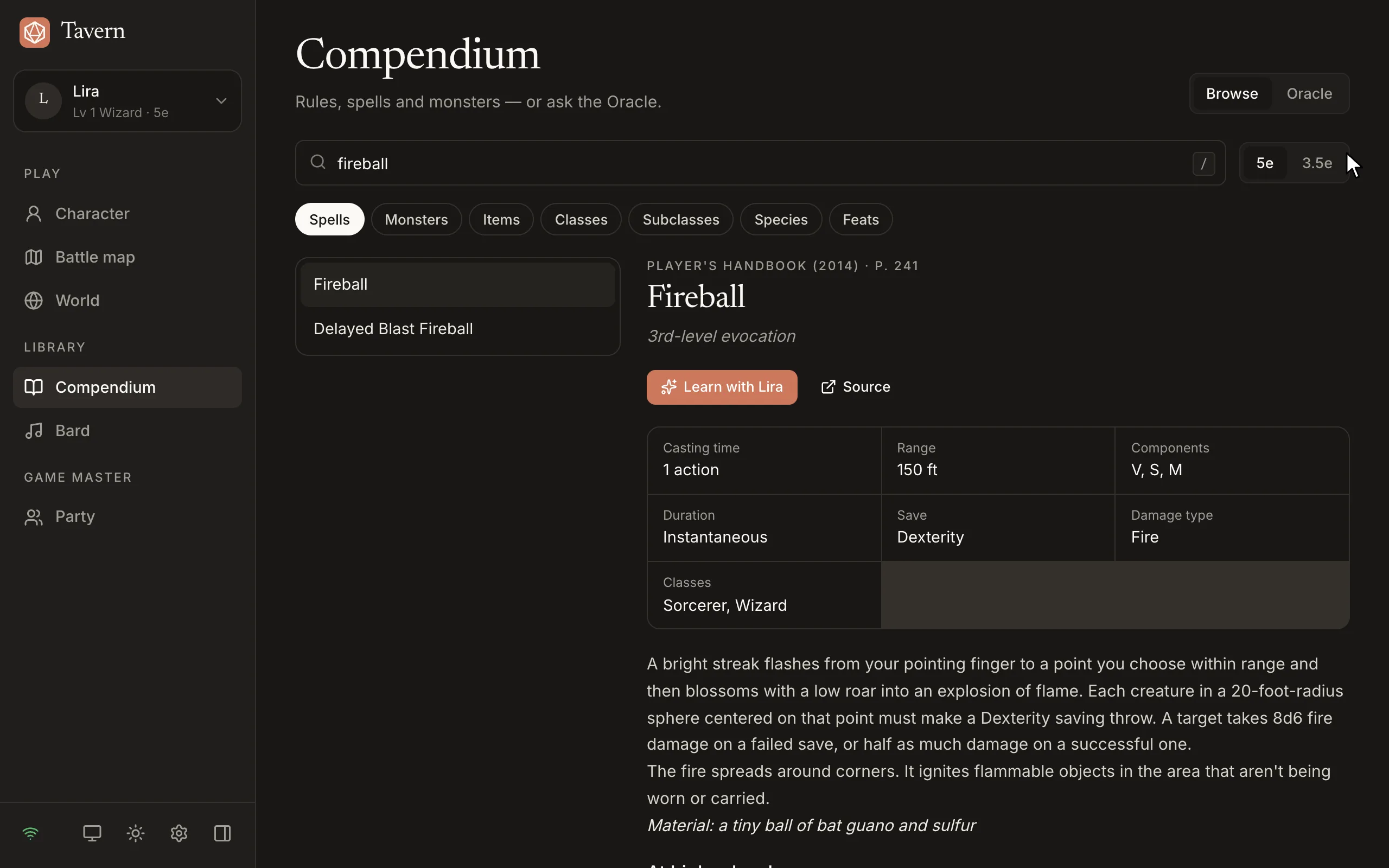
- Browse: Search Spells, Monsters, Items, classes, subclasses, species, and Feats.
- The 5e / 3.5e toggle at the top switches editions.
- Clicking Learn with Lira on a spell page adds it to your character.
- Oracle: The AI-powered DM assistant (below).
Oracle: AI DM assistant
Oracle knows the current state of your game: the active map, initiative order, world map, and campaign notes. Reach it four ways:
- From the Oracle button in the bottom right of any page,
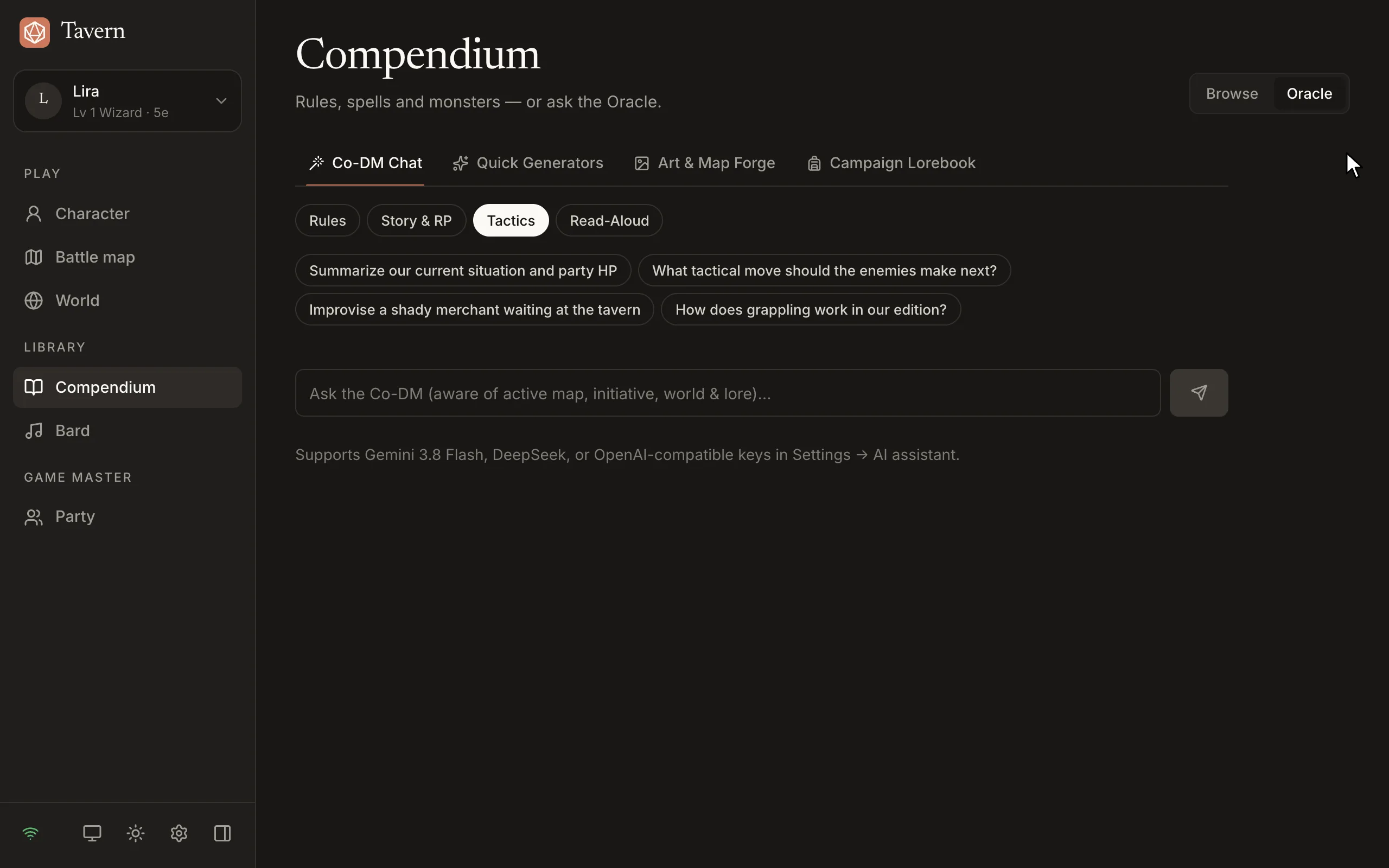
- Or through the four tabs under Compendium → Oracle:
- Co-DM Chat: Ask questions about Rules, Story & RP, Tactics, or Read-Aloud narration. Sample prompts are included.
- Quick Generators: Quickly generates an NPC, tavern, loot, or descriptive text.
- Art & Map Forge: Generates scene art, battle maps, world maps, character portraits, or transparent map props. Generated maps can go straight onto the table.
- Campaign Lorebook: Your campaign notes—NPCs, places, secrets, and clues. Oracle reads these automatically; entries marked GM Secret stay hidden from players.
Oracle needs an AI API key: Gemini, DeepSeek, or an OpenAI-compatible endpoint. Enter it under the gear button in the bottom left at Settings → AI assistant. If the server already has a key configured, you don't need to enter one.
Bard: music and sound effects
The Bard page manages the table's music, ambience, and sound effects. Everyone who clicks Listen here hears the same audio. Listen to the table in the bottom left toggles audio from any page.
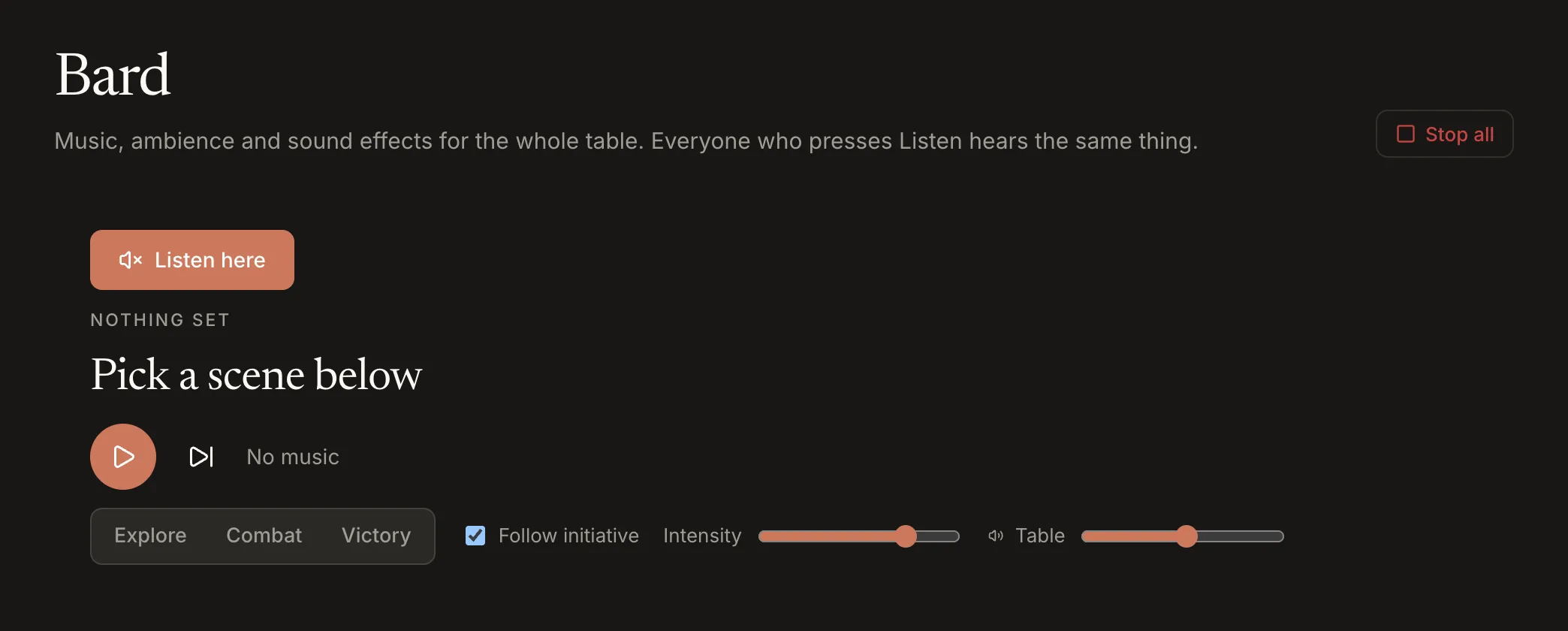
- Scenes: Twenty preset scenes like tavern, dungeon, forest, and dragon's lair. Each scene has its own ambient layers and three playlists.
- Playlists follow three moods: Explore, Combat, and Victory.
- With Follow initiative on, music switches automatically: rolling initiative starts combat music, ending combat plays victory music briefly, then returns to exploration.
- Intensity adjusts music volume only; Table sets master volume for everyone. Stop all silences everything.
- Ambient sounds layer together (up to 8), each with its own volume slider. Weapon, spell, and impact effects play on click, and events like natural 20s, heavy damage, or a monster falling trigger effects automatically.
You can also bring Bard into a Hoffle voice room: type /bard join while in the room so everyone hears the music inside voice chat. Send it away with /bard leave; it also leaves automatically one minute after the room empties.
Party: group overview (DM)
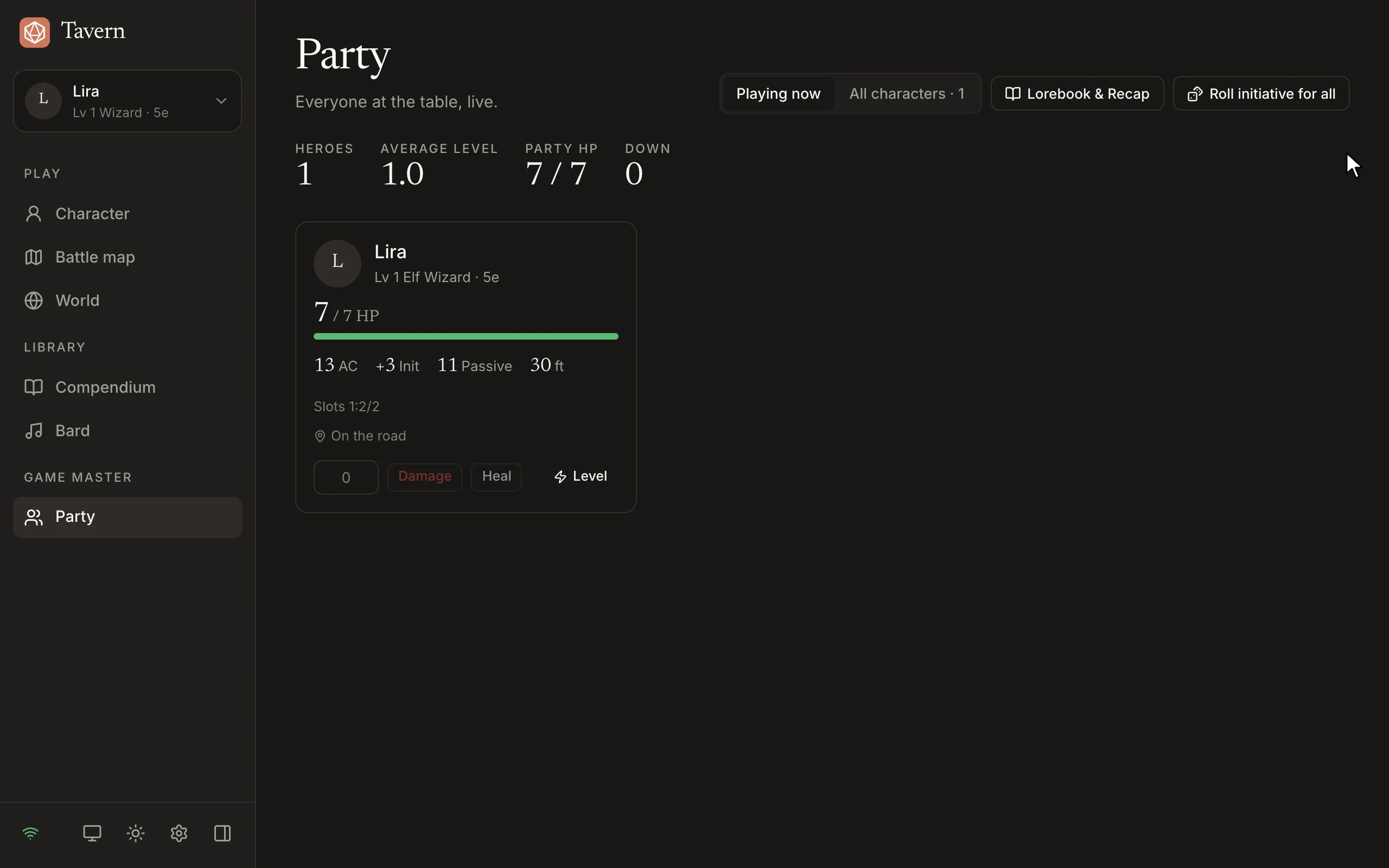
The Game Master → Party page shows everyone at the table in one view:
- Hero count, average level, total party HP, and downed count at the top.
- Each character card shows HP, AC, initiative, passive perception, speed, spell slots, and where the character is on the world map.
- Damage and Heal buttons on each card adjust HP; Level levels the character up.
- Other buttons:
- Roll initiative for all: rolls initiative for everyone.
- Lorebook & Recap: opens campaign notes and generates a session recap from recent rolls, fights, and notes.
- Playing now / All characters: filters to active players or all characters.
iPad and shared display
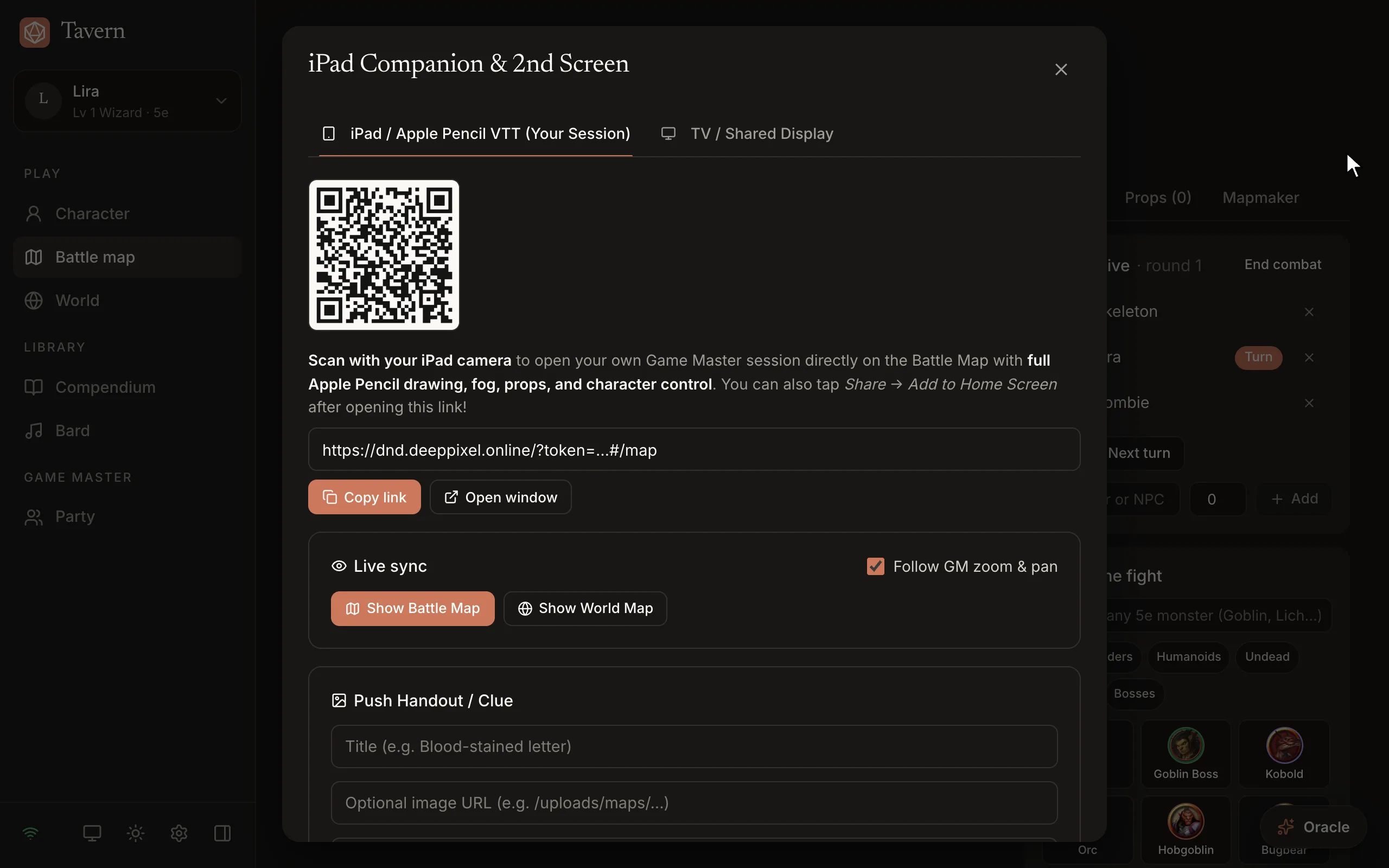
The 2nd Screen button on the battle map or world map opens iPad Companion & 2nd Screen with two tabs.
iPad / Apple Pencil VTT (Your Session):
- Scan the QR code with your iPad camera. Tavern opens straight to the battle map with Apple Pencil ready.
- In Safari, tap Share → Add to Home Screen to run it like an app.
- This link is your personal session—don't share it with others.
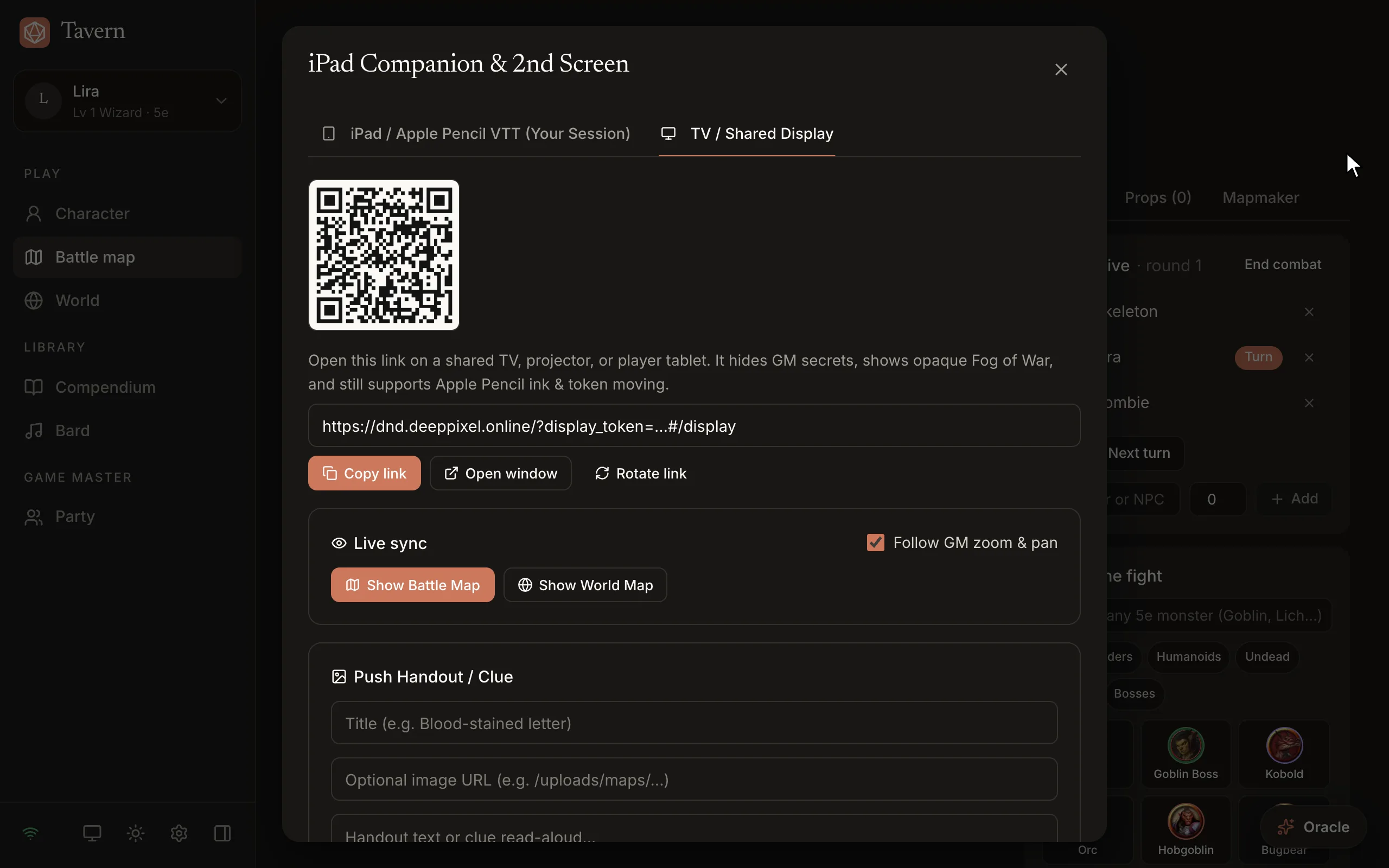
TV / Shared Display:
- Open this link on a tabletop TV, projector, or player tablet.
- It hides GM secrets and keeps fog of war completely opaque.
- If the link leaks, click Rotate link to replace it.
Other controls in the same dialog:
- Live sync: Picks which map the shared display shows (Show Battle Map / Show World Map). With Follow GM zoom & pan on, the display tracks wherever the DM looks.
- Push Handout / Clue: Shows a clue to players. Enter a title, optional image URL, and text, then click Show on 2nd screen. It appears as a card over the map on the shared display. Remove it with Dismiss handout.
Buttons at the bottom of the shared display:
- Auto: Follows the DM.
- Battle and World: Locks to one map.
- Free Pan: Lets you pan freely.
- Full VTT: Switches to full Tavern.
Hoffle's own Second Screen can also show Tavern in a pane: Second Screen.
Connecting with the Hoffle table
Tavern and Hoffle share the same game state:
- Characters: Sitting at a voice room table in Hoffle uses your active character as your table card. Changes on the sheet appear at the table, and HP or spell slots spent at the table sync back to your sheet.
- Dice: Dice rolled in Tavern roll from your seat at the Hoffle table. Dice rolled with
/rollat the table appear in Tavern's table log. - Tokens: Every token on Tavern's map is a miniature on the 3D table. Placing, moving, damaging, or removing one updates the other side.
- Initiative: Tavern, Discord, Hoffle's
/initiativecommand, and the 3D table share one turn order. - GM screen: The DM in Tavern also gets the GM screen at the 3D table.
For table seating and the DM seat, see D&D & Tabletop.
Settings
The gear button in the bottom left opens Tavern's settings:
- Theme: light or dark mode.
- AI assistant: service used by Oracle (Gemini, DeepSeek, or an OpenAI-compatible URL) and your key.
- Discord log channel: Discord channel where web rolls and HP changes are logged (DM).
- Music bot: send tracks to the music bot.
You can also sign out from here and check which account and role (DM or player) you're signed in as.
Choosing DMs
This section is only visible to Hoffle admins. Click the gear button in the bottom left and open Settings → Game masters:
- Your GM mode: Your own DM mode. With GM selected, you see all character sheets, DM tools, and secrets; with Player selected, you play like everyone else. Admins start in GM mode on their first visit.
- Who else is a game master: Lists everyone who has opened Tavern from Hoffle at least once, along with their characters. Check GM next to someone to make them a DM; uncheck it to return them to player mode.
Changes take effect immediately—their open page reloads on its own with no re-login needed. People joining through the Discord bot's special link don't appear here; their DM status is managed on Discord.