Opening settings
Click the gear icon (User Settings) next to your name in the bottom left. In Simple mode, settings open as large cards; click Show everything at the bottom to see every section.
Type a keyword (like "notifications" or "password") into Search settings… at the top left of the settings window to jump straight to a setting.
Password & Security
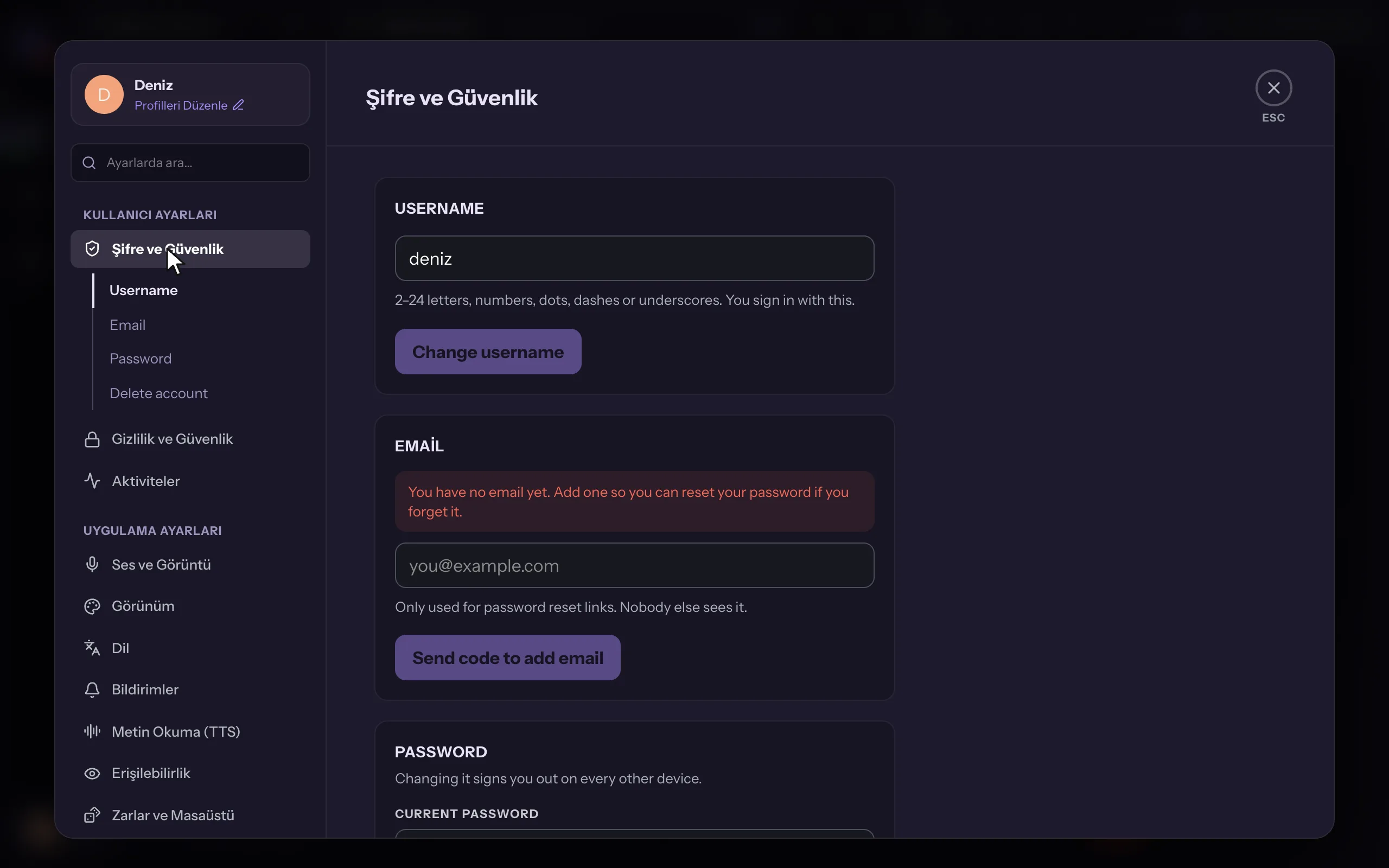
- Username: The name you sign in with. Click Change username to update it.
- Email: Optional, used only for password reset links if you forget your password. Enter your address, click Send code to add email, and enter the code.
- Password: Enter your current password first to set a new one. Changing your password signs out all other devices.
- Where you're signed in: Devices currently logged into your account. If you see a device you don't recognize, sign it out and change your password.
- Two-factor authentication: When enabled, Hoffle asks for a code from an authenticator app (Google Authenticator, Aegis, 1Password, Authy…) after your password, so someone who learns your password still can't get in.
- Passkeys: Sign in with fingerprint, face unlock, or your device PIN instead of a password. Click Add passkey and follow your device's prompt. When 2FA is on, a passkey can also act as your second step.
- Your data: Download my data exports your profile, messages, reactions, friends, servers, and settings as a file (up to three times per hour).
- Delete account: Deletes your account. Unless you delete them yourself, your messages remain in conversations under "Deleted User".
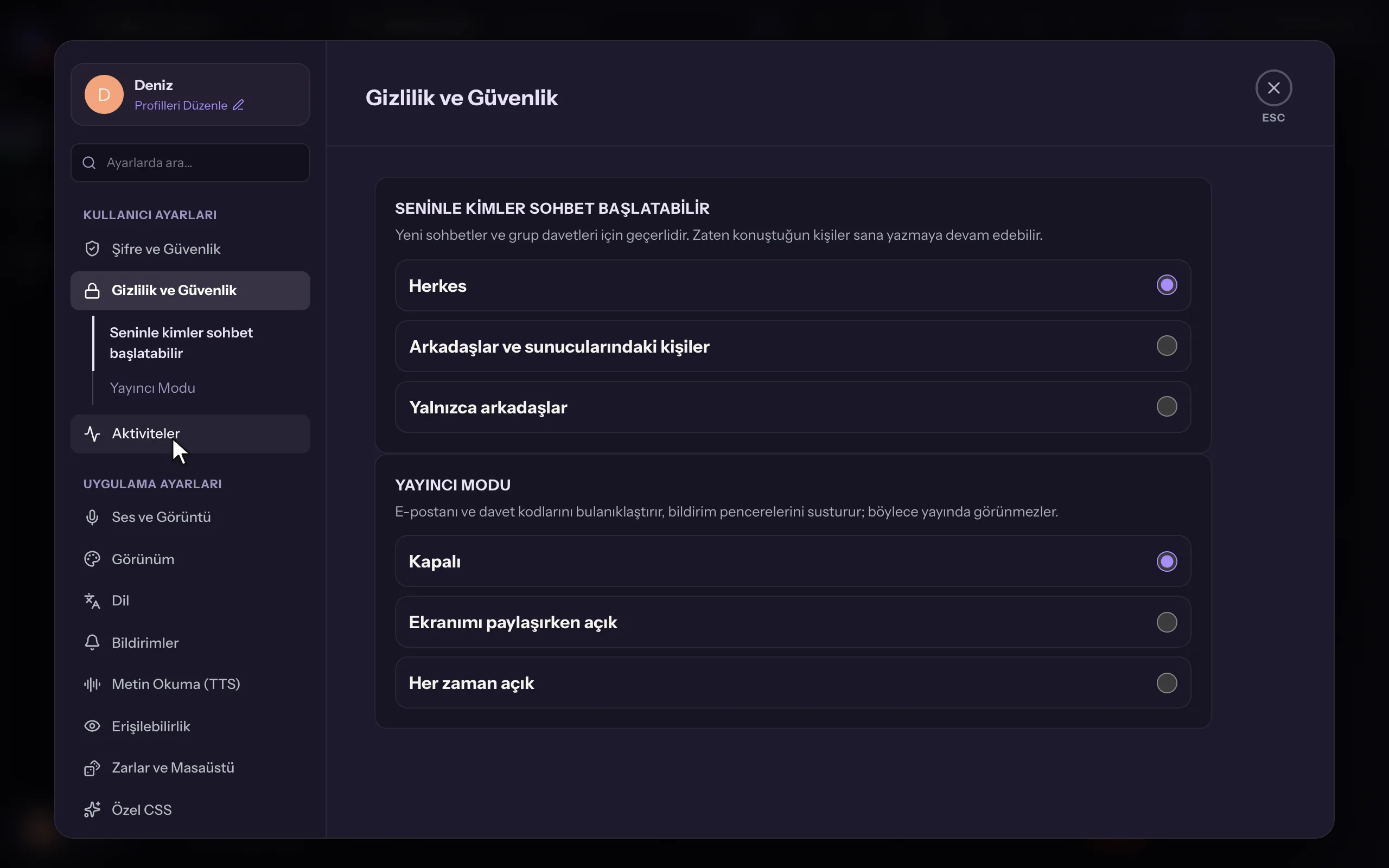
Privacy & Safety
- Who can start a chat with you: Everyone, Friends and people in your servers, or Friends only. This applies to new DMs and group invites; people you're already talking to can keep messaging you.
- Streamer mode: Blurs your email and invite codes and suppresses notification popups so they don't appear on stream. Choose Off, On while sharing my screen, or Always on.
Activities
- Share Spotify / Music Listening: Displays the song you're listening to on your profile card. Connect Spotify to Last.fm and enter your Last.fm username here; your track updates within about 15 seconds.
- Share games & apps: Automatic game detection works in the desktop app. In the browser, you can type what you're up to in What you are doing.
Friends see this in the Active Now panel on the right of the Friends screen.
Notifications
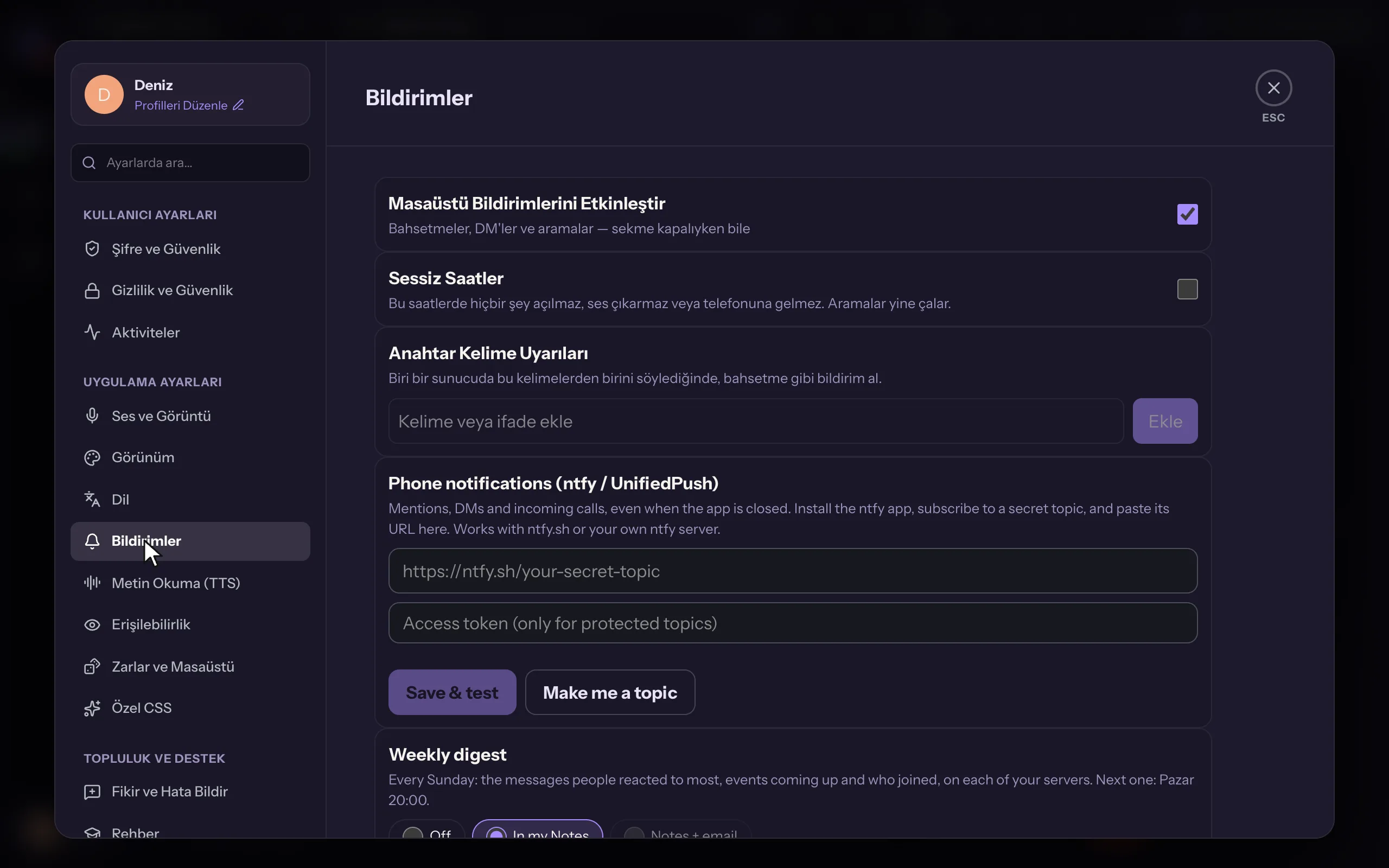
- Desktop notifications: For mentions, direct messages, and calls—even when the tab is closed.
- Quiet hours: During hours you choose, notifications won't pop up, play sounds, or buzz your phone. Calls still ring.
- Keyword alerts: Whenever someone writes one of your keywords in a server, you get notified as if you were mentioned (useful for a nickname or your favorite game).
- Phone notifications (ntfy): Get notifications on your phone even when the app is closed. Install the ntfy app on your phone, click Make me a topic for a private topic (or paste your own), then click Save & test.
- Weekly digest: Every Sunday, a summary of top-reacted messages, upcoming events, and new members across your servers: Off, To my notes, or Notes + email.
To customize notifications for a single channel or server, right-click the channel or server name (see Channel settings).
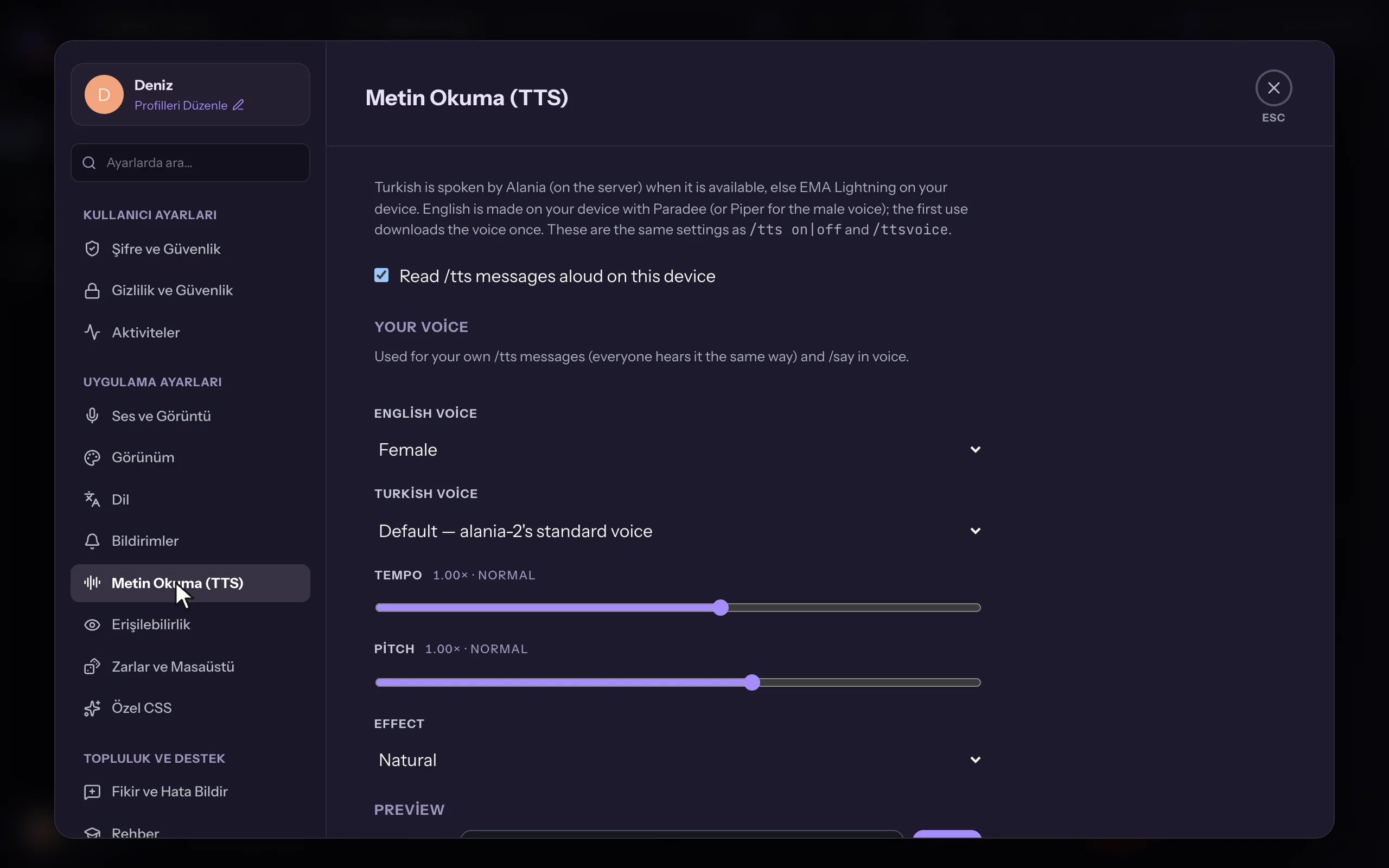
Text-to-Speech (TTS) & Live Captions
- Read /tts messages aloud on this device: Speaks
/ttsmessages sent in channels on this device. - Your voice: The voice used for your own
/ttsmessages, with Speed, Pitch, and Effect (natural or robot). Click Preview to listen. - Live captions: The speech recognizer that transcribes speech during calls. Duyu is the server's Turkish recognizer; Browser uses your browser's built-in recognizer (Chrome, Edge, and Safari).
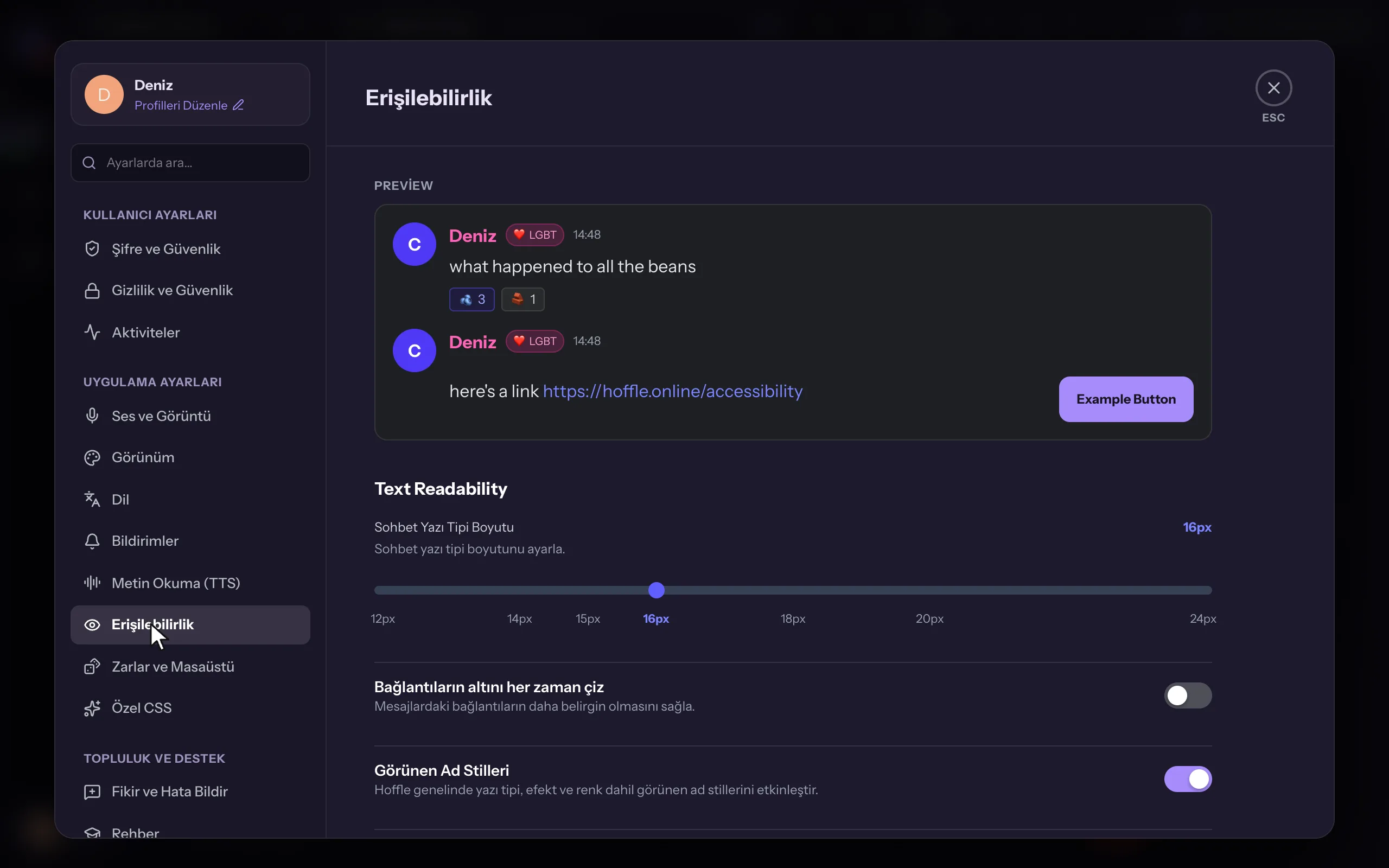
Accessibility
- Chat font size: Between 12 and 24 pixels.
- Always underline links: Makes links in messages easier to spot.
- Display name styles: Toggles colored and styled names for other users.
- Animate name effects: Play animated name styles on hover only, always, or never.
- Interface motion: Smooth scrolling and subtle animations. Turn off if motion bothers you.
The preview at the top of the window shows how your changes will look.
Turning features on and off
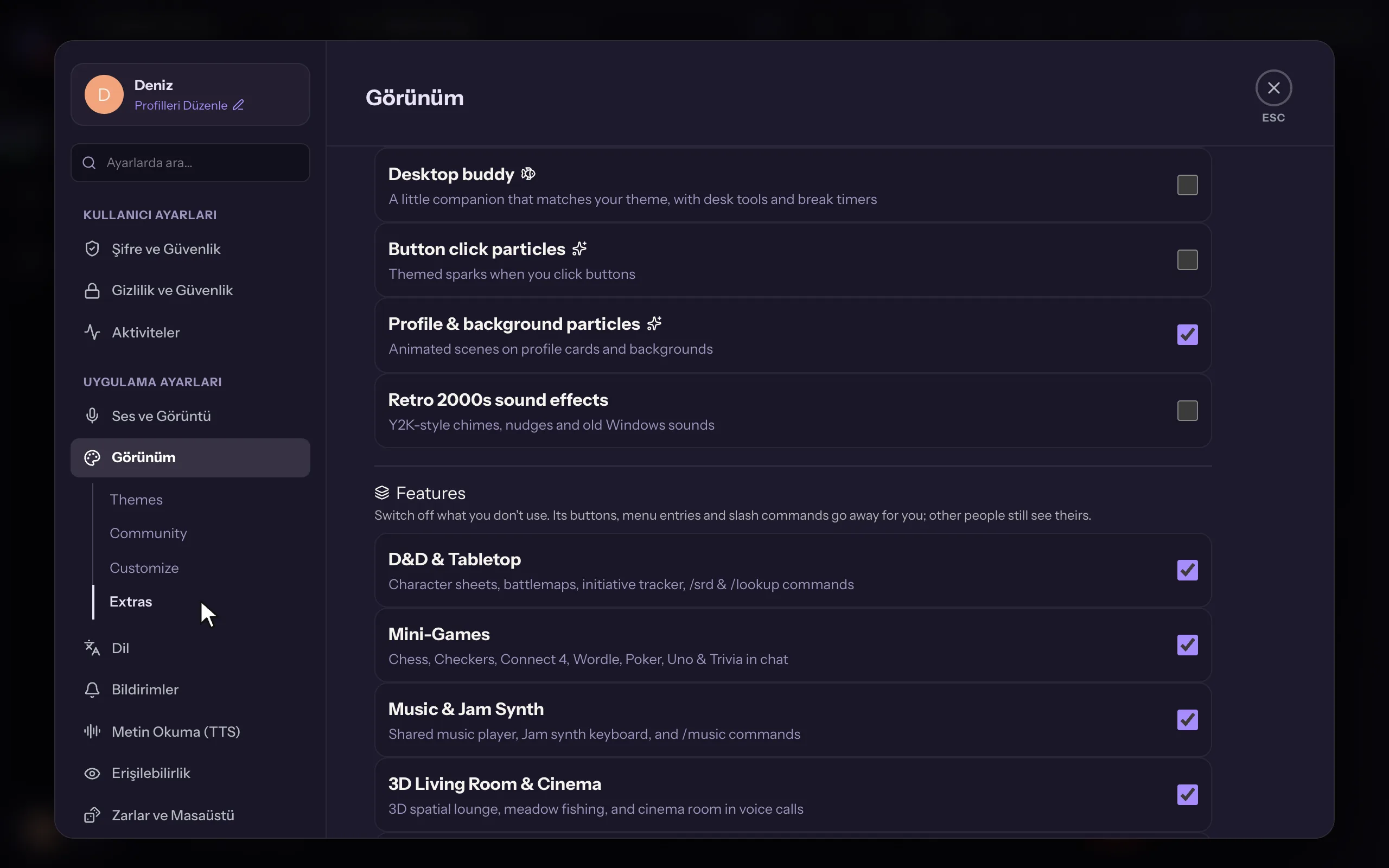
Under Appearance → Extras, you'll find Features. Turning off features you don't use removes their buttons, menu items, and commands on your screen only—other people still see theirs:
- D&D & Tabletop, Mini-Games, Music & Jam Synth, 3D Living Room & Cinema
- Profile Cosmetics & FX: Profile effects, avatar frames, and decorations.
- Achievements: Achievement toasts and the achievements button.
- Nudges & Winks: Nudges and full-screen winks sent by others. Even when off, you can still replay a wink from its line in chat.
The same section has toggles for Desktop buddy (a small buddy matching your theme), Button click particles, Profile & background particles, and Retro 2000s sound effects.
Custom CSS
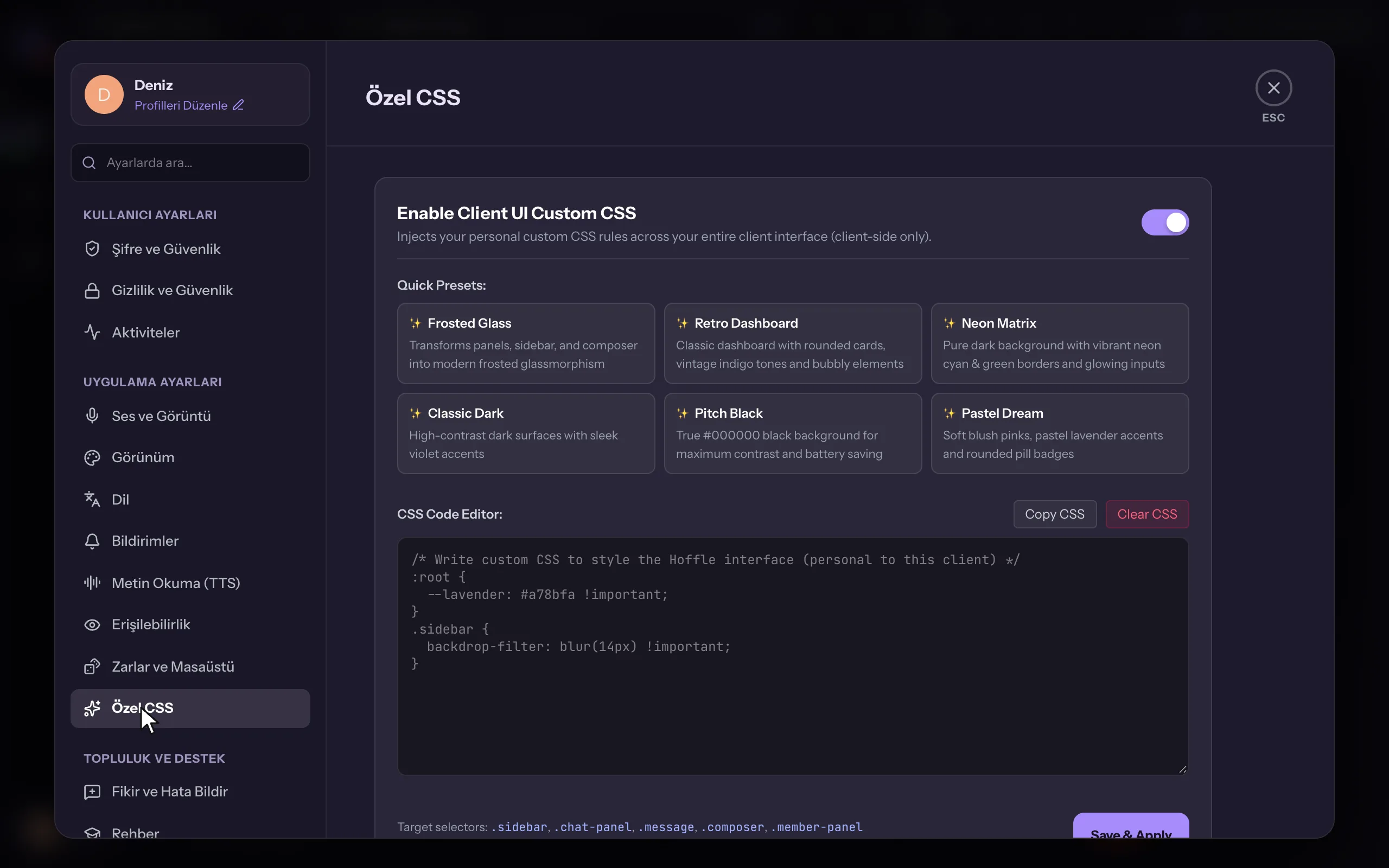
In Custom CSS, you can restyle Hoffle with your own CSS rules. Changes apply only on your screen. Quick Presets includes ready-made styles (Frosted Glass, Retro Dashboard, Neon Matrix, Classic Dark, Pitch Black, Pastel Dream). Write your CSS and click Save & Apply; toggle Enable Client UI Custom CSS anytime to switch it off.
Other sections
- Voice & Video: Microphone, speakers, noise suppression, and push-to-talk. Details in Voice & Video settings.
- Appearance: Themes, layout, and interface mode (Simple/Full). See Simple mode and Full mode.
- Language: Hoffle's interface language. Picks your browser language by default. Languages marked "Partial" show English where translations aren't finished yet.
- Dice & Tabletop: 3D dice appearance. See Customizing your 3D dice.
- Feedback & Bugs: Send a suggestion or bug report directly to Hoffle's developers and track its status under My Requests.
- Guide: Reopens the welcome tour.
- Sign Out: Signs out on this device.