What is Hoffle?
Hoffle is a free chat app for friend groups. Text chat, voice and video calls, screen sharing, shared music, watching videos together, and tabletop tools for games like D&D all live in one place.
It runs in your browser with no installation required: just go to chat.hoffle.online. You can also install the desktop app from the download section.
The screenshots in this guide were taken from a test server with fictional people (Deniz, Ece, Mert, Zeynep, Can).
Joining with an invite
Most of the time you arrive at Hoffle through an invite link sent by a friend. The link looks like chat.hoffle.online/i/….
- Open the invite link. You'll see who invited you and the name of the server.
- Click Join ….
- Enter the name your friends will see in the Your name box.
- Check the box confirming you are 16 or older and agree to the rules.
- Click Join … again. That's it—you're straight inside the server.
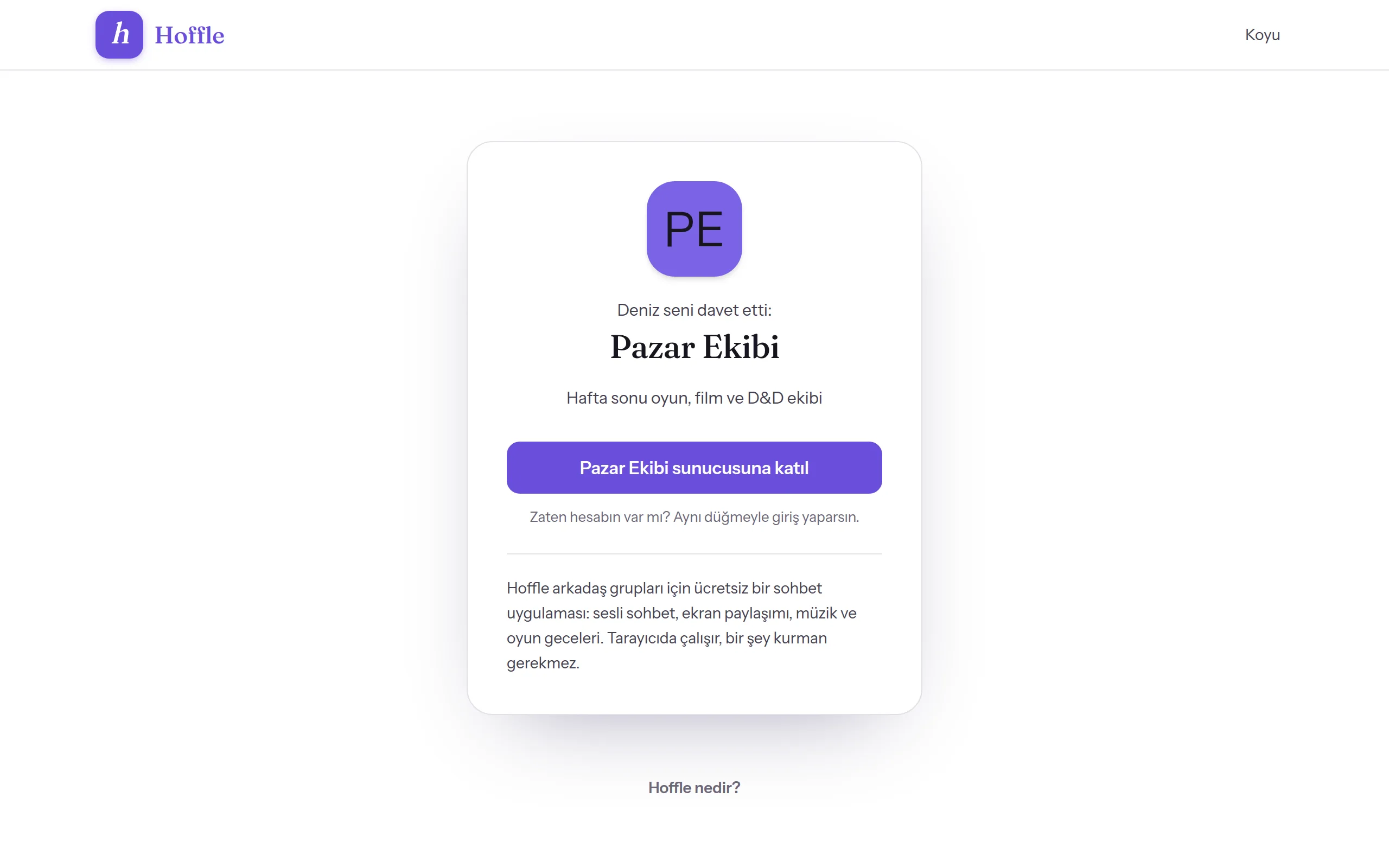
This signs you in as a guest. If you set a password using the Save my account button at the bottom of the screen, you can sign in with the same account from other devices. If you already have an account, the same button takes you to the sign-in screen.
Creating an account and signing in
If you don't have an invite link, you can also create an account at chat.hoffle.online.
- Username: Used when signing in. Can contain letters, numbers, dots, hyphens, and underscores.
- Email: Optional. Only used to send a reset link if you forget your password.
- Password: At least 8 characters.
If you already have an account, enter your username and password on the sign-in screen and click Sign in. To use your device's fingerprint or face unlock instead of a password, choose Sign in with passkey (you'll need to set this up first under Settings → Password & Security). The Forgot password link sends a reset link if you added an email to your account.
Welcome tour
The first time you open Hoffle, a short tour appears. It has six pages and you can close it at any time with ×.
- Pick your look: Click a theme and Hoffle switches to it immediately. Don't like it? Click another one.
- Find your way around: Where servers, channels, and direct messages live.
- Voice chat and screen sharing: How to hop into voice rooms.
- Chat, your way: Text effects, polls, and commands.
- Game night: 3D dice and games.
- Make it yours: Your profile and keyboard shortcuts.
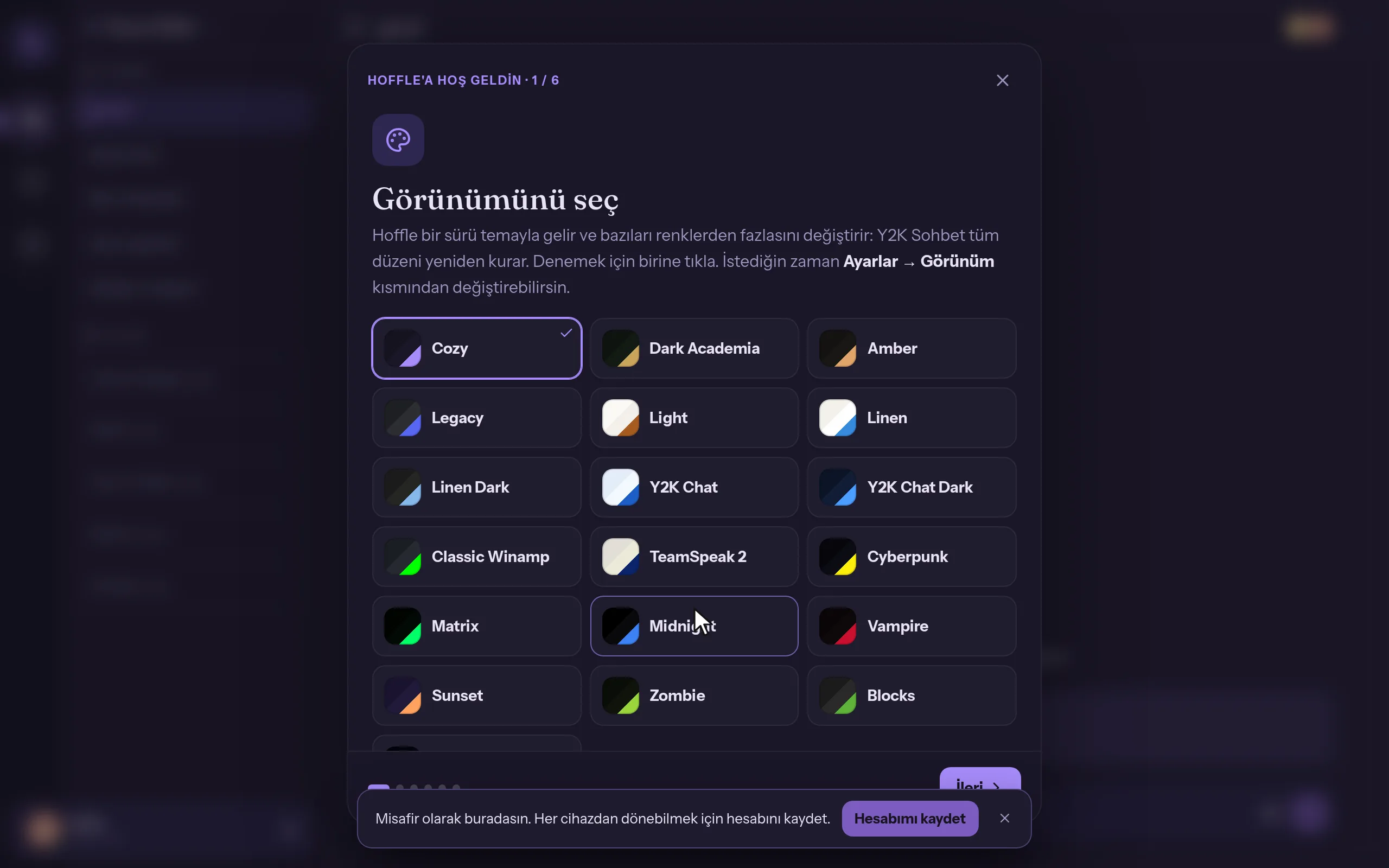
If you want to replay the tour later, open Settings → Guide. In Simple mode, this option is called Settings → Show me around.
Tour of the screen
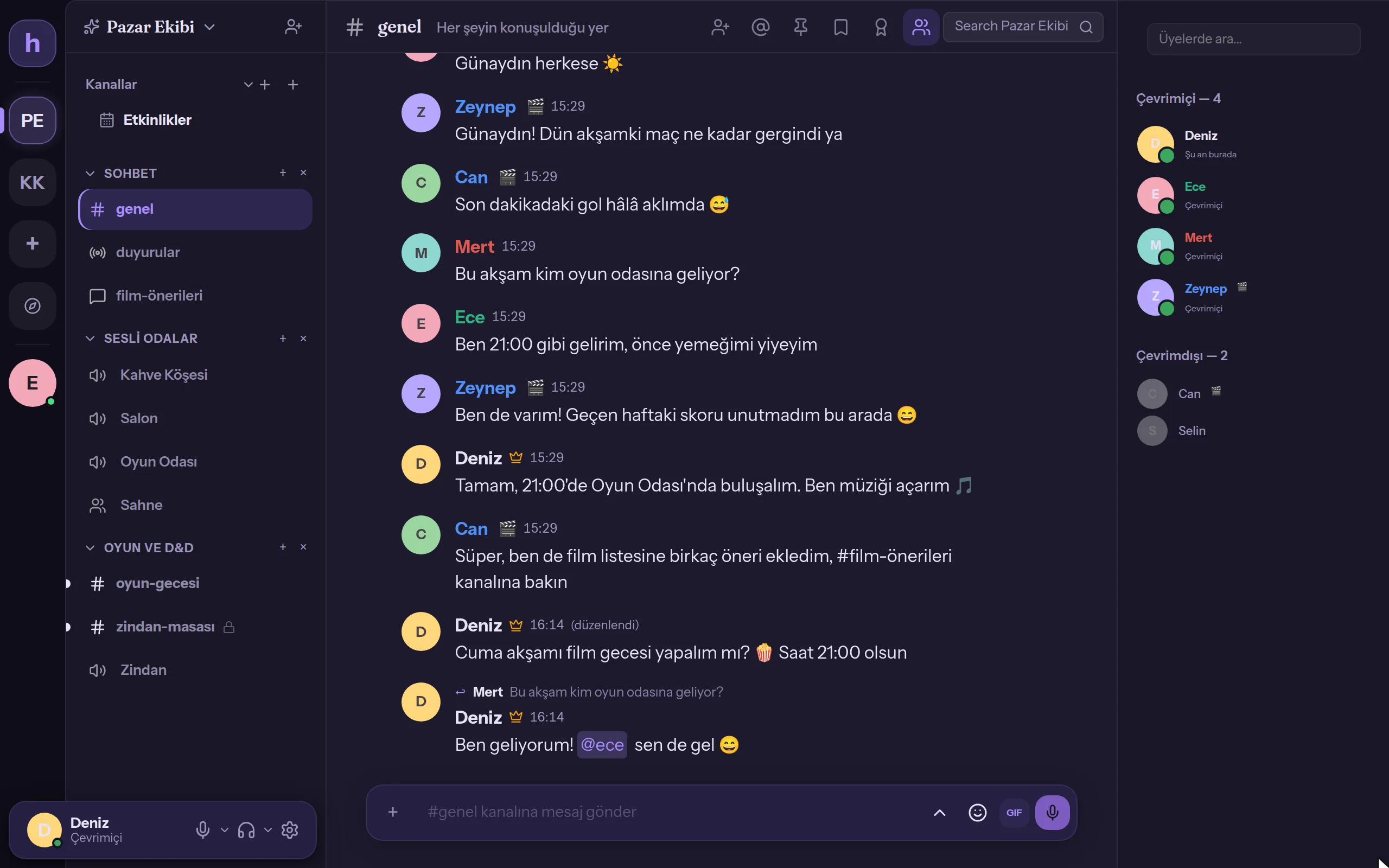
From left to right:
- Server rail (far left): The h button at the top opens your direct messages. Below it are the servers you belong to. + creates a new server or joins one with an invite code, and the compass icon shows public servers. Friends who send you new messages also appear here as small round avatars.
- Channel list: The channels of the selected server. Channels starting with
#are text channels; those with a speaker icon are voice rooms. At the bottom are your name, microphone and headphone buttons, and the gear-shaped User Settings button. - Chat area (center): The channel's messages and the message box at the bottom. The top bar shows the channel's name, topic, search box, and buttons for mentions, pinned messages, saved messages, and achievements.
- Member list (right): Shows who is online in the server. You can toggle it with the people icon in the top bar.
Simple mode and Full mode
Hoffle has two interfaces:
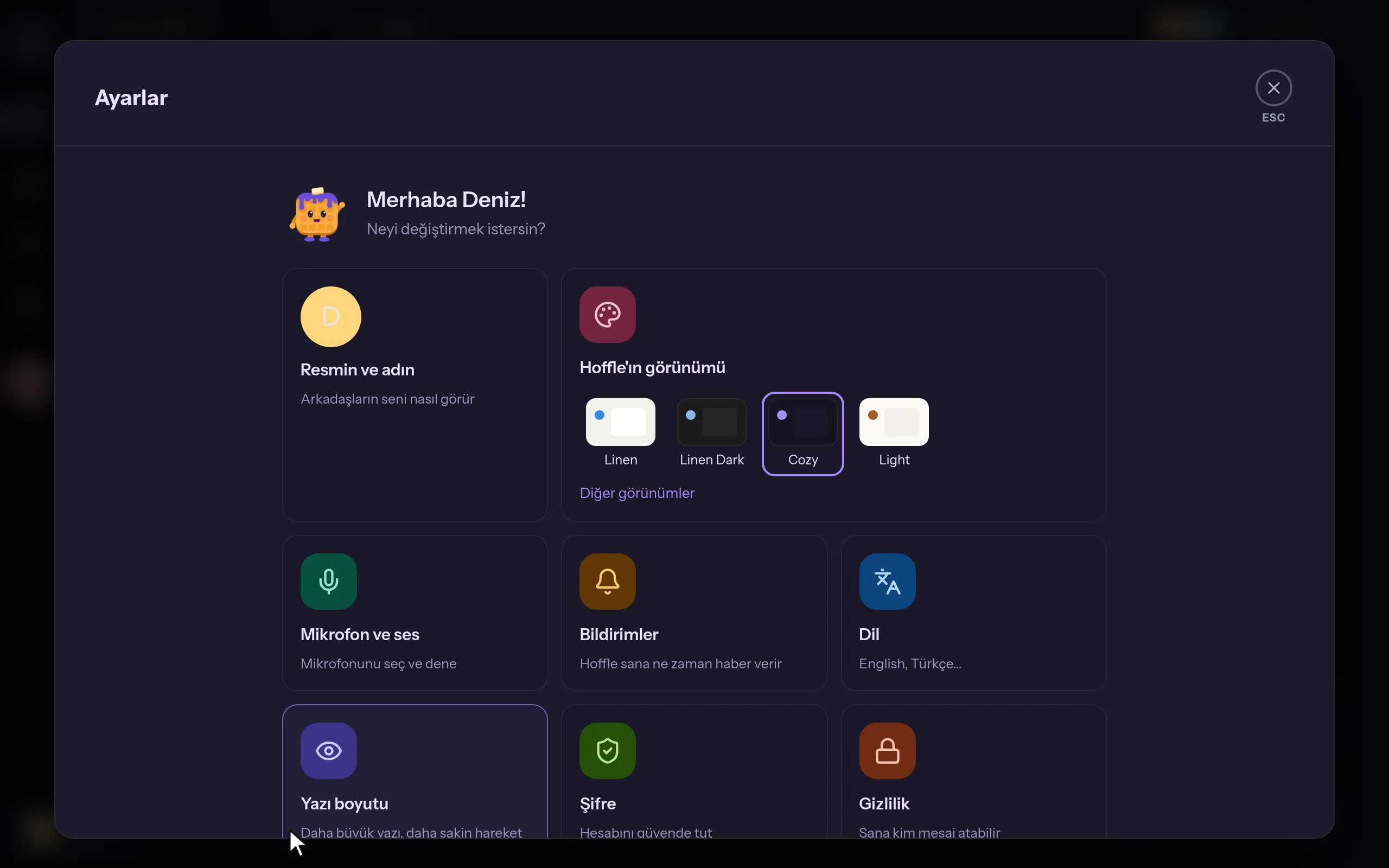
- Simple mode is the default for new accounts. Everyday actions (chat, voice rooms, invites) stay front and center, while everything else moves into the More (⋯) menu and Show everything in settings. The settings screen is also laid out as large, clear cards.
- Full mode puts every button on screen: categories, top-bar tools, the member list, and all settings.
Nothing is lost between the two; slash commands work in both modes. Most screenshots in this guide were taken in Full mode.
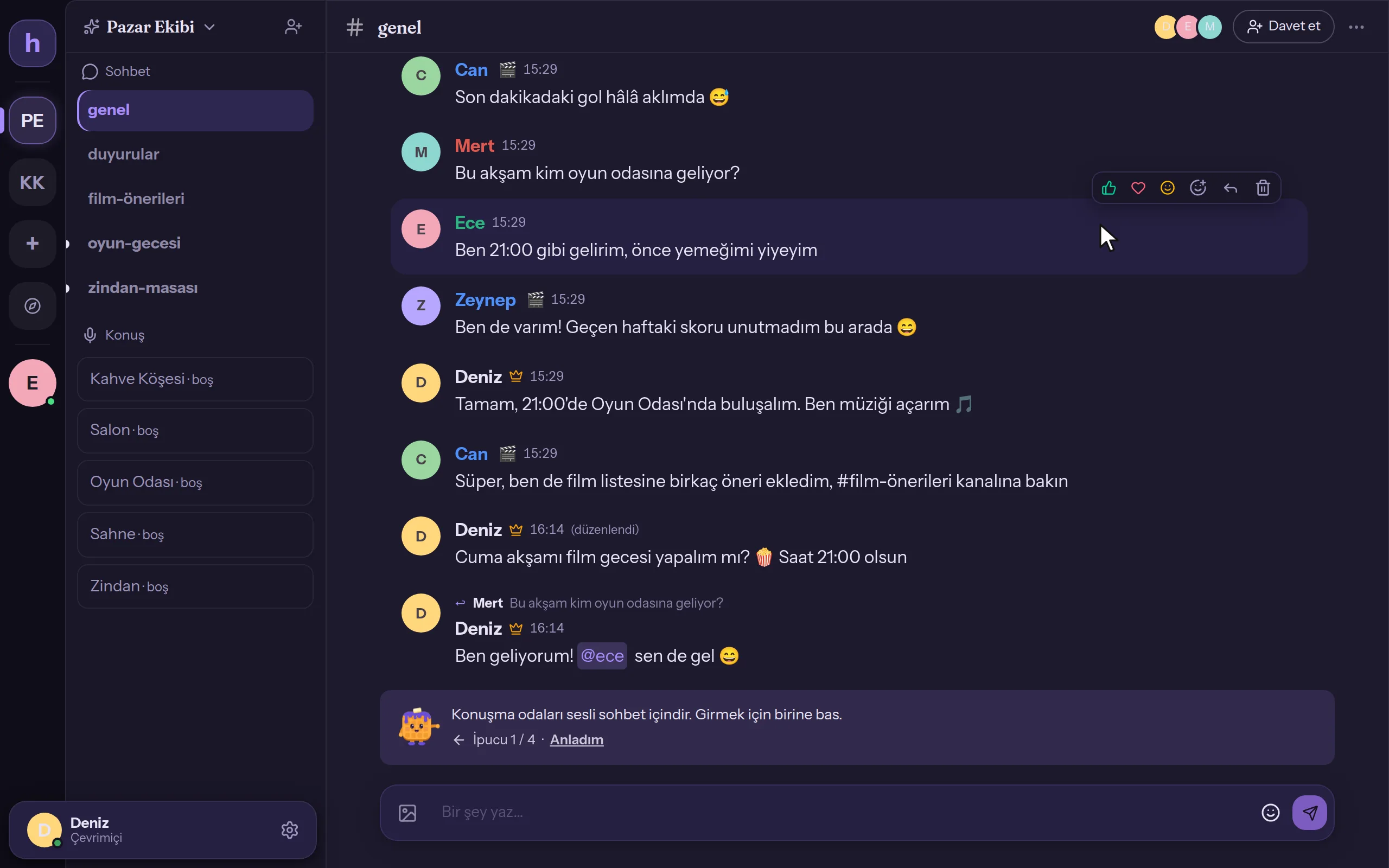
To switch from Simple mode to Full mode:
- Click the gear icon (User Settings) in the bottom left.
- Click Show everything at the bottom.
- Open Appearance on the left.
- On the Interface row, choose Full.
To switch back from Full mode to Simple mode, choose Simple in the same spot.
Quick switcher and keyboard shortcuts
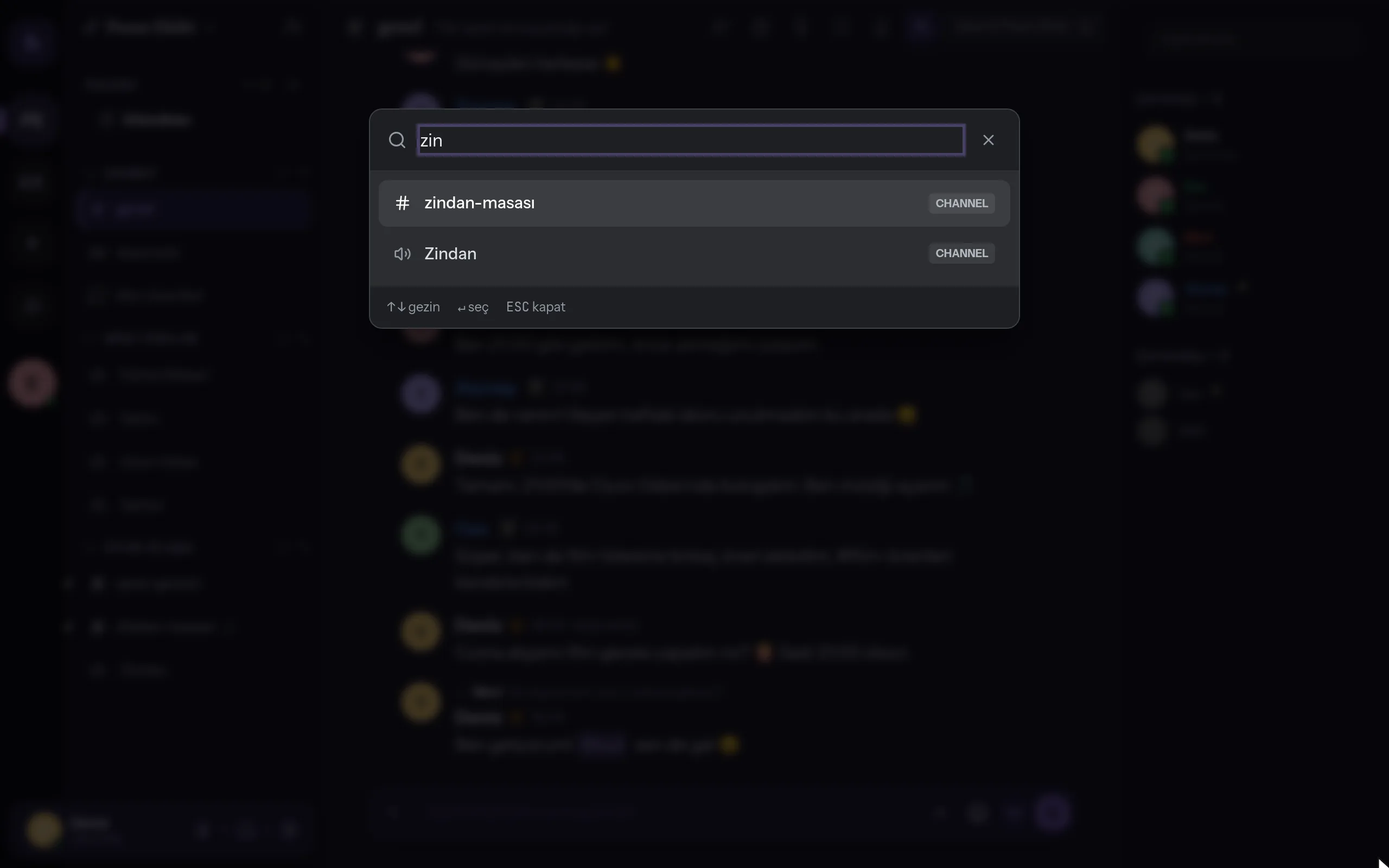
Instead of clicking around between channels and friends, press Ctrl + K (⌘ + K on Mac), type a few letters of the channel or person you want, and press Enter to jump there.
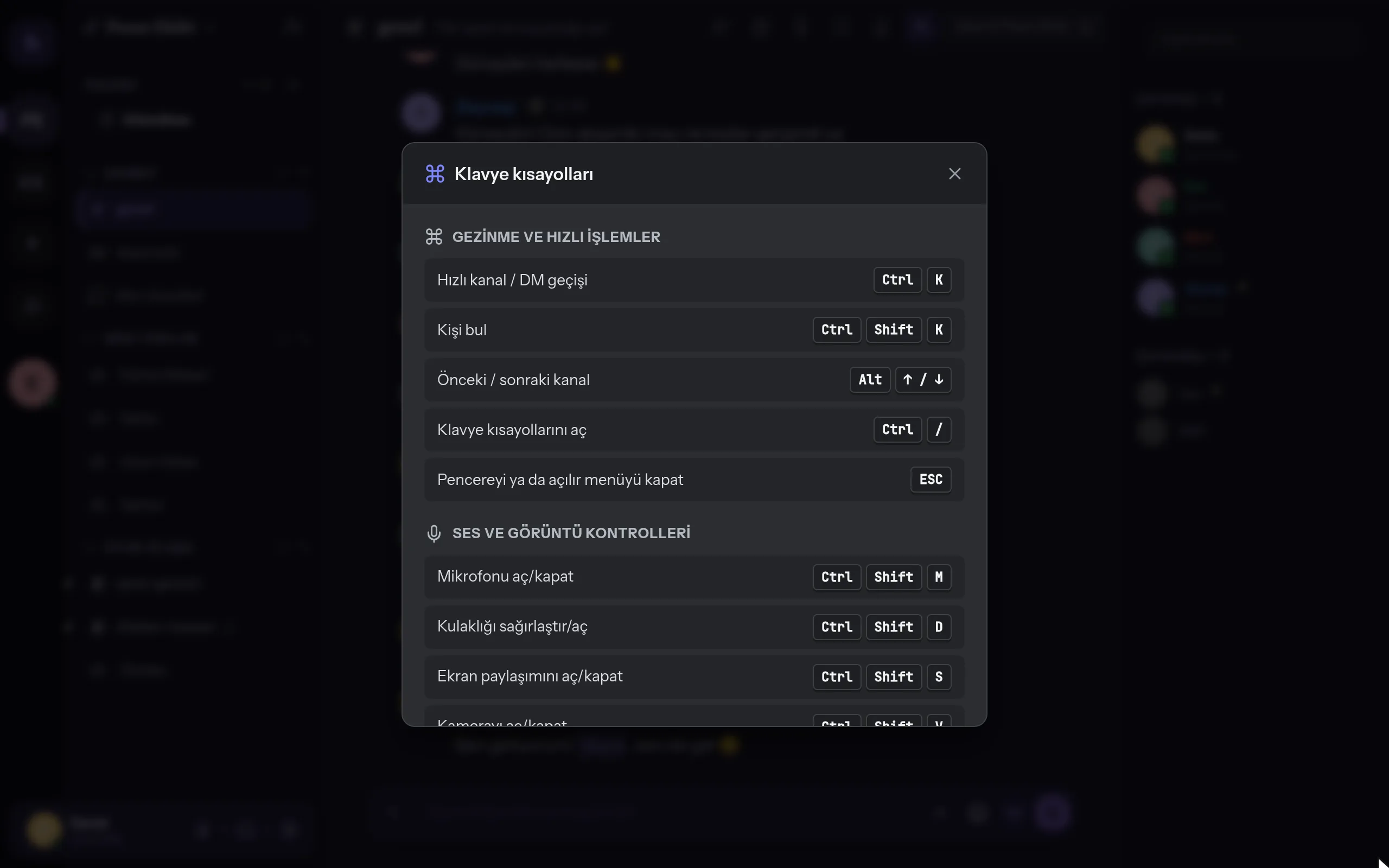
Press Ctrl + / for the full list of shortcuts. The most common ones:
| Shortcut | What it does |
|---|---|
| Ctrl + K | Quick jump to a channel or DM |
| Ctrl + Shift + K | Find a person |
| Alt + ↑ / ↓ | Previous or next channel |
| Ctrl + Shift + M | Mute or unmute microphone |
| Ctrl + Shift + D | Deafen or undeafen |
| Ctrl + Shift + S | Toggle screen sharing |
| Esc | Close open modal or menu |
Apps
Hoffle works completely in the browser, or you can install it as an app. The download section has the desktop app for Windows, Mac, and Linux, a smaller build called Hoffle Lite, and the lightest build Hoffle Native (experimental).
On your phone, open Hoffle in the browser and use Add to Home Screen to use it like an app—this is also how notifications work.
The desktop app has a few advantages over the browser:
- Push-to-talk keys that work even while a game is focused.
- Sharing the audio of a single application during screen sharing.
- Staying in the system tray to show notifications even when you close Hoffle.