What is the Living Room?
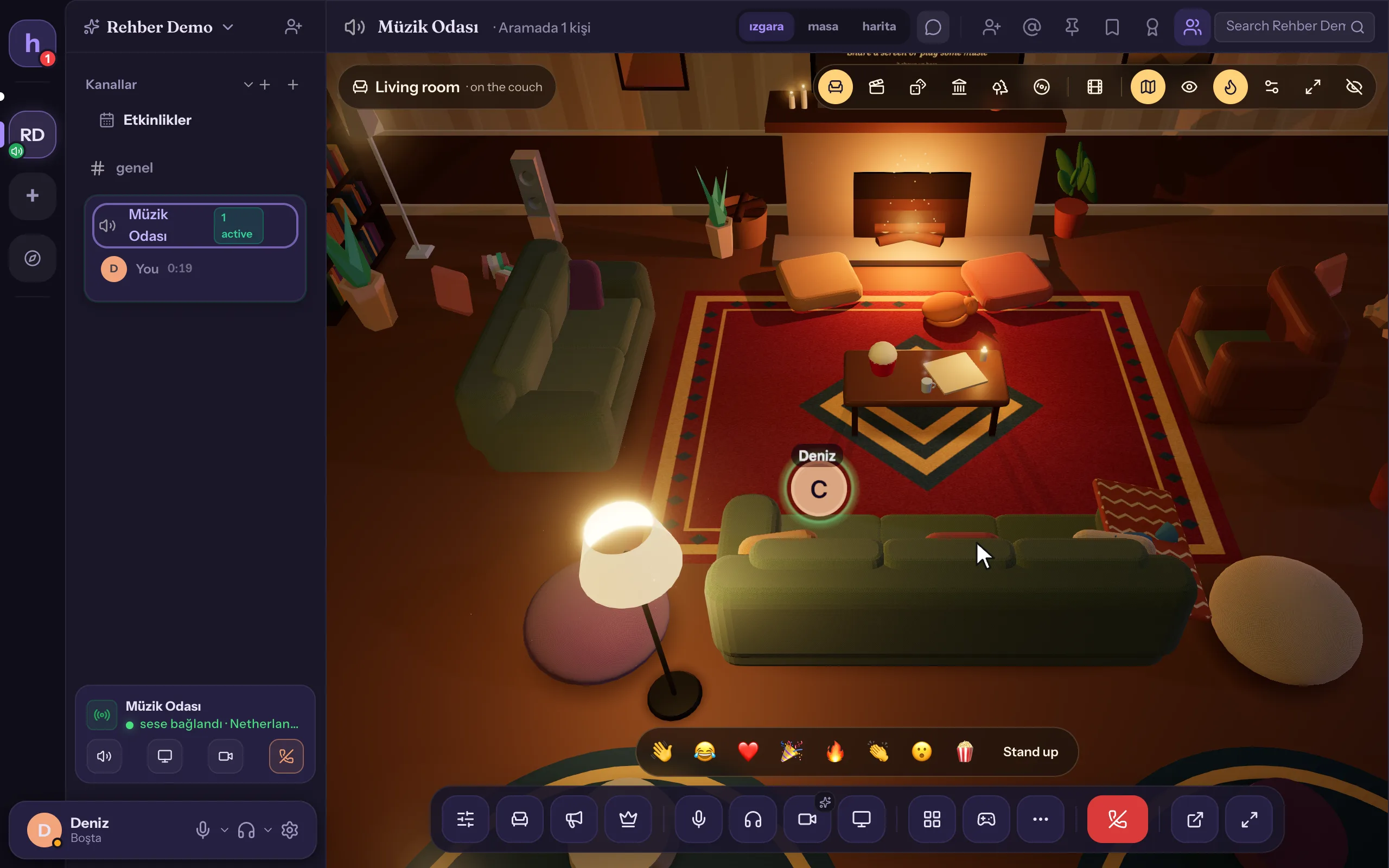
The Living Room is the 3D version of a voice room. Everyone in the room appears as an avatar sitting on a couch, in a cinema, at a game table, or on a dance floor—and voices can come from where people are in the room. It's built for watching movies together, playing D&D, listening to music, or just hanging out.
To open it:
- Join a voice room.
- Click the armchair icon (Living Room) in the room's bottom bar.
The room renders in your browser; the first load can take a few seconds. If your device struggles, you can lower graphics quality in the room settings (below).
If this feature is disabled in a server, the button is hidden. Admins can toggle 3D Living Room & Cinema under Server Settings → Access.
Top toolbar
Along the top of the room:
- Spaces: Living room, cinema, tabletop, board hall, meadow, and club. Clicking one moves your avatar there.
- Watch together: Opens Watch Together; the video plays on the room's screen.
- Overhead view and First-person view: Look at the room from above or through your own eyes.
- Room sounds: Ambient room audio. Only you hear this.
- Living Room settings: Room settings (below).
- Fullscreen and Hide controls (H): Expands to fullscreen or hides the UI buttons.
At the bottom are quick reactions (👋 😂 ❤️ 🎉 🔥 👏 😮 🍿) and Stand up. Reactions float briefly above your avatar.
Moving around
- Walk with W A S D or the arrow keys. Hold Shift or double-tap W to run; Space jumps.
- X sits down wherever you are.
- Click any armchair, chair, or bench to sit there.
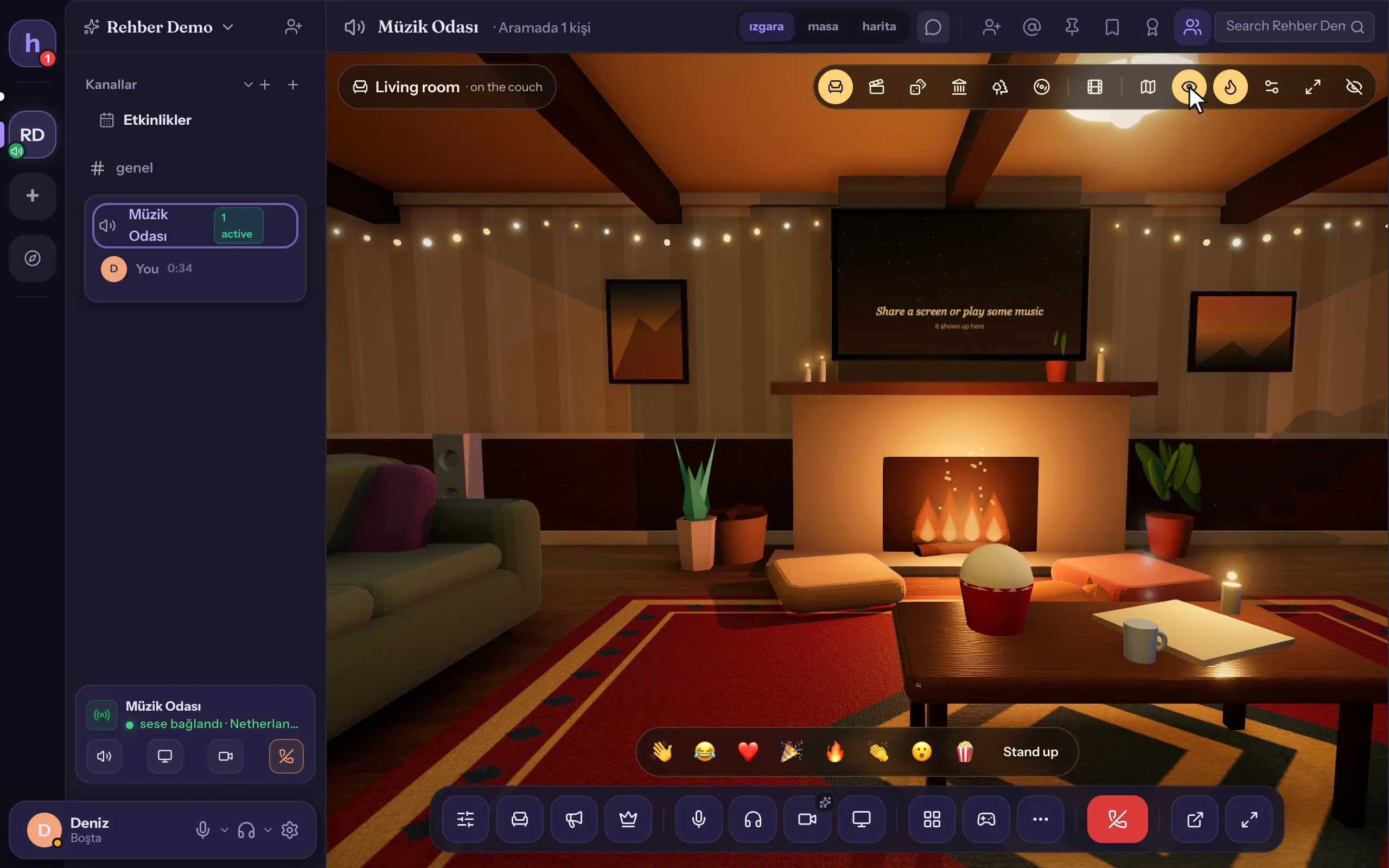
Living room
Armchairs face a fireplace and a large TV. If someone in the room shares their screen or the music bot is playing, the stream and track appear on the TV.
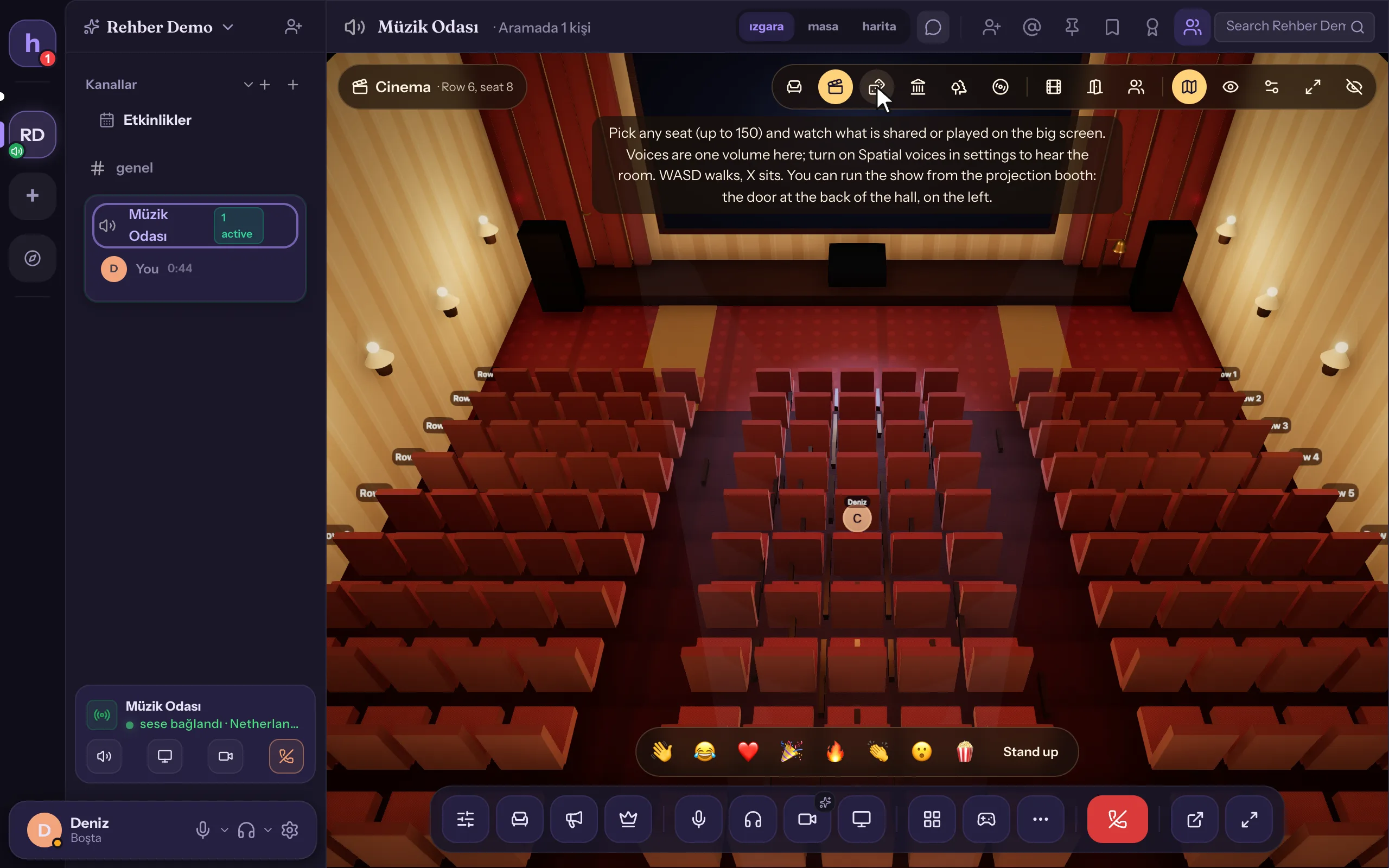
Cinema
A theater seating up to 150 people. Take any seat; screen shares or Watch Together videos play on the big screen. In the cinema, voices sound like a normal call by default; turn on Spatial voices in settings if you want room acoustics. You can control playback from the projection booth through the door at the back.
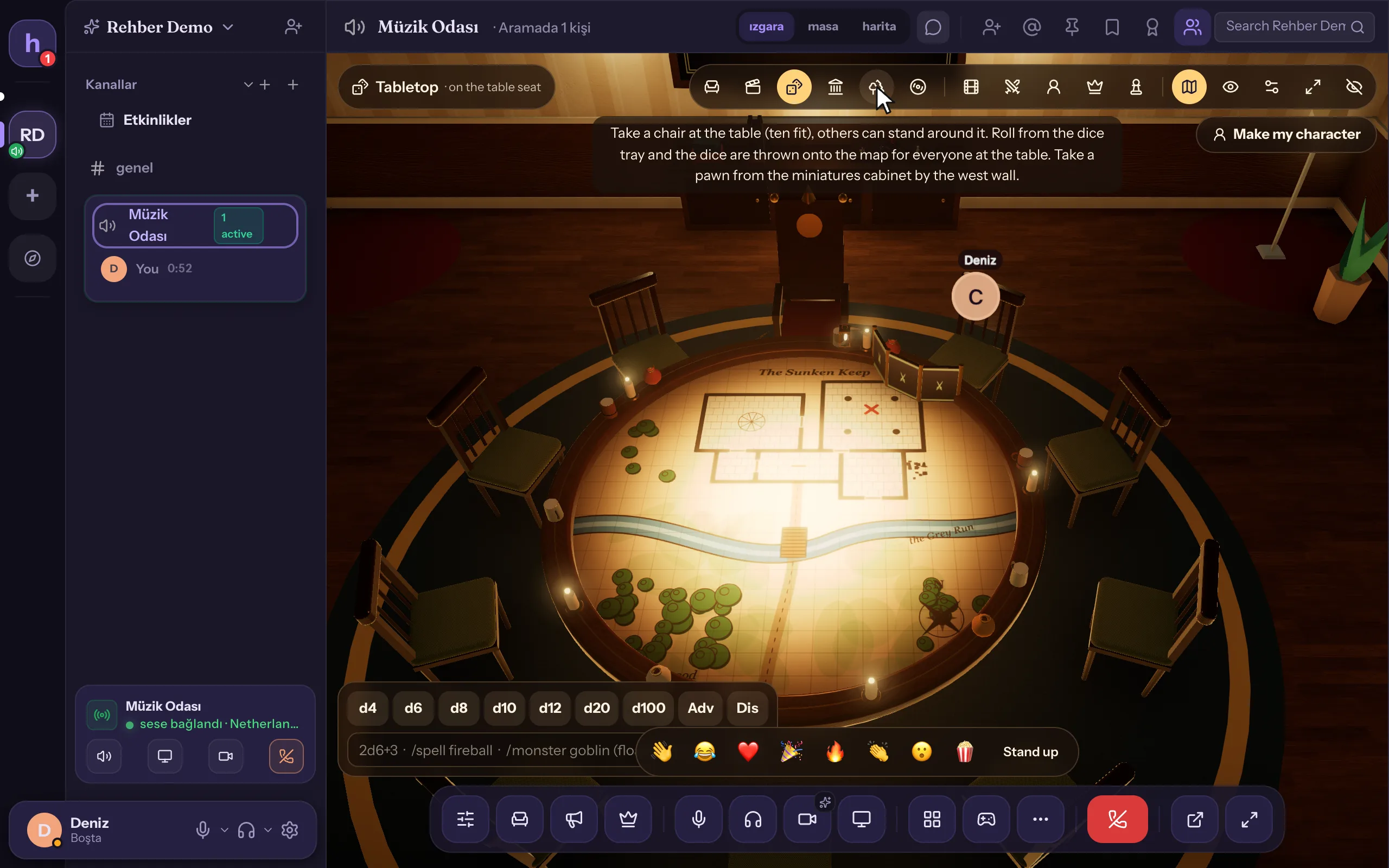
Tabletop
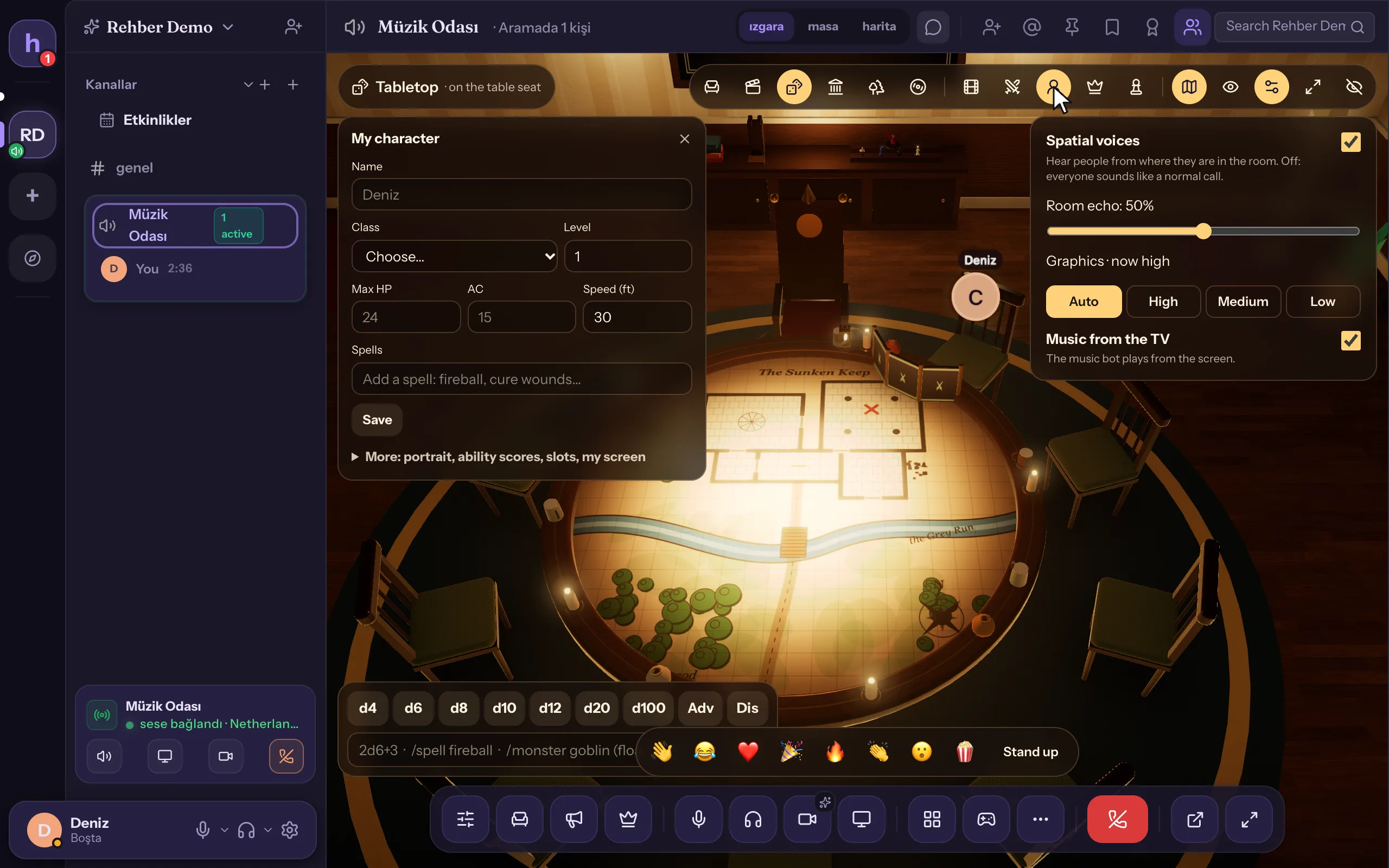
A round table for D&D and tabletop games. Ten people can sit at the table while others stand around it.
- Roll from the dice tray at the bottom (d4, d6, d8, d10, d12, d20, d100, Adv advantage, Dis disadvantage). Dice roll right onto the map on the table for everyone to see.
- You can also type expressions like
2d6+3or commands like/spell fireballand/monster goblinin the dice box. - Grab a miniature from the miniature cabinet on the west wall and place it on the map.
- Make my character or My Character in the toolbar opens your character sheet: name, class, level, Max HP, Armor Class (AC), speed, and spells. More holds your portrait, ability scores, spell slots, and GM screen.
- The Dungeon Master can sit in the GM's chair and roll behind their screen—only they see the result.
Board hall
The room's board game is laid out life-sized on the floor, and pawns hop across it as you play. Click Start a game or Play to begin; you can walk across the board or sit on a bench and watch.
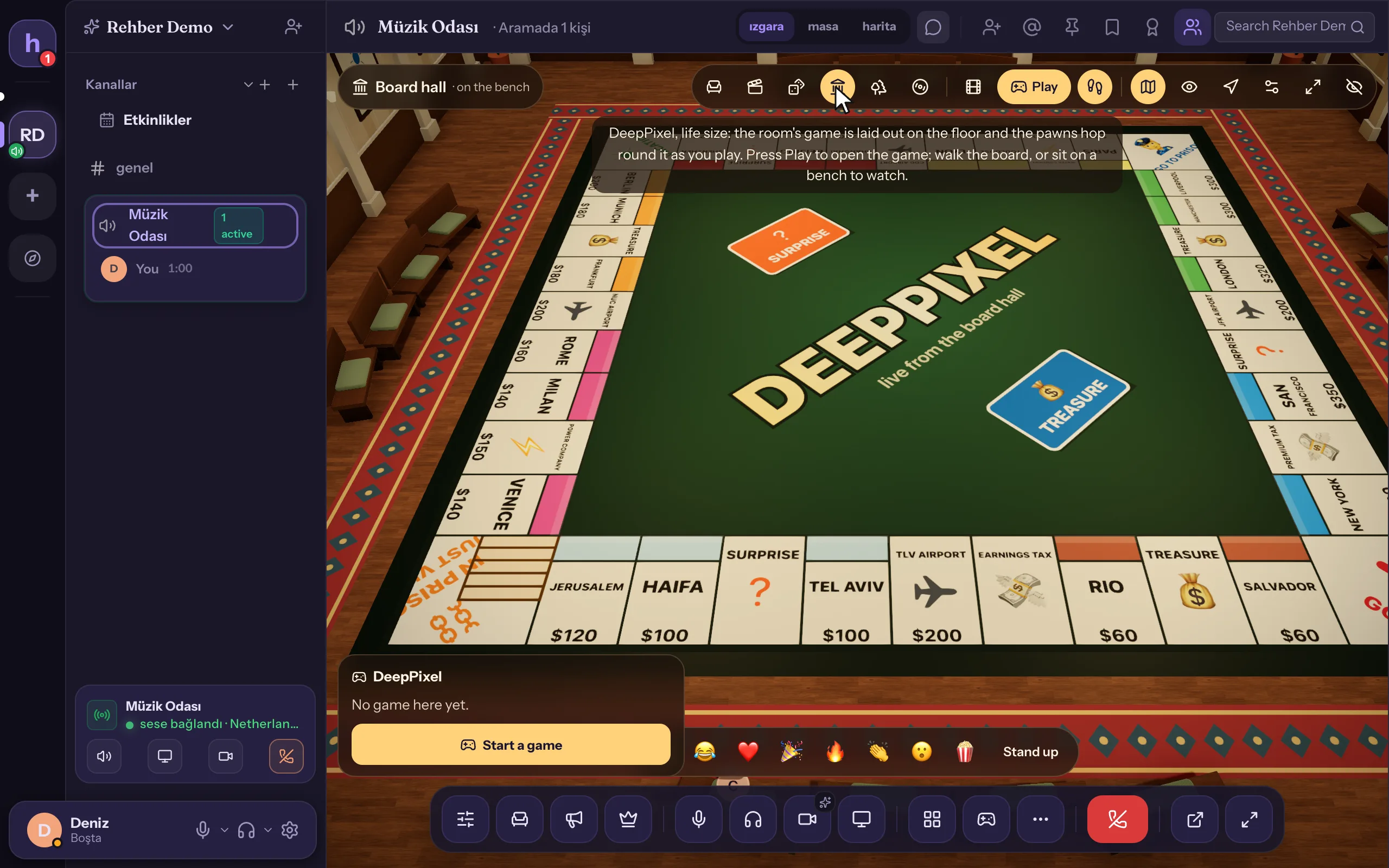
Meadow
A small outdoor world: wander wherever you like, sit around the campfire, head back to the cabin, or press F on the dock to fish.
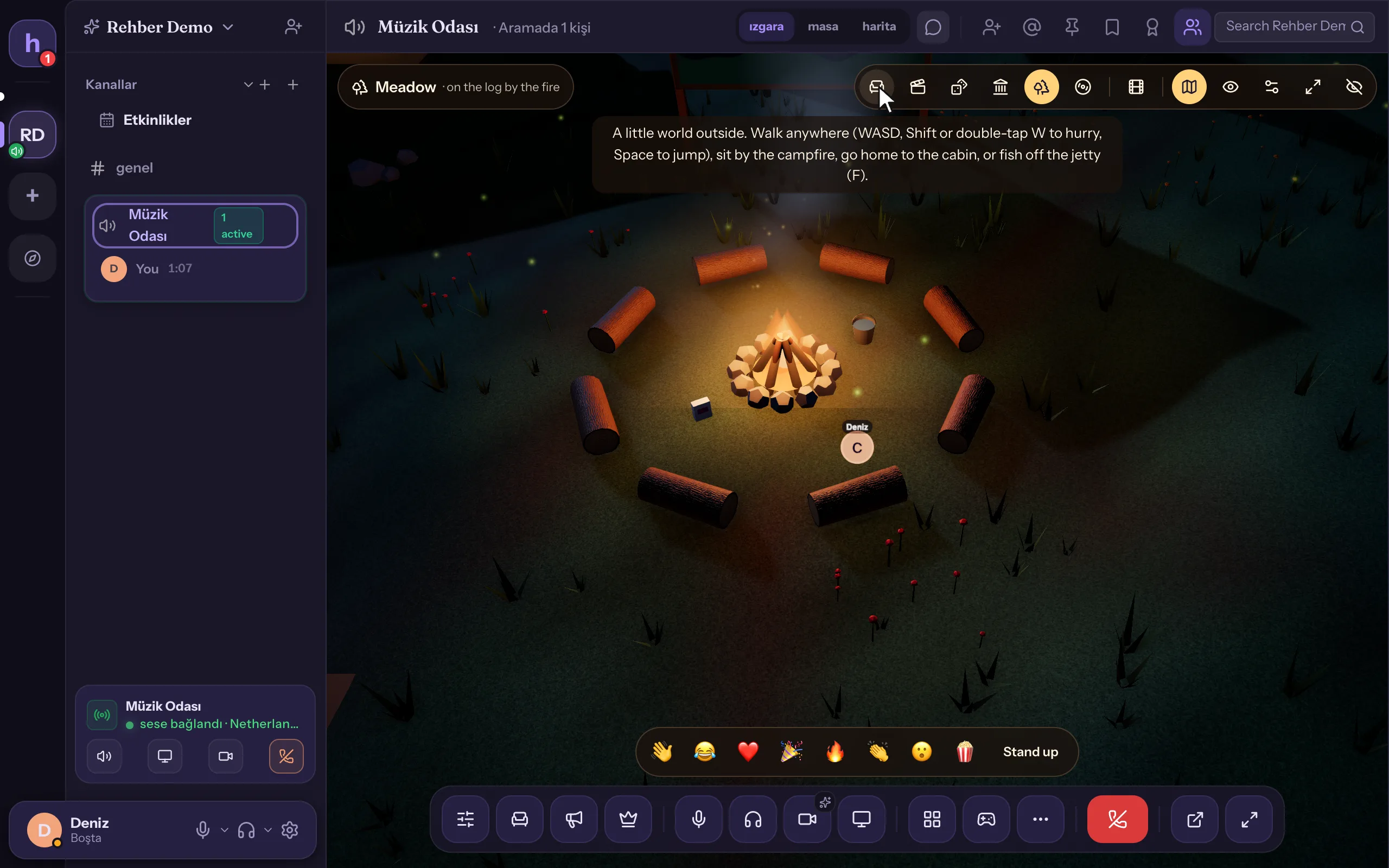
Club
A nightclub where the lights pulse with the music. Dance on the floor, or sit in a booth or at the bar.
- If nothing is playing, click Start the night at the bar to kick things off.
- Take the decks puts you in the DJ booth with mixing, remixes, and a sampler. Details in Music Bot & DJ Mode.
- Lights opens the lighting console.
- Type a song name in the box at the bottom and click Request to request a track from the DJ.
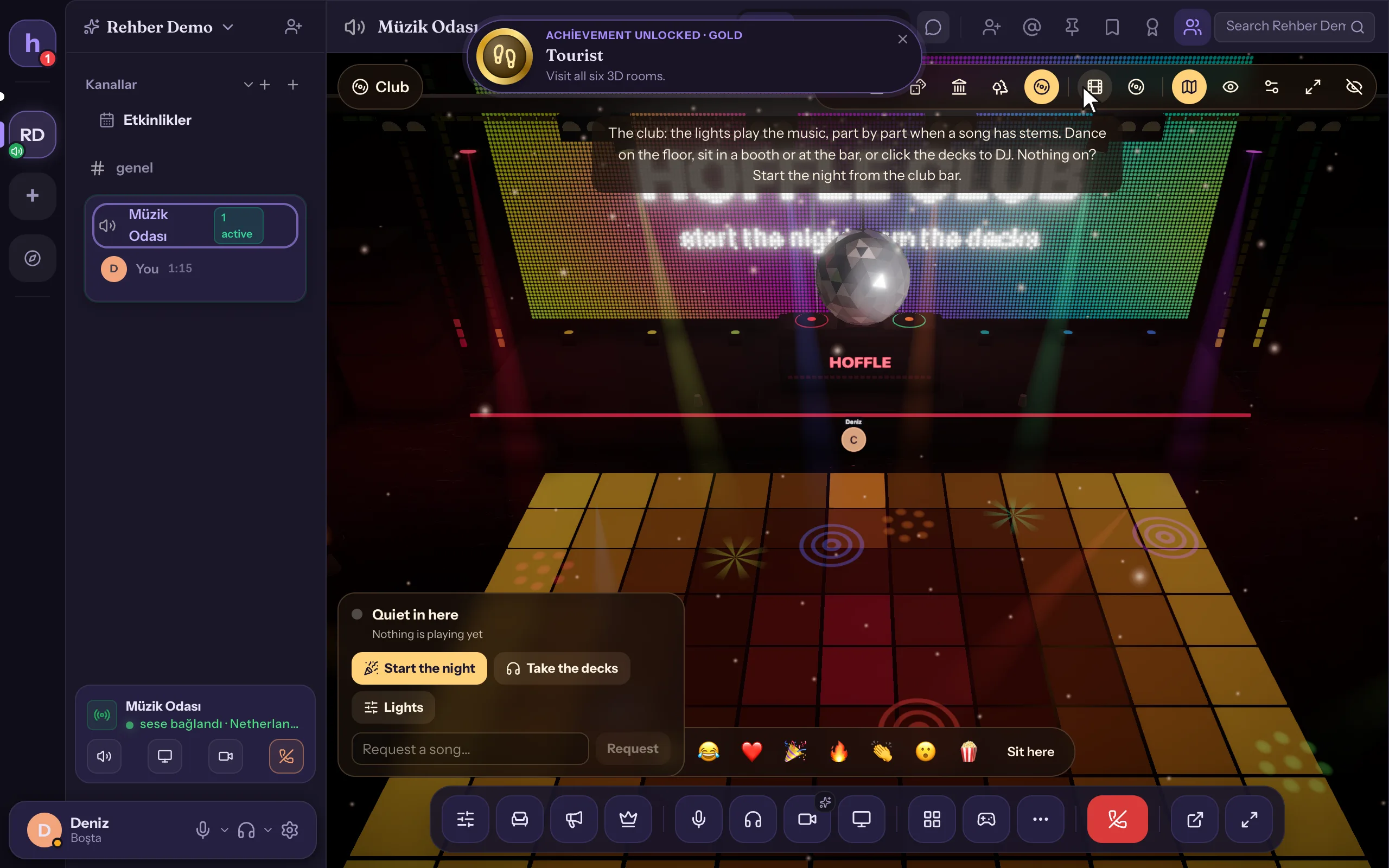
Room settings
Under Living Room settings:
- Spatial voices: Hear people from where they are in the room. When off, everyone sounds like a normal call.
- Room echo: Room reverb.
- Graphics: Visual quality: Auto, High, Medium, or Low. Turn it down if your laptop or phone gets warm.
- Music from the TV: Plays the music bot's audio from the TV.
These settings affect only your screen and your ears.