What is a role?
A role is a badge you give to members. A role's color tints the member's name, its icon appears next to their name, and its permissions decide what that member can do in the server. A member can have multiple roles; permissions combine.
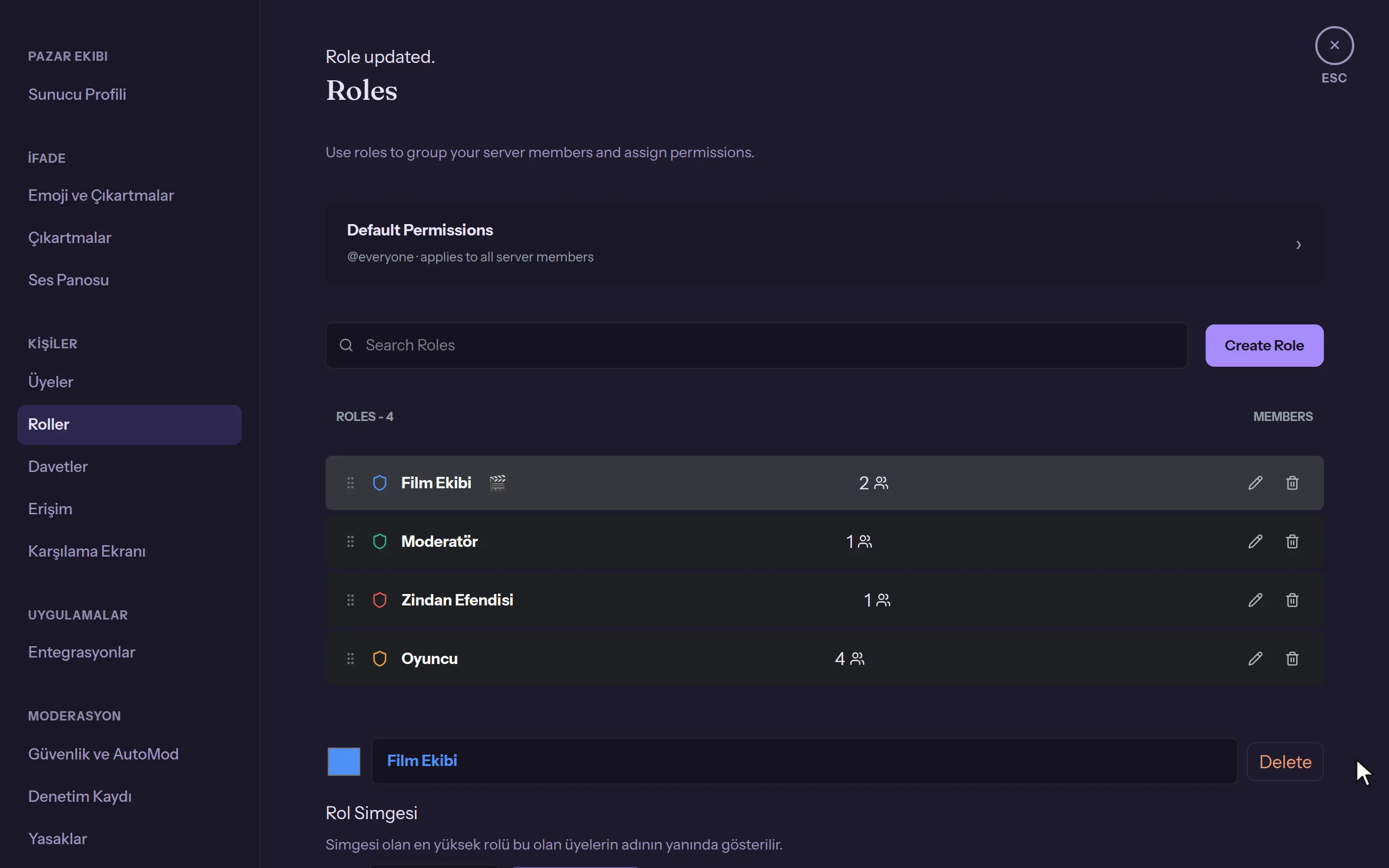
In our example server there are three roles: Moderator (green), Dungeon Master (red, the person running the D&D game), and Player (orange).
To manage roles, open Server Settings → Roles. Only the server owner and members with the Manage Roles permission can see this.
Creating a role
- Click the server name above the channel list and open Server Settings.
- Select Roles on the left.
- Click Create Role, type a name, and confirm. The new role is added to the bottom of the list and selected automatically.
- The role editor opens below. To edit another role, click the pencil icon next to it in the list.
- Click the colored square to the left of the name box to pick a color.
- Optionally type an emoji in Role Icon and click Use emoji, or click Upload image for a small icon. Changes save automatically: color shortly after you release the picker; name when you leave the box or press Enter. A brief "Saving…" label appears next to the name while saving. Pressing Esc in the name box reverts what you typed.
Permissions
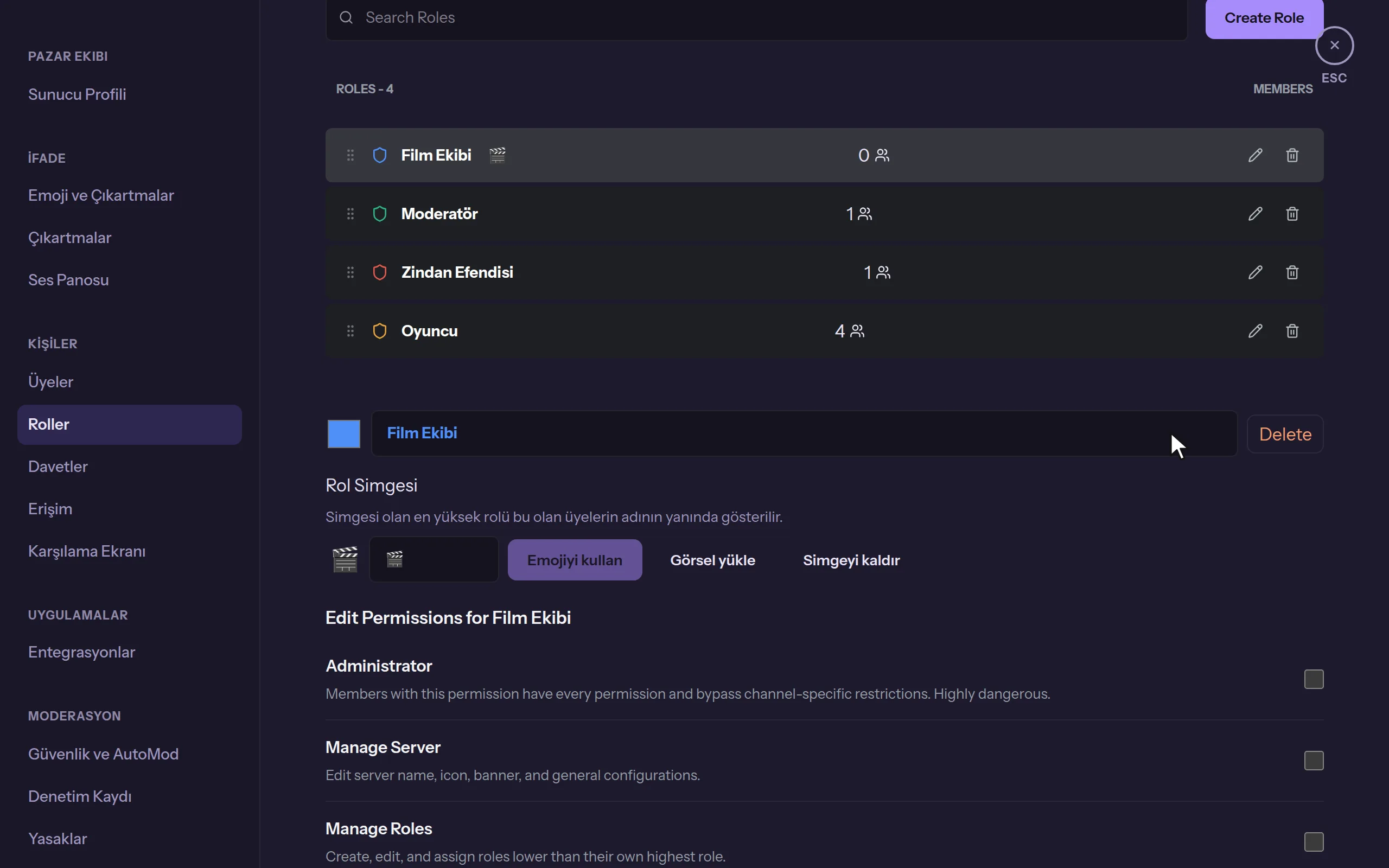
In the role editor, below Edit Permissions for …, is the list of permissions. Click the toggle on the right of a row to enable or disable it. Permissions save immediately—no extra save button needed.
The most commonly used permissions:
| Permission | What it allows |
|---|---|
| Administrator | Grants every permission and bypasses channel restrictions. Only give to people you fully trust. |
| Manage Server | Changing the server's name, icon, banner, and general settings. |
| Manage Roles | Creating, editing, and assigning roles below your own highest role. |
| Manage Channels | Creating, editing, and deleting channels and categories. |
| View Audit Log | Viewing the audit log. |
| Manage Emoji & Stickers | Uploading server emoji and stickers. |
| Create Invite | Creating invite links. |
| Change Nickname / Manage Nicknames | Changing your own nickname or other members' nicknames. |
| Kick Members / Ban Members | Kicking or banning members from the server. |
| Send Messages | Sending messages in text channels. |
| Attach Files | Uploading images and files. |
| Mention @everyone & @here | Ping everyone in a channel. |
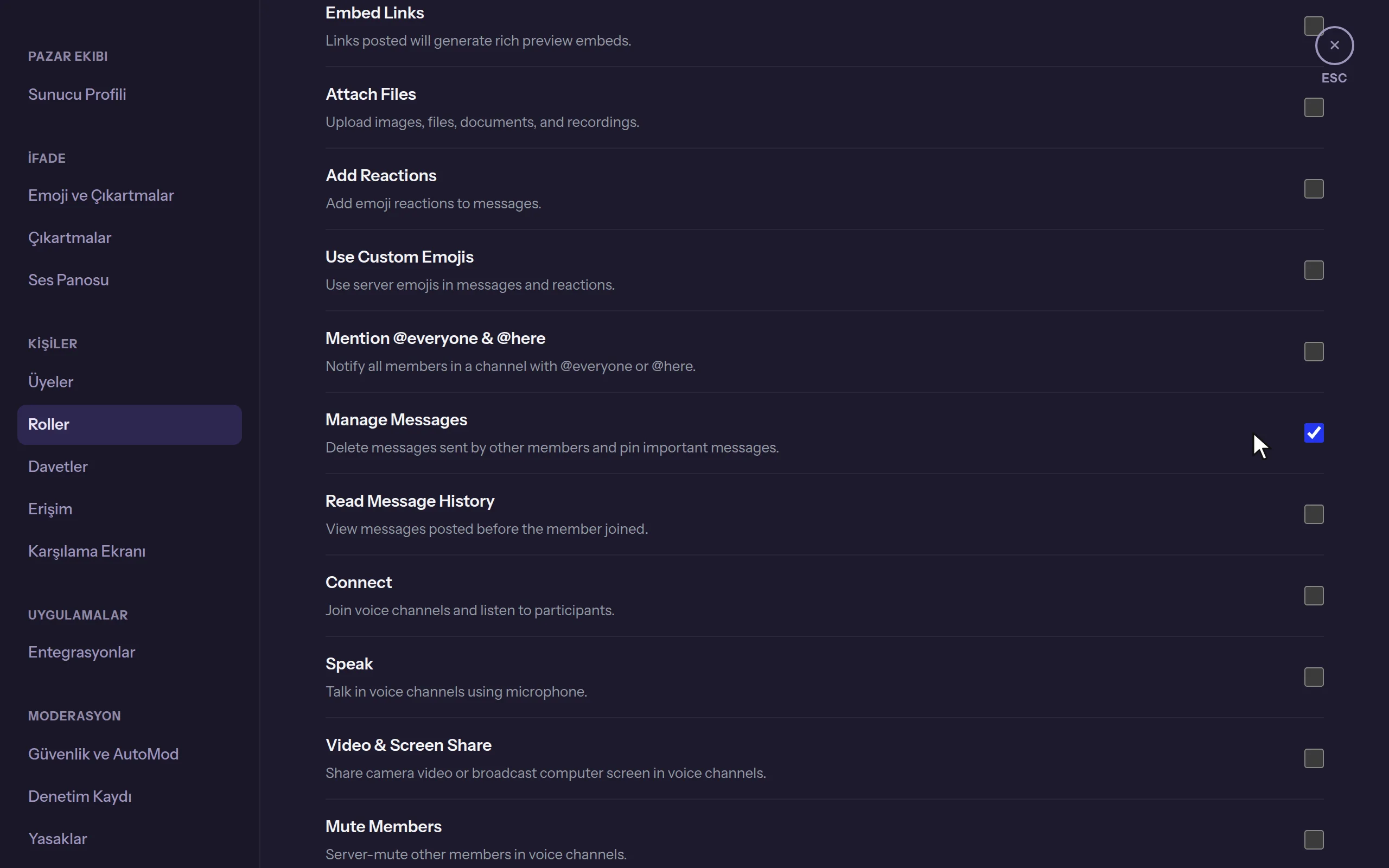
| Manage Messages | Deleting other people's messages and pinning messages. |
| Connect / Speak | Joining voice rooms and speaking. |
| Video & Screen Share | Turning on camera and sharing screen. |
| Mute Members / Deafen Members / Move Members | Muting, deafening, and moving others between voice rooms. |
| Priority Speaker | Priority speaker mode that lowers others' volume while you speak. |
| Record D&D Sessions | Starting and managing D&D session recordings with everyone's consent. |
Default permissions for everyone
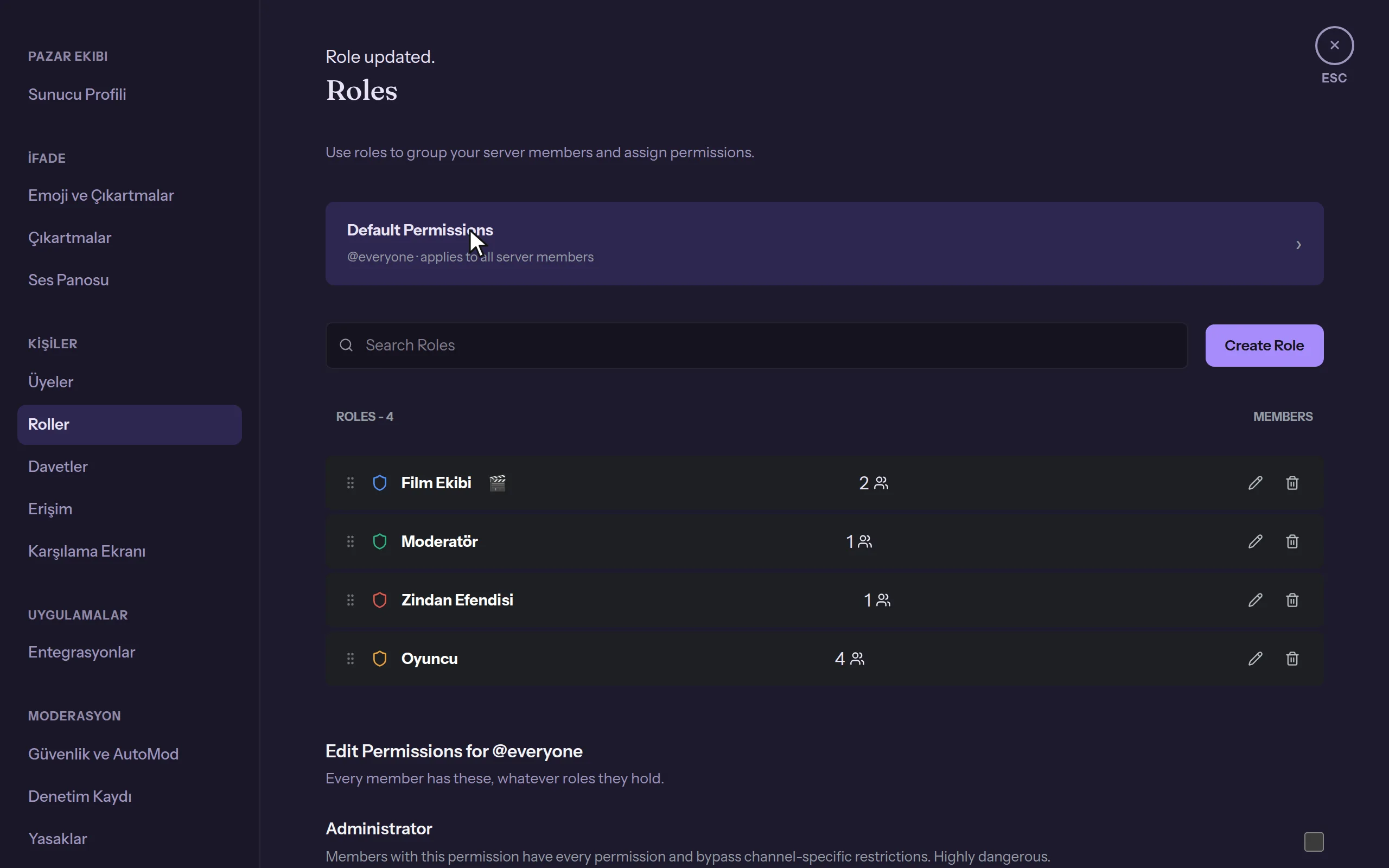
The Default Permissions (@everyone) row at the top of the role list holds the permissions everyone in the server has. For example, if you want everyone to be able to create invites, enable Create Invite here; if only certain people should, turn it off here and enable it on a role for those people.
Assigning and removing roles
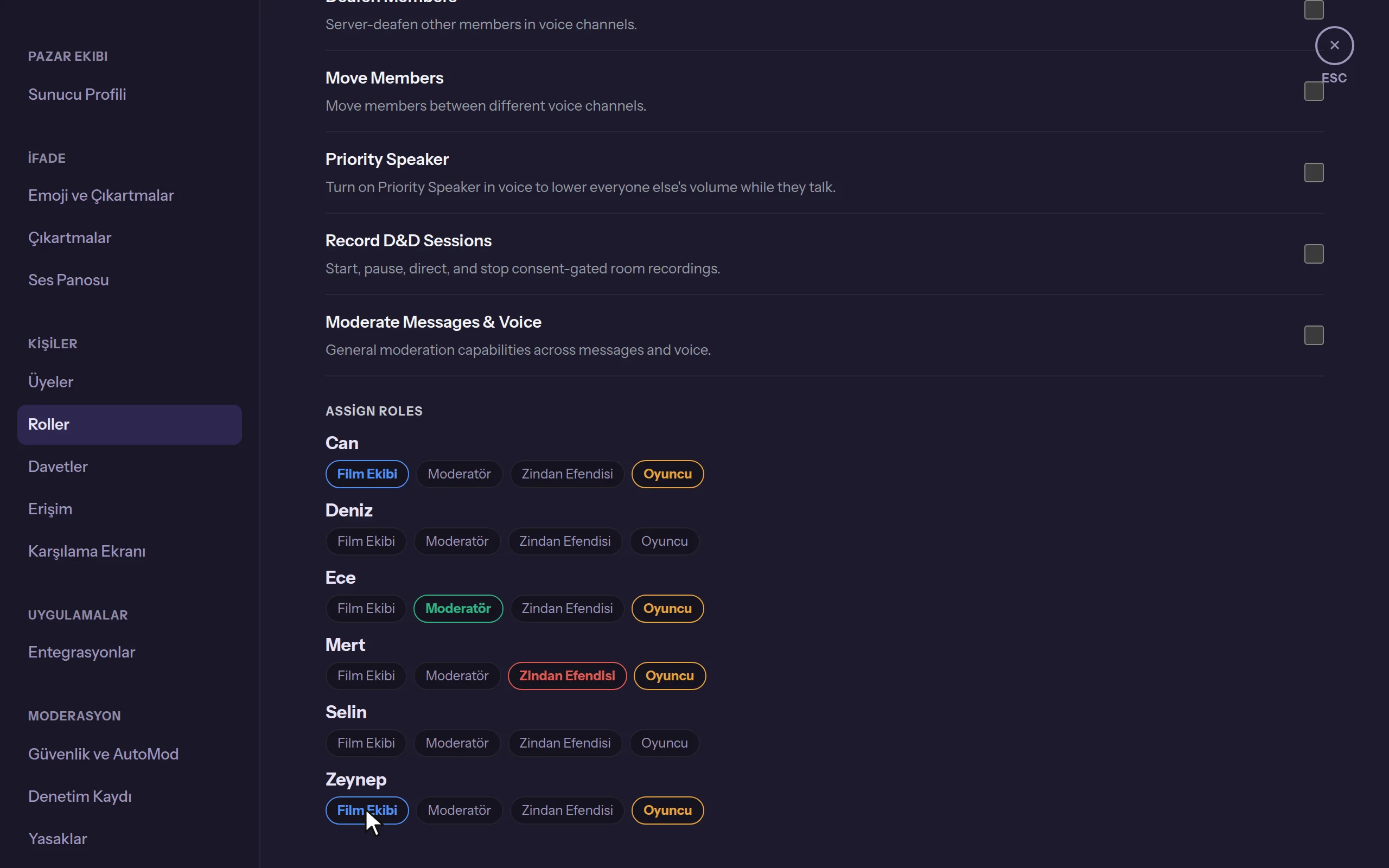
From the Roles page: In the Assign role section at the bottom of the role editor, the server's roles are listed under each member. Click a role to assign it (outlined in the role's color); click it again to remove it.
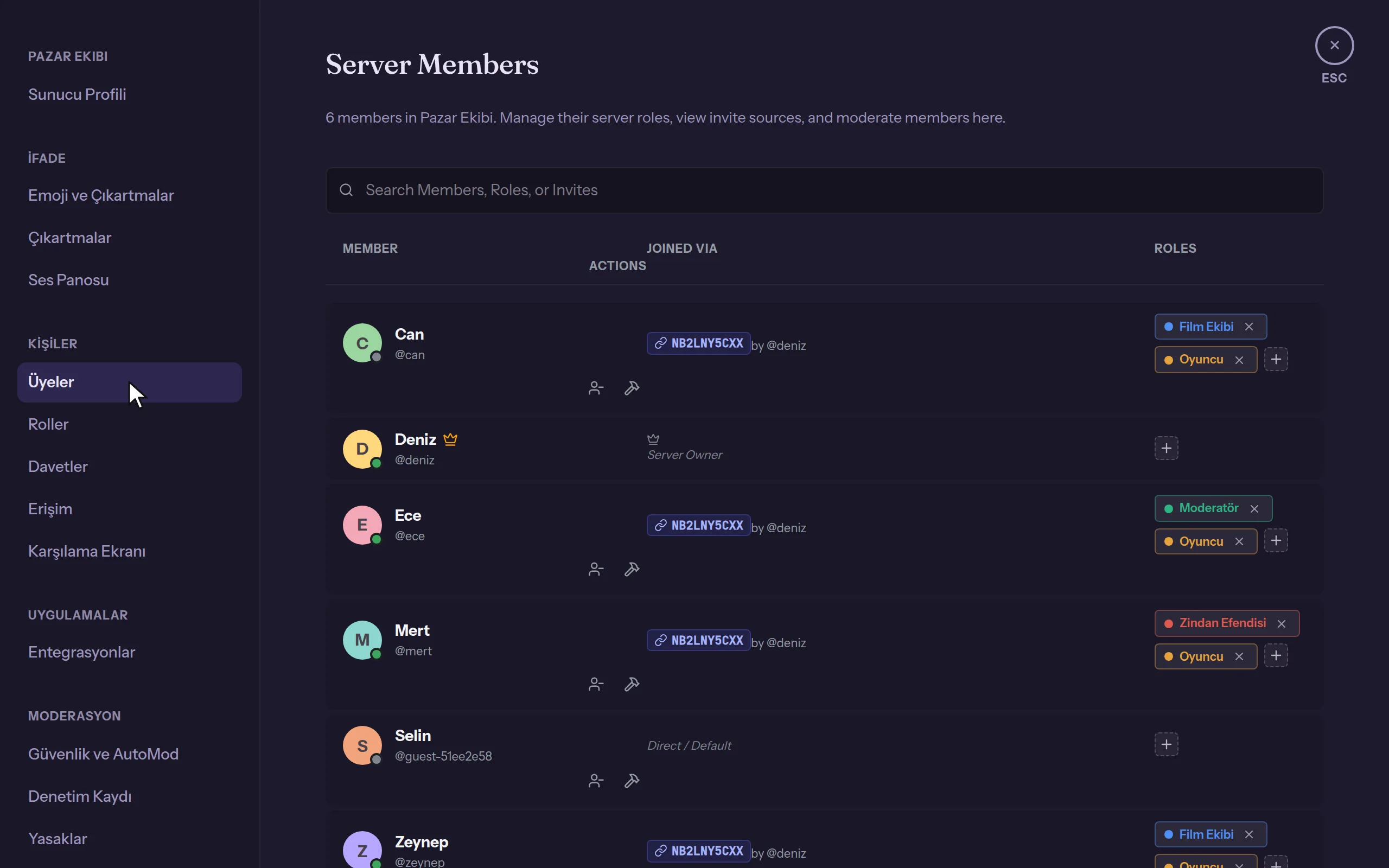
From the Members page: In Server Settings → Members, click + on the right of a member to add a role, or × on a role badge to remove it. This page also shows which invite link each member joined with.
Role hierarchy
Roles higher in the list outrank roles below them. This has two effects:
- A member's name takes the color of their highest colored role.
- Someone with Manage Roles can only edit and assign roles below their own highest role, so nobody can give themselves or a friend a role stronger than their own.
To reorder roles, grab the handle (⋮⋮) to the left of a role's name and drag it up or down. A thin line marks where it will drop. Keyboard works too: Tab to the handle and press ↑ / ↓ to move the role one step. The order saves immediately. Dragging works when the search box is empty. Anyone other than the server owner can only reorder roles below their own highest role.
Private channels and channel permissions
If you want only certain roles or people to see a channel (for instance, a channel only D&D players can see):
- Right-click the channel and choose Permissions.
- Check Private channel at the top. Now only roles and people given View channel below can see it (admins and the server owner always see it).
- Click Add role or member, type the role or person's name, and select it.
- For the selected role, click ✓ next to the permissions: at least View channel, and Send messages if they should write there.
- Click Save.
Private channels show a small lock icon next to their name.
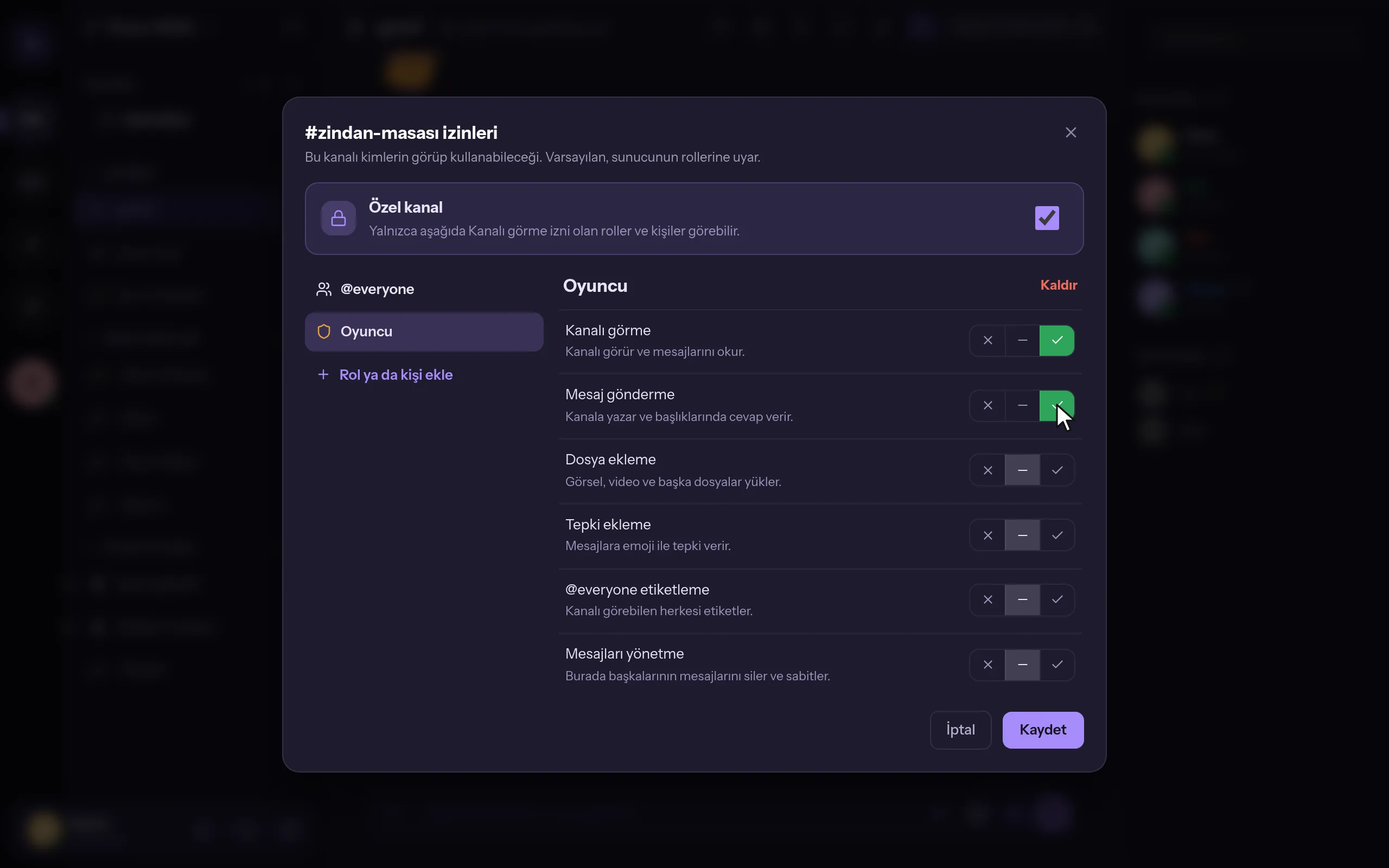
Each permission has three states:
- ✓ (allow): This role or person can do this in this channel.
- – (default): Whatever their server roles say applies.
- × (deny): They cannot do this in this channel, regardless of their roles. For example, in an announcement channel you can set Send messages to × for everyone and ✓ only for moderators.