Opening the profile editor
Open Settings and click Edit Profiles under your name at the top left. In Simple mode, use the Settings → Your picture & name card.
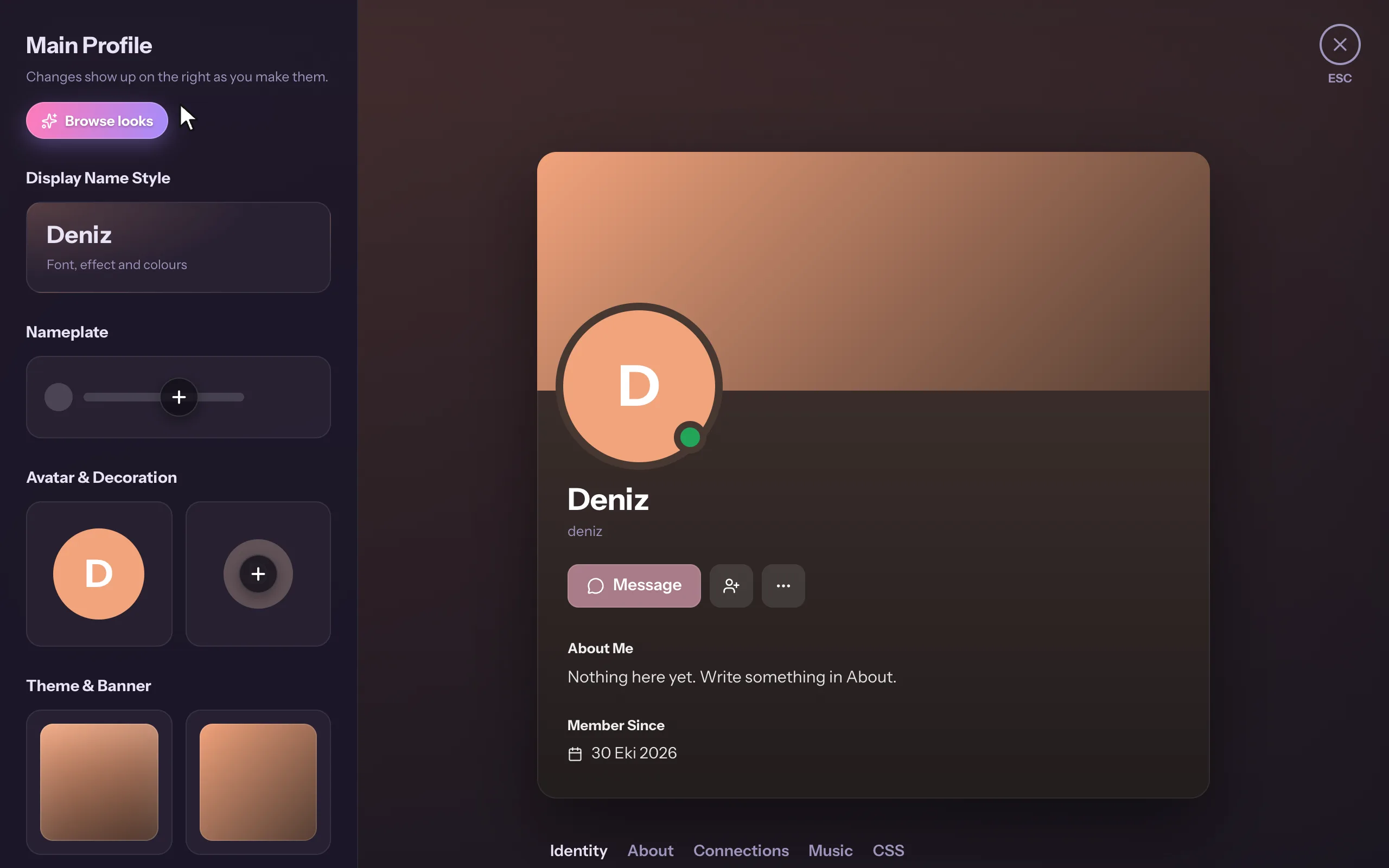
Everything you can edit sits on the left, with a live preview of your profile card in the middle. Changes appear in the preview right away. Clicking Cancel discards changes; clicking Apply saves them.
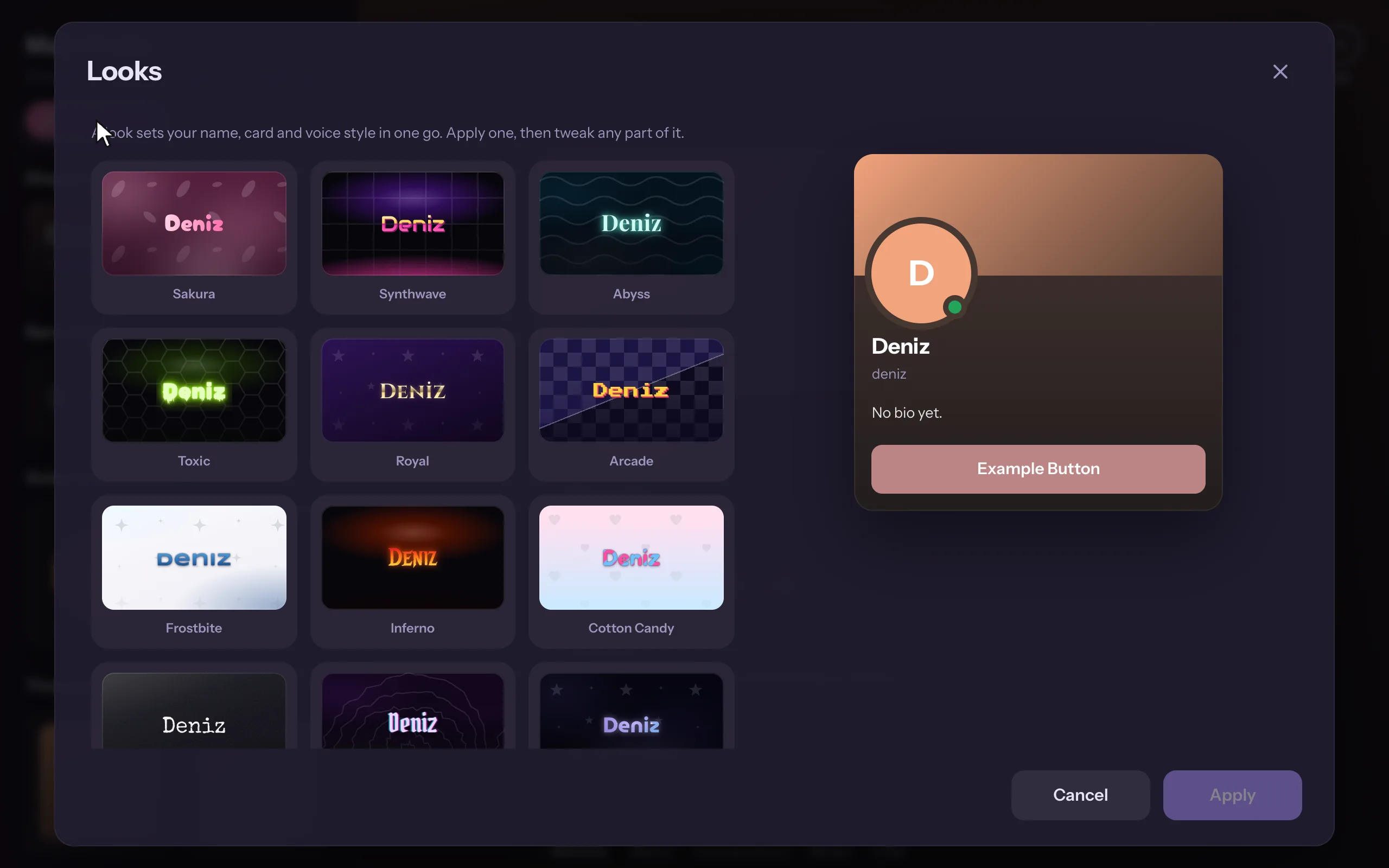
Preset looks
The Browse looks button at the top opens preset themes that restyle your name, profile card, and voice room look in one click: Sakura, Synthwave, Abyss, Toxic, Royal, Arcade, Frostbite, Inferno, Cotton Candy, Noir, and more. Click one, preview it on the right, and hit Apply if you like it. Afterward, you can still tweak every piece individually.
Identity tab
- Display Name Style: Font, effect, and colors for your name.
- Nameplate: The banner behind your name in the member list.
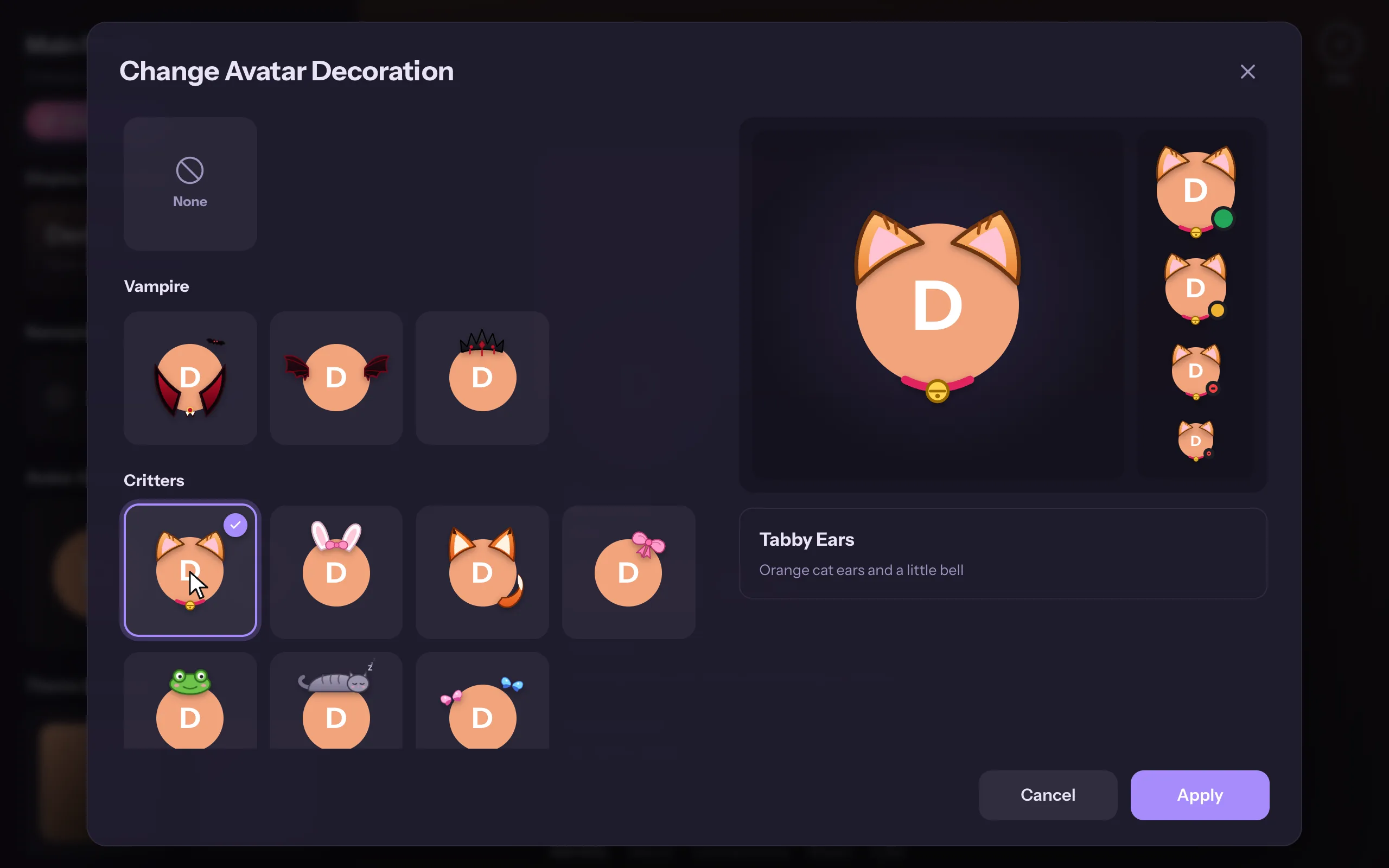
- Avatar & Decoration: Click Upload to set a profile picture. The + next to it opens avatar decorations: vampire collar, cat ears, bunny ears, halo, crown, flower crown, frog hat, glowing rings, and more. Your chosen decoration previews at multiple sizes on the right.
- Theme & Banner: Your card's accent color, banner image, and Card Theme (which tints the whole card in two colors).
- Profile Effect & Frame: Animated effects and frames that play on your profile card.
- Voice: The ring that lights up around your avatar while talking in voice, and the entrance effect when you join a room.
Decorations and effects are visible to others. If you prefer not to see other people's effects, turn off Profile Cosmetics & FX under Settings → Appearance → Extras → Features (see Settings).
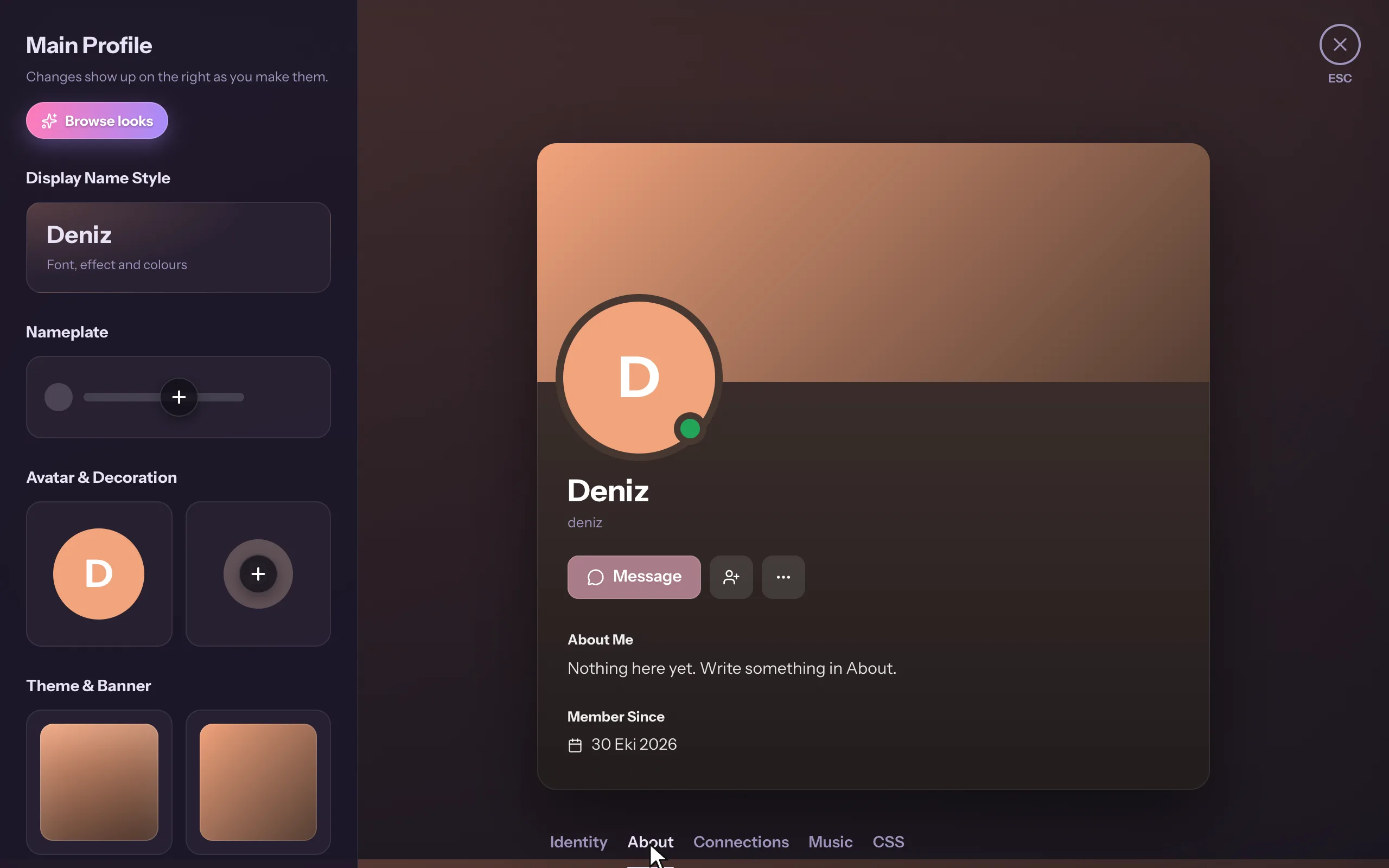
About, Connections, and Music
- About: Write a bio up to 500 characters in About me. You can also add up to 4 Pride badges; these are public, so pick only what you want to share.
- Connections: If you're in a server with a Discord bridge, link your Discord account so your Discord messages appear under your name here and vice versa.
- Music: Pin a song to your profile; it shows as "Listening to" on your card. For live Spotify scrobbling, see Settings → Activities.
- CSS: Add custom CSS rules to your profile card.
Your status
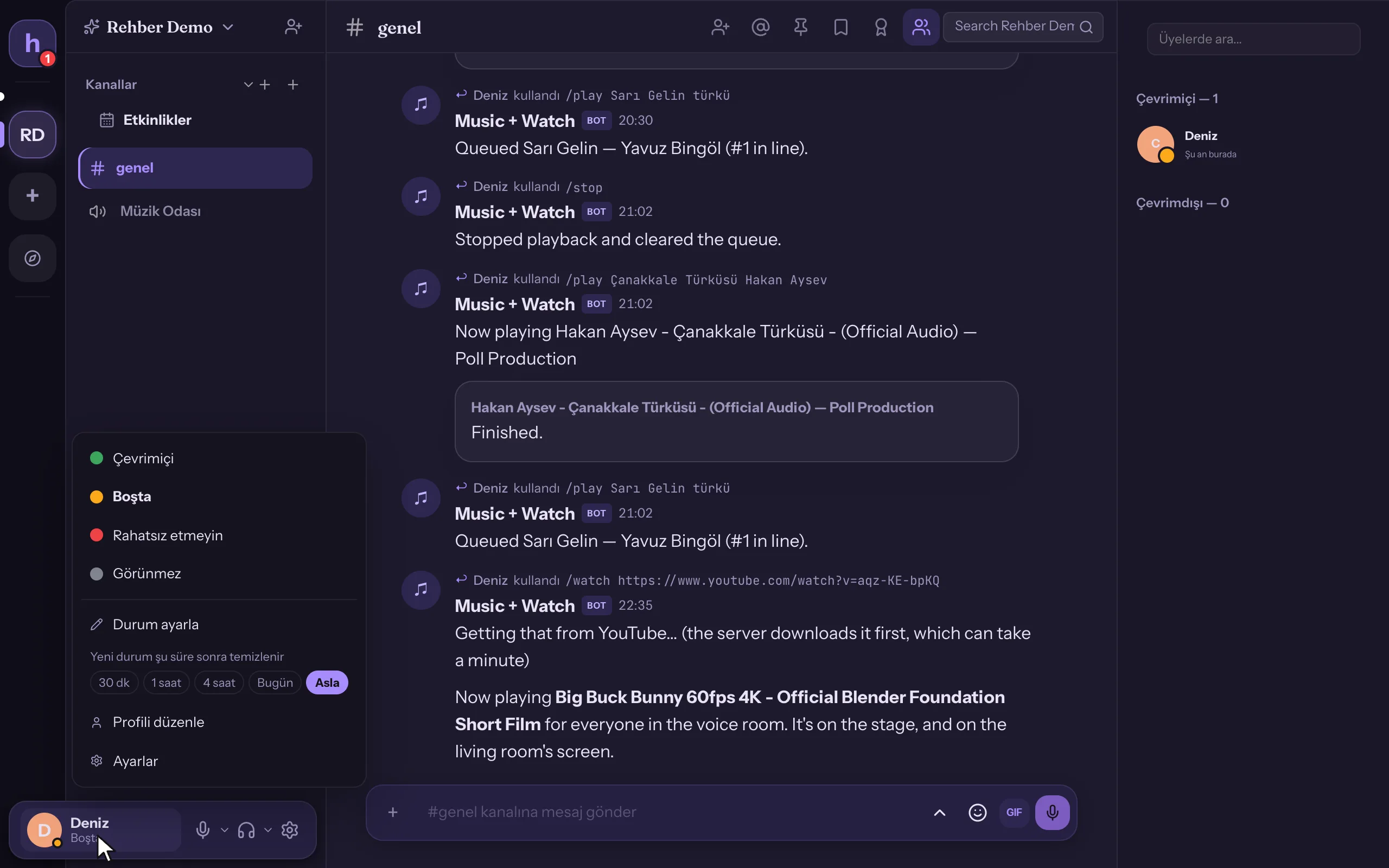
Click your name in the bottom left. In the menu:
- Online, Idle, Do Not Disturb (silences notifications), or Invisible (appears offline while you keep using everything).
- Set status: A short line shown under your name (like "watching a movie 🍿"). Pick when it clears: 30 minutes, 1 hour, 4 hours, today, or never.
- Shortcuts to Edit profile and Settings.
Achievements
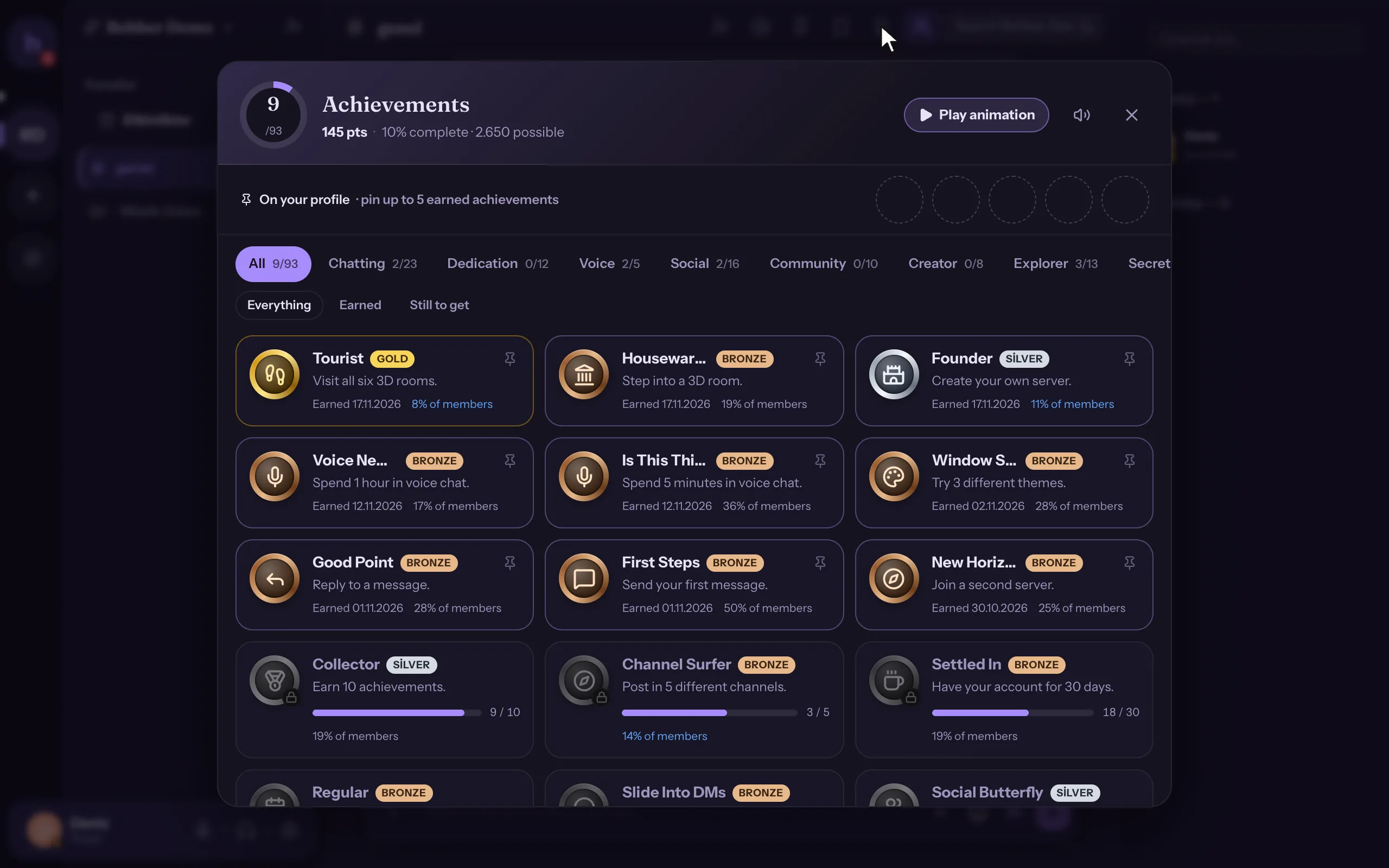
As you use Hoffle, you unlock achievements—sending your first message, replying to someone, spending an hour in voice, creating a server, visiting all six 3D spaces, and more. There are 93 achievements in total; some are secret.
- Click the medal icon (Achievements) in the top bar.
- Browse unlocked and locked achievements by category (Chatting, Dedication, Voice, Social, Community, Creator, Explorer, Secrets). Each shows what percentage of members have unlocked it.
- You can showcase up to 5 unlocked achievements on your profile (On your profile).
If you don't want achievement popups, turn off Achievements under Settings → Appearance → Extras → Features.