Friends screen
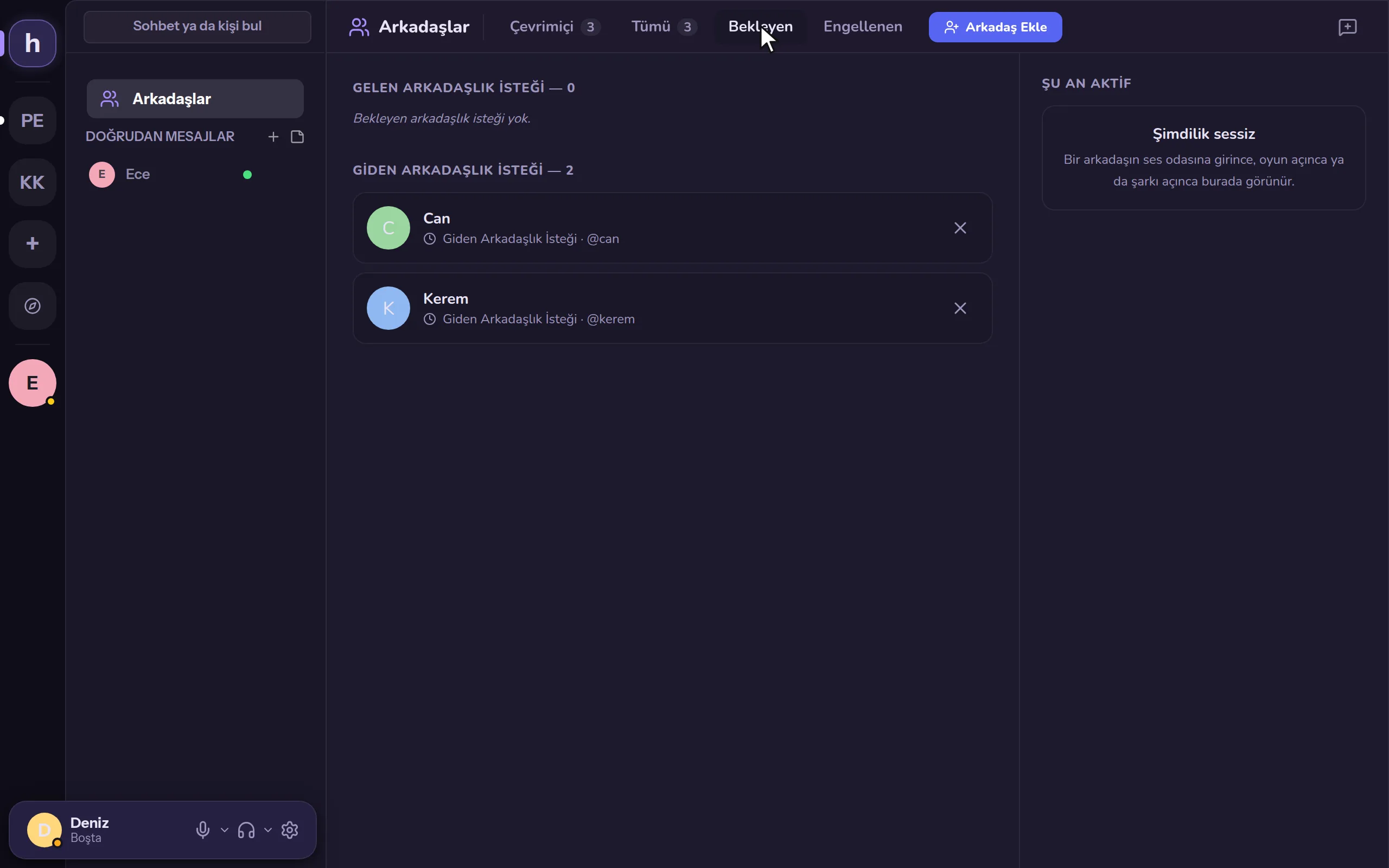
Click the h button at the very top of the server rail. On the left are Friends and your Direct Messages list; in the middle is your friends list. The tabs at the top are:
- Online: Friends who are currently online.
- All: All of your friends.
- Pending: Incoming and outgoing friend requests.
- Blocked: People you've blocked.
- Add Friend: Send a new friend request.
The Active Now panel on the right shows when a friend joins a voice room, launches a game, or listens to music.
Adding a friend
- Click h, then click Add Friend at the top.
- Enter your friend's username (not their display name; the username starts with
@on their profile card). - Click Send Friend Request.
Your request appears under the Pending tab as an Outgoing friend request. Click × next to it if you change your mind.
You can also right-click someone you share a server with and send a friend request from their menu.
Accepting a friend request
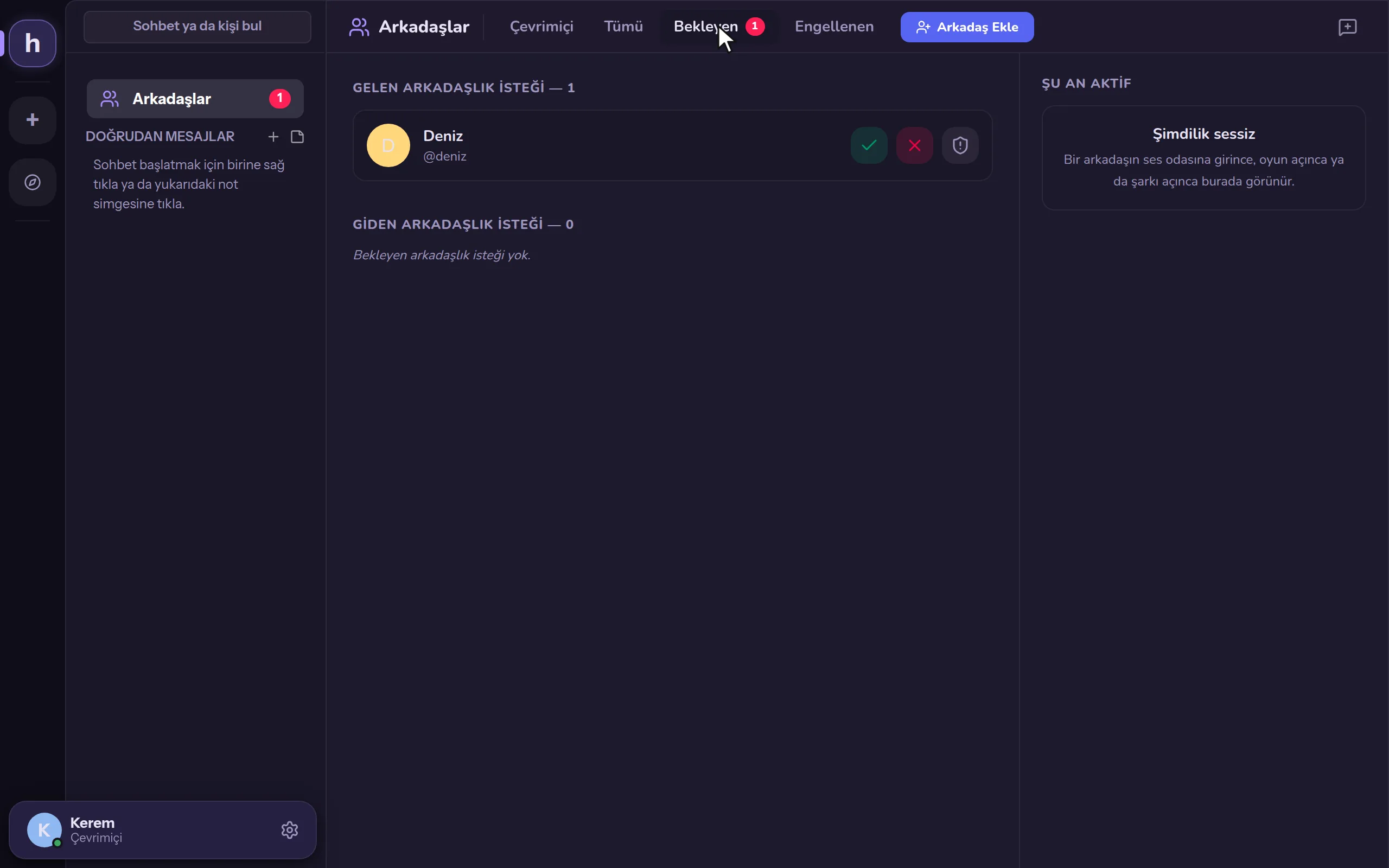
When someone sends you a request, a red badge appears next to Friends.
- Click h and open the Pending tab.
- Under Incoming friend request, click ✓ (Accept) next to their name. × (Ignore) declines the request, and the shield icon (Block User) blocks them.
Direct messages (DM)
To chat one-on-one with a friend:
- Click the speech bubble (Message) next to their name in your friends list, or
- Right-click their name anywhere and choose Message.
Conversations you open stay in the Direct Messages list on the left. Hovering over a conversation reveals buttons to pin it to the top or close it from the list (messages aren't deleted). Friends who send you new messages also appear as small round avatars on the server rail.
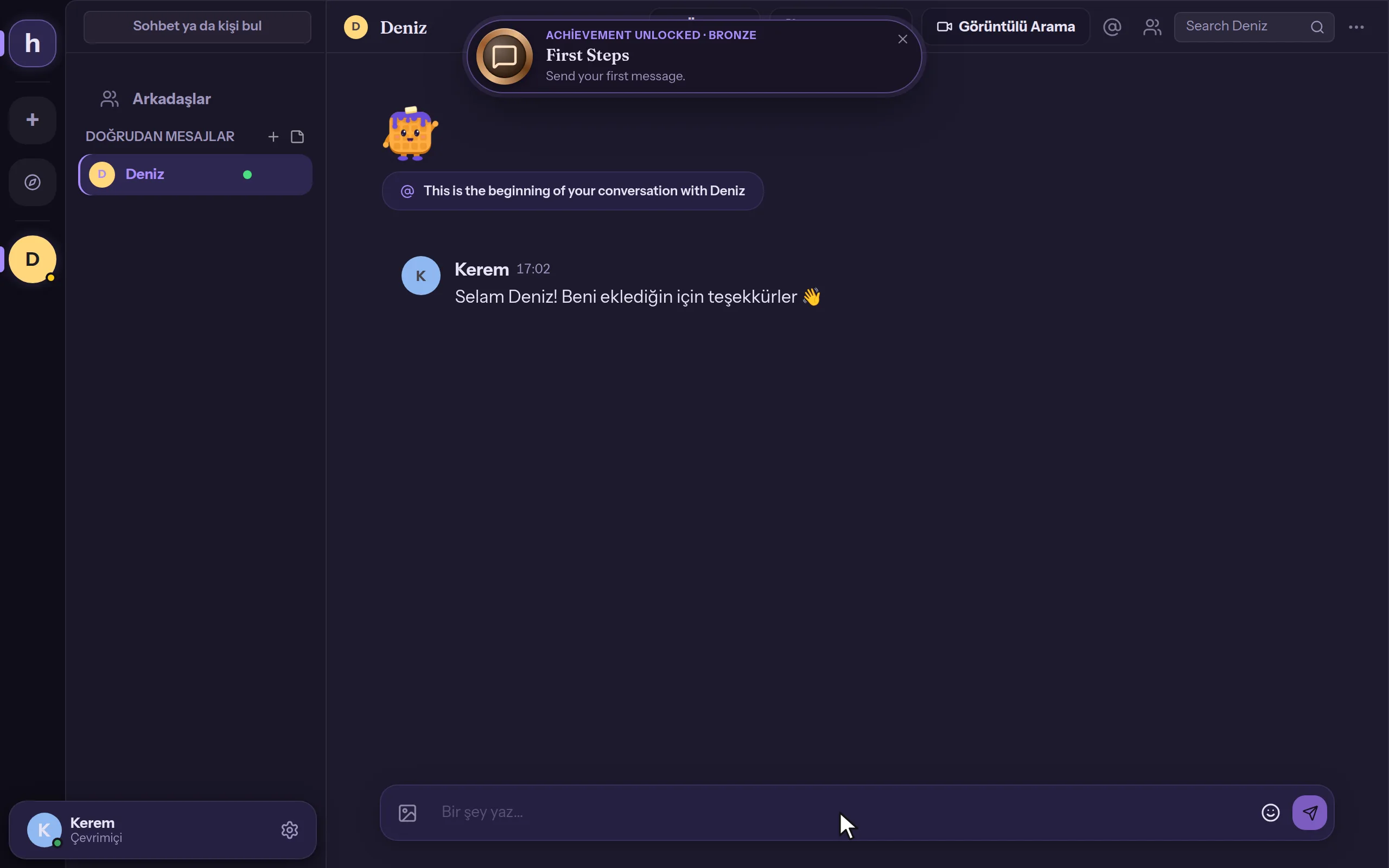
DMs work just like channels: replies, reactions, GIFs, files, polls, and text effects all work here too.
Voice and video calls
In a DM's top bar there are two buttons:
- Start Call: Voice call. Once the other person accepts, you're talking.
- Video Call: Call with camera on.
During a call, you control your microphone, camera, and screen share the same way as in voice rooms. Details in Voice Chat.
Group DMs
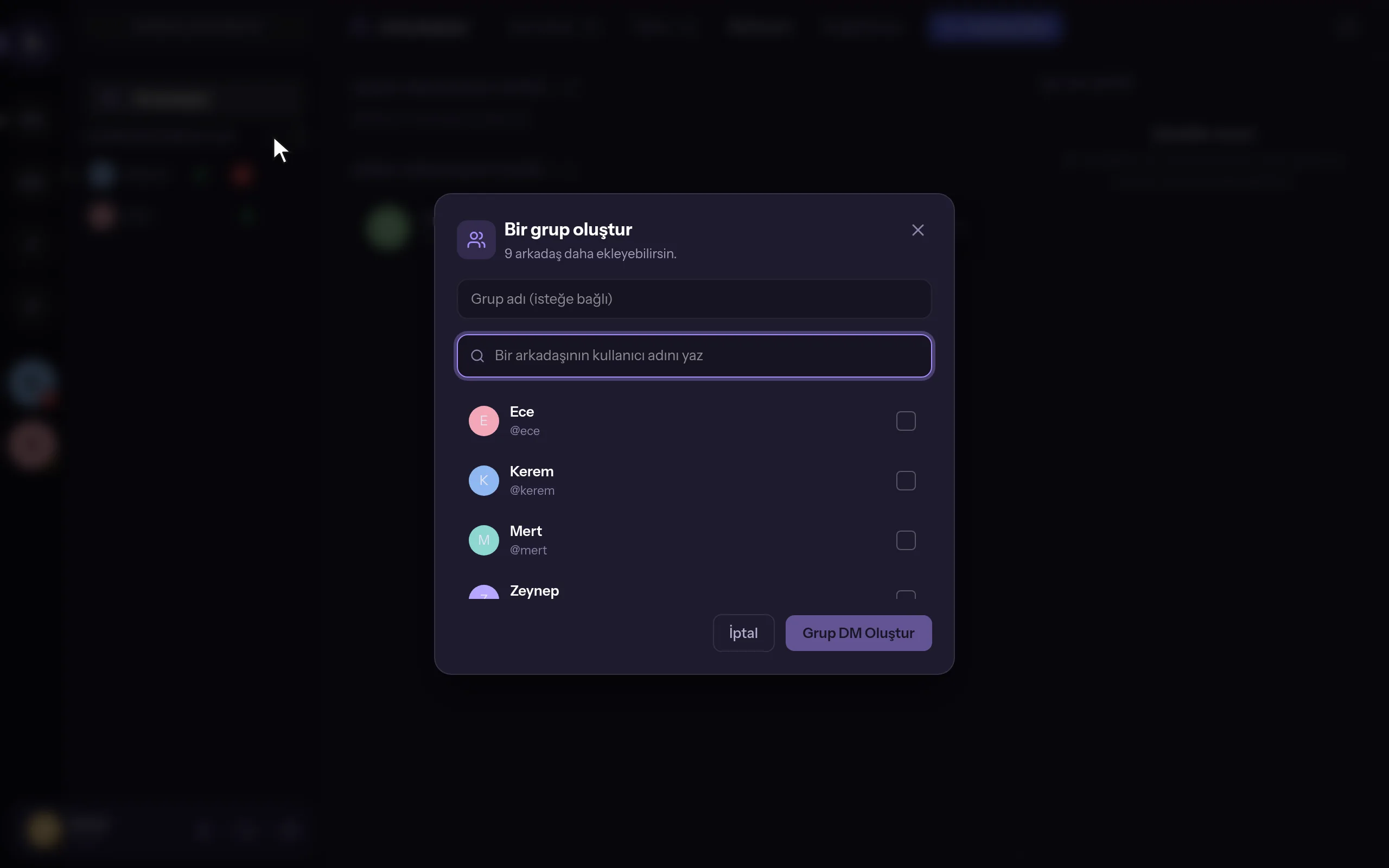
To talk with a few friends without creating a server, open a group DM:
- Click + (Create DM or group) next to the Direct Messages header.
- Optionally type a group name.
- Check the friends you want to add (up to 10 people including you).
- Click Create Group DM.
Note to self
The note icon (Note to self) next to the Direct Messages header opens a private chat only you can see. Drop links, to-dos, or drafts here.
Blocking
Right-click someone's name and choose Block. Blocked users can't send you direct messages or friend requests, and their messages in shared servers are hidden on your screen. To unblock someone, open h → Blocked.
You can also restrict who can message you under Settings → Privacy & Safety.