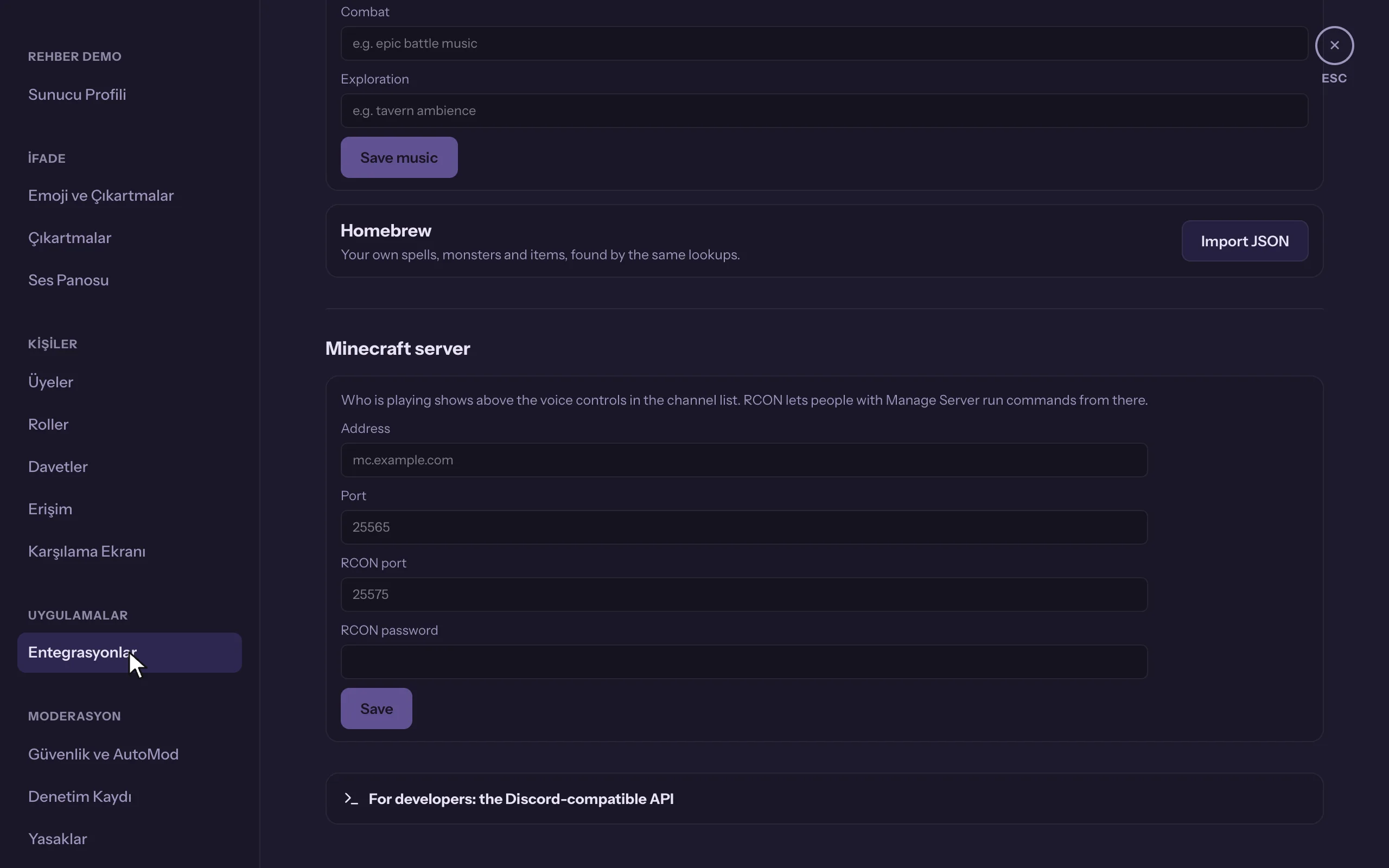
Integrations page
To connect a bot, feed, or external service to a server, open Server Settings → Integrations. Requires the Manage Server permission.
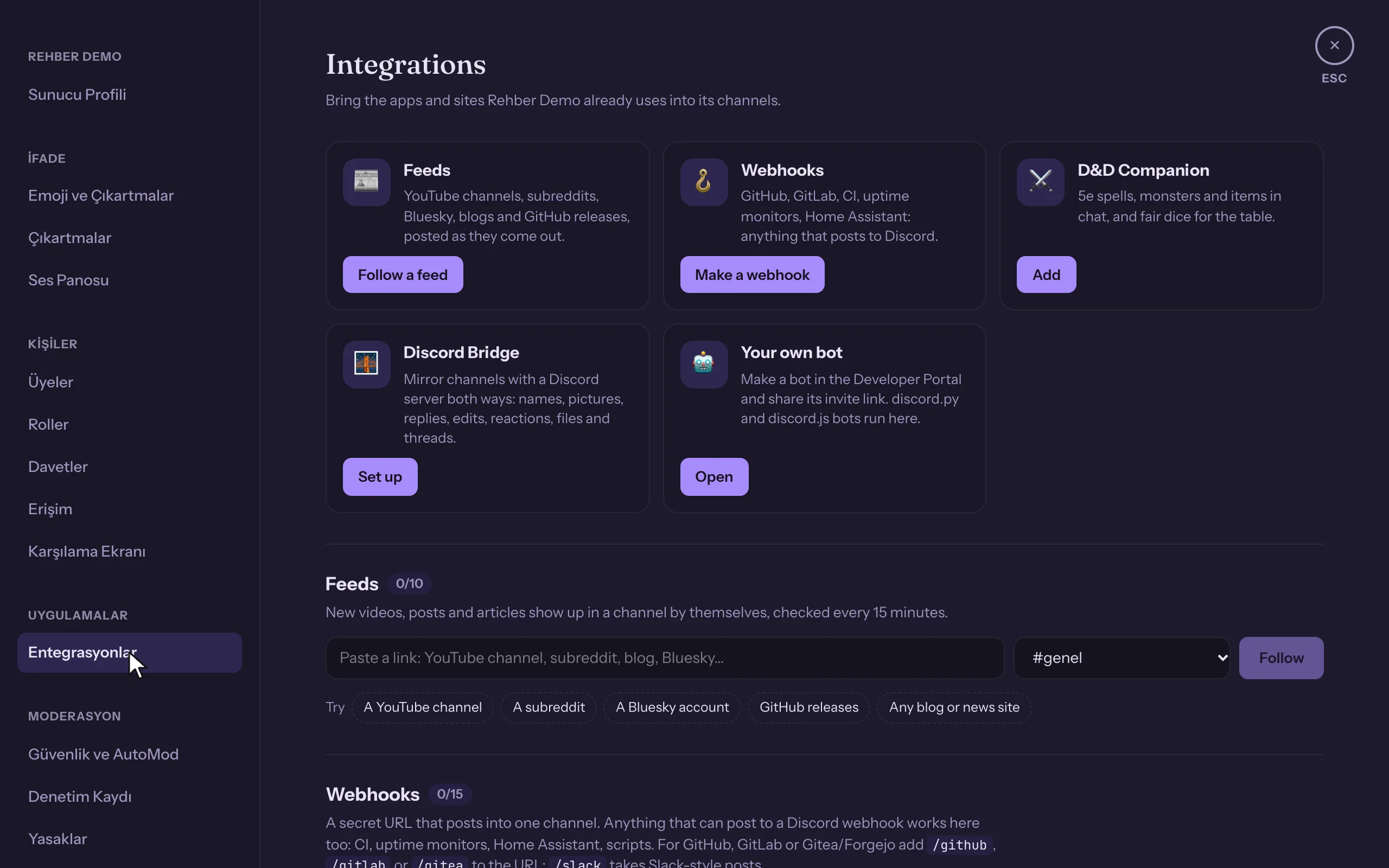
Cards at the top of the page:
- Feeds: Automatically posts new items from YouTube channels, subreddits, Bluesky accounts, blogs, and GitHub releases into a channel.
- Webhooks: Secret URLs for other apps to post messages into a channel.
- D&D Companion: The D&D bot—dice, spell & monster cards (D&D), plus the web app with character sheets and battle maps (Tavern).
- Discord bridge: Two-way channel mirror with a Discord server (Moving from Discord).
- Your own bot: Developer Portal for building your own bot.
Feeds
To automatically drop new videos, posts, or articles from a source into a channel:
- Paste the source URL into the Feeds box: a YouTube channel, subreddit, Bluesky account, GitHub repository releases, or any blog/RSS feed.
- Pick the destination channel from the dropdown next to it.
- Click Follow.
Sources are checked every 15 minutes. A server can follow up to 10 feeds. Click the delete button next to a feed in the list to unfollow it.
Webhooks
A webhook is a secret URL that can post messages into a single channel. Anything that can send to a Discord webhook (CI pipelines, server monitors, Home Assistant, your own scripts) can send to Hoffle too.
- In Webhooks, give the webhook a name (for example "GitHub") and choose a channel.
- Click New webhook and copy the generated URL.
- Paste the URL into the app sending the messages.
For GitHub, GitLab, or Gitea/Forgejo, append /github, /gitlab, or /gitea to the URL; for tools sending Slack-formatted payloads, append /slack. A server can have up to 15 webhooks. Treat the URL like a password—if it leaks, create a new one.
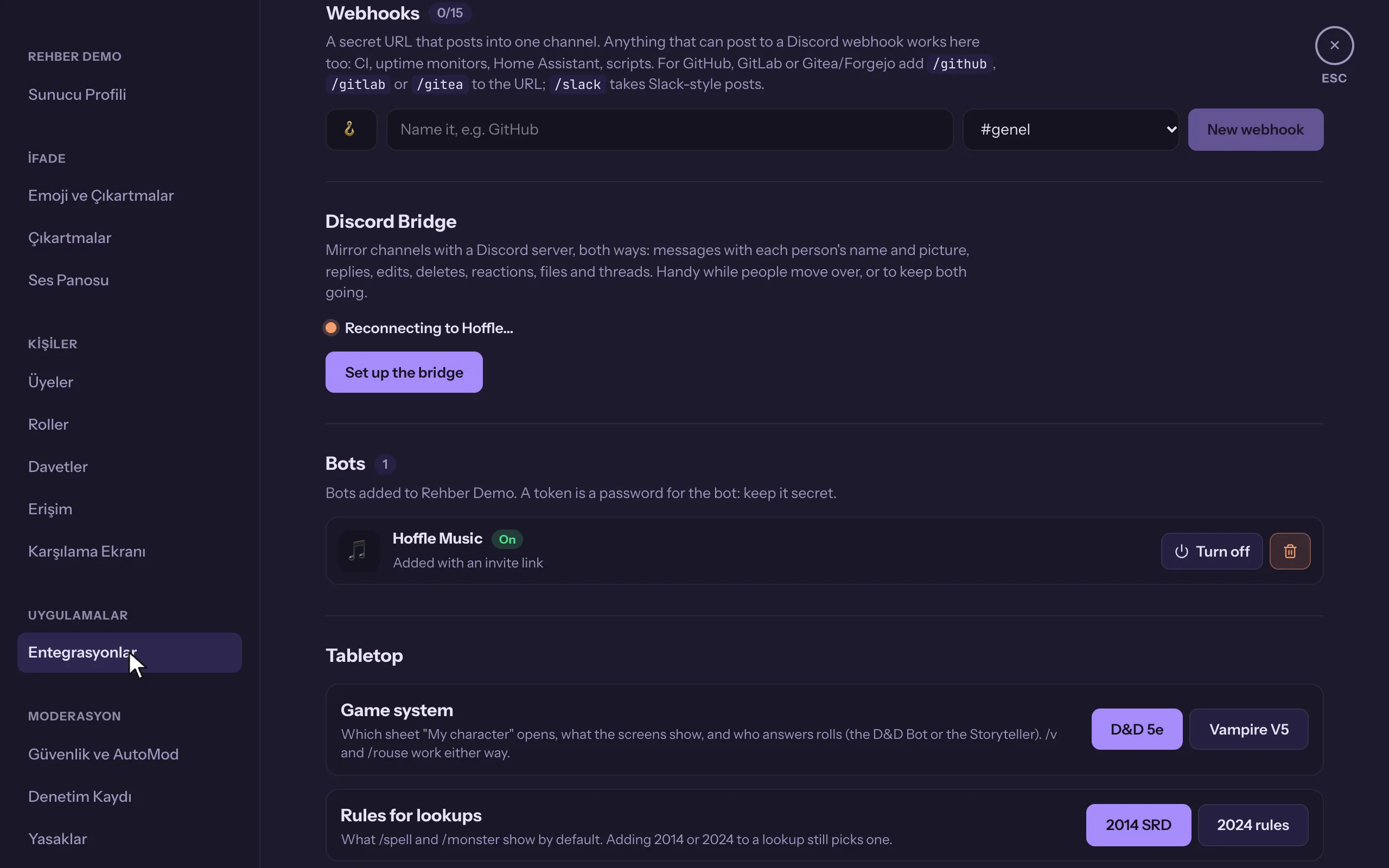
Bots in the server
The Bots section lists bots added to this server. Click Disable to pause a bot temporarily, or the trash icon to remove it completely.
There are three kinds of bots on Hoffle:
- Built-in bots: Music bot (music, DJ, Watch Together) and D&D bot. Add the music bot via its invite link, and the D&D bot with Add on the Integrations page. The D&D bot's web app is covered in Tavern.
- Bots built in the Developer Portal: Anyone can build a bot and share its invite link. A bot can only access servers it has been added to and only use the permissions granted there. No bot can read direct messages or kick/ban the server owner.
- Discord bots: Bots written with discord.js or discord.py work just by changing the URL they connect to (Moving from Discord).
When adding a bot, you can't grant it permissions you don't have yourself. The bot invite page shows every permission the bot asks for—only add bots you trust.
Building your own bot
- Open the Developer Portal via Your own bot → Open (or at
chat.hoffle.online/hangout/developers). - Give your bot a name and click Create. Copy the Token—it's shown only once, though you can reset it if you lose it.
- Under Invite link, pick the permissions your bot needs and share the link.
- While Public bot is on, anyone with the link can add the bot; when off, only you can add it.
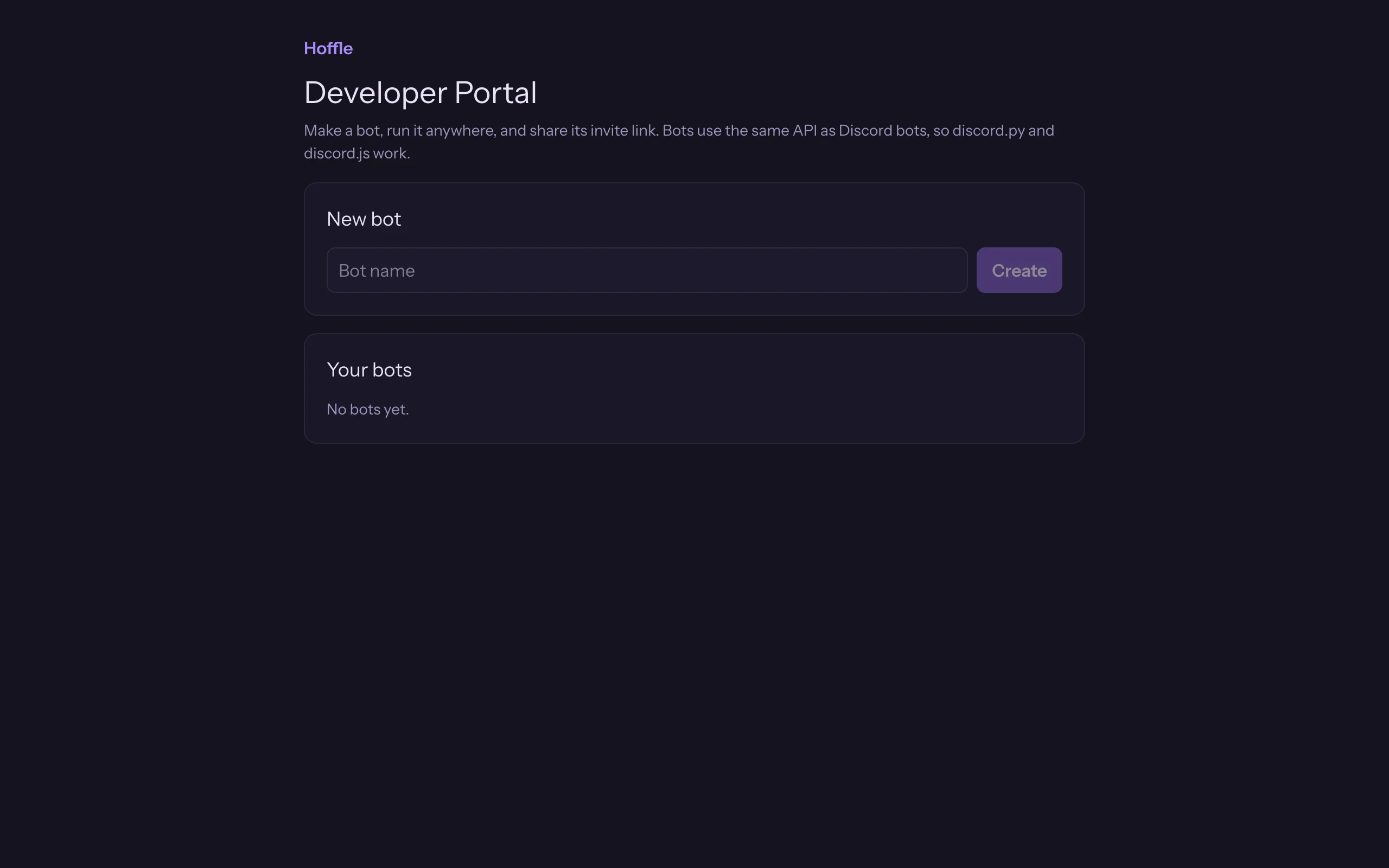
Bots can register slash commands (shown in Hoffle's / menu), send messages with buttons and select menus, and even add custom pages to a voice room's Activities menu. Full developer docs: hoffle.online/docs/bots.
Minecraft server widget
If your group runs a Minecraft server, enter its address and port in Minecraft server at the bottom of the Integrations page. The channel list above your voice controls will show who is playing. If you also enter the RCON port and password, members with Manage Server can send commands to the server right from Hoffle. Click Save to apply.